How do I schedule a video call?
Use the schedule when the call is not needed right now: for a specific time, by a recurring rule, or through patient selection of an available slot.
How do I open the video call schedule?
Click Video call schedule. The window contains Schedule, Calls, and History tabs.
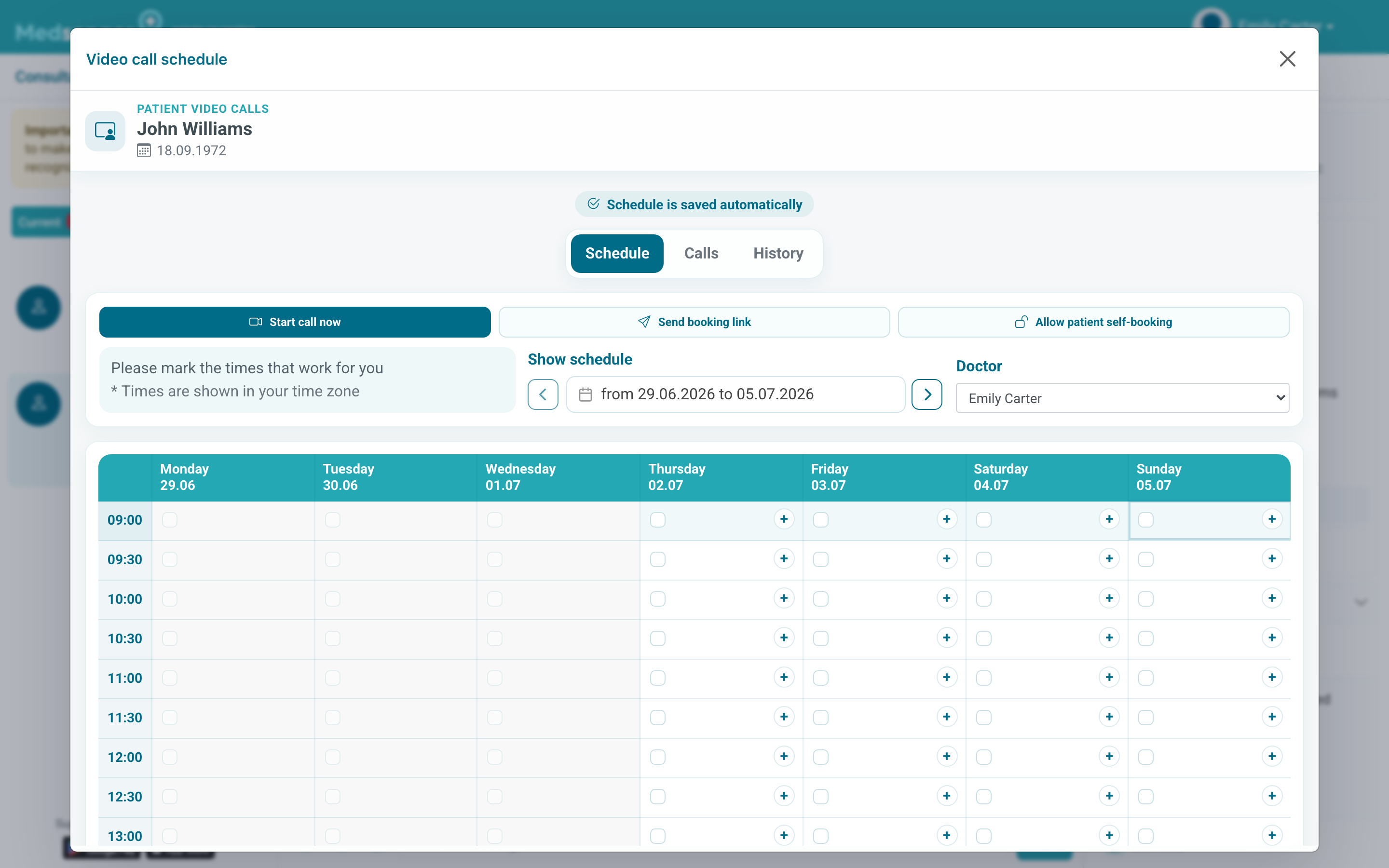
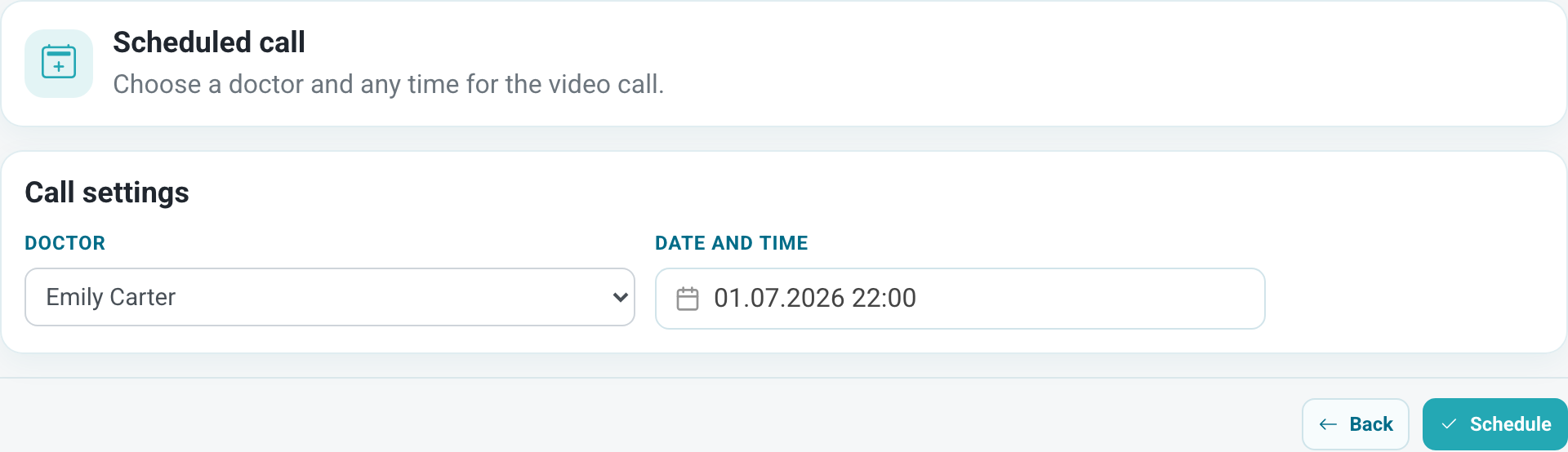
On the Schedule tab, the doctor marks available slots, sends the patient a booking link, and enables or disables patient self-booking. The Calls tab shows current, recurring, and scheduled calls, and History shows past calls and recordings.

How do I schedule a call for a specific time?
If the time has already been agreed, open Calls and click the add button in Scheduled calls. In this scenario, the patient does not choose a slot: the doctor immediately creates a call for a specific time.
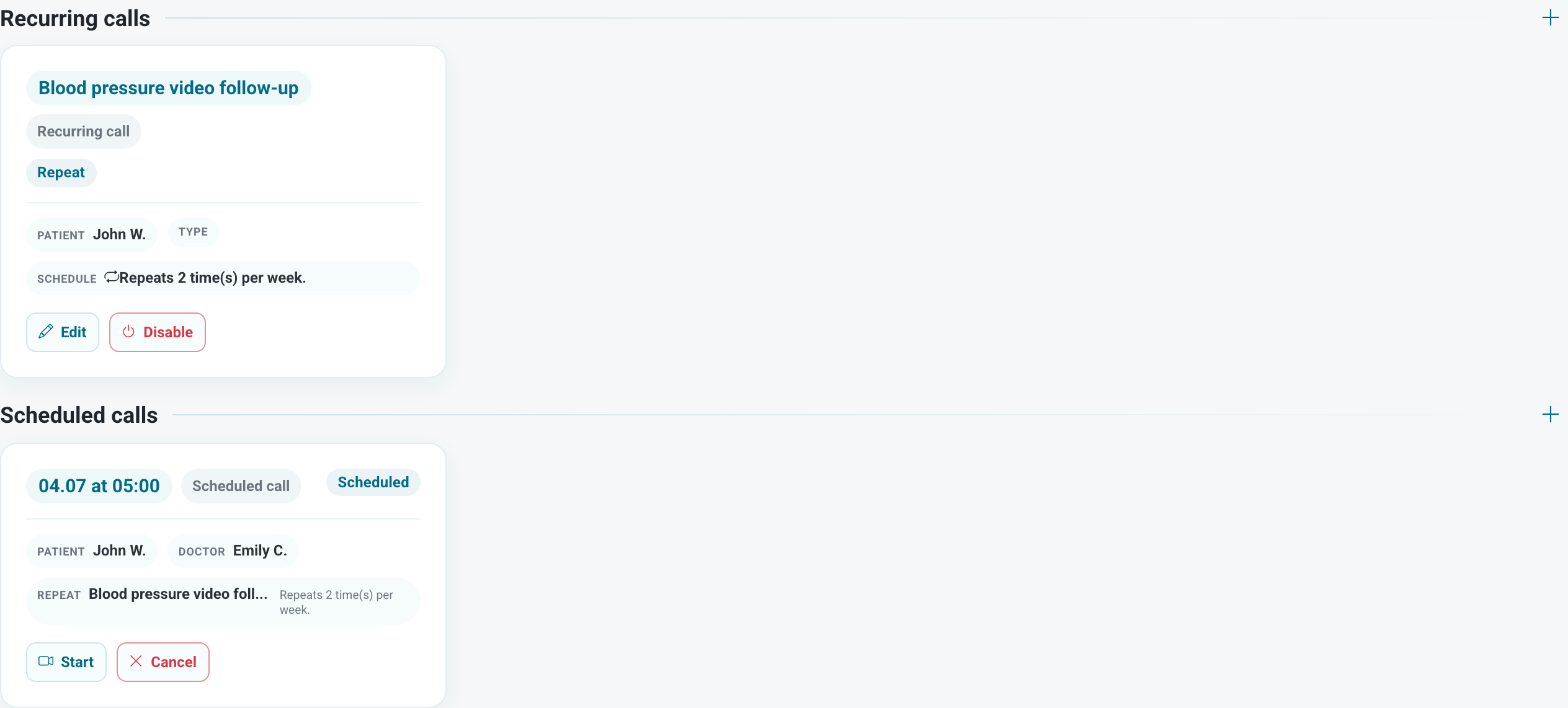
In the form, choose the doctor and date with time. After saving, the call appears in the scheduled list; when the time comes, it can be started from the call card.
If another doctor should hold the call, check that the correct participant is selected.
If you need to call the patient regularly at the same time, use a recurring call if this option is available in your clinic. A one-time scheduled call is suitable for one specific meeting.
After creating a scheduled call, check whether a message appeared in the patient chat. If the time changes, cancel or move the old booking and send the patient new information: several links in the chat are easy to confuse.
How do I let the patient choose time from the schedule?
If the patient should choose one of the available slots, first mark free time in the schedule table. Changes are saved automatically.
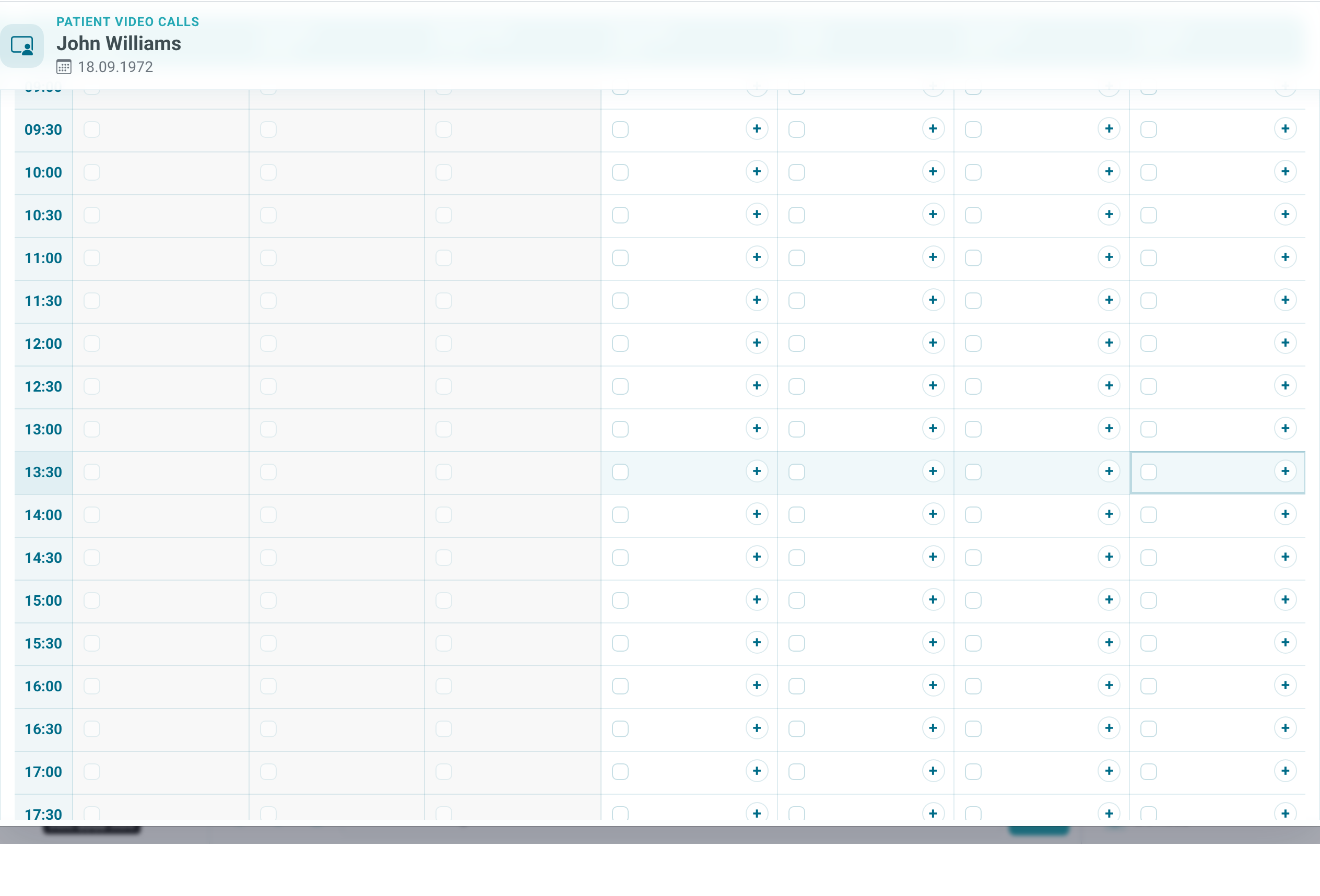
A free slot is time available for booking. A scheduled call is already occupied time with a specific patient. When the patient chooses a slot, it becomes a scheduled call.
Then click Send booking link. The patient will receive a chat link for choosing time from available slots. This option is convenient when you need to offer several times but do not want to open permanent self-booking.
Before sending, check that the schedule really contains free slots on suitable dates. If there are no slots, the patient can open the link but cannot choose a time.
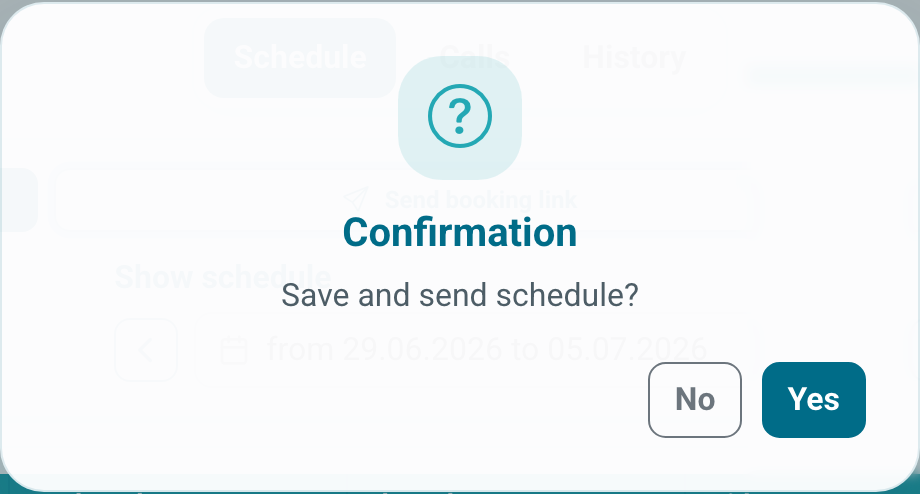
How do I open patient self-booking?
If the patient may book independently without a separate link, click Allow patient to book independently. After confirmation, the patient can open the schedule from their consultation and choose an available time.
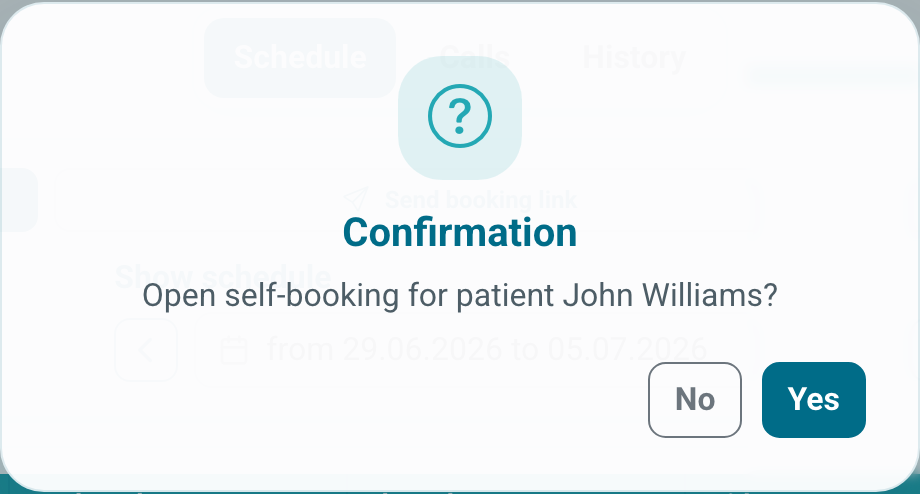
When self-booking is already open, the same button can disable booking. Use it if the patient should no longer choose time independently or the schedule is temporarily outdated.
If you change the schedule, check already scheduled calls: they may remain in the list separately from free slots.
If a call is no longer needed or was created by mistake, finish or cancel it from the call list. When ending a current call, Medsenger may remove link messages from chats so the patient does not use an outdated link.