How do I connect monitoring?
Monitoring is connected to a consultation through a scenario. A scenario adds what is needed for observation: patient tasks, charts, reminders, and alerts for deviations.
What is a monitoring scenario?
A scenario is a ready-made observation program for a task, diagnosis, or support format. It helps quickly connect the needed questionnaires, medications, examinations, and rules.
If the patient needs arbitrary questionnaires from scratch, choose Personal scenario. It fits cases where a ready-made observation program is not needed and the doctor wants to build tasks for a specific patient.
Before connecting, check that the scenario fits the patient: which buttons will appear for the doctor, which tasks the patient will receive, and which data will be collected.
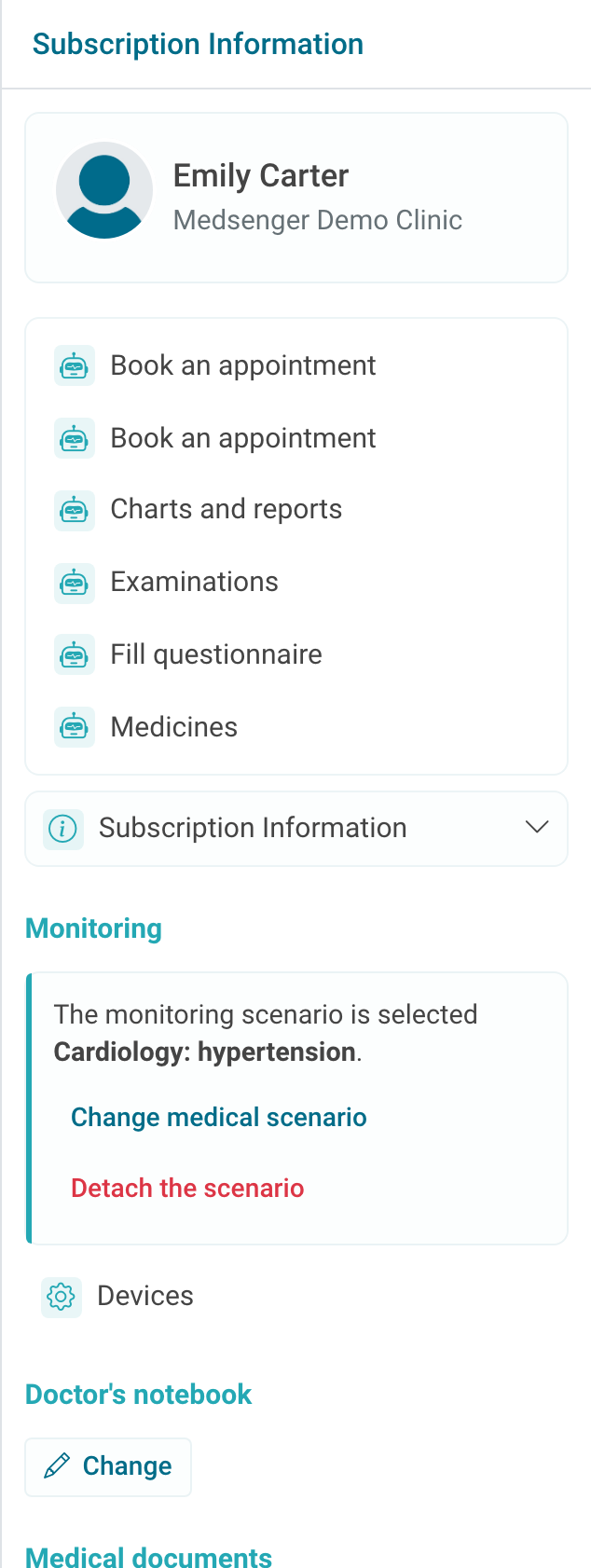
If a scenario is already connected, its name is shown in the right consultation panel. Actions for changing or disconnecting the scenario may also be there if they are available in the clinic.
How do I open scenario selection?
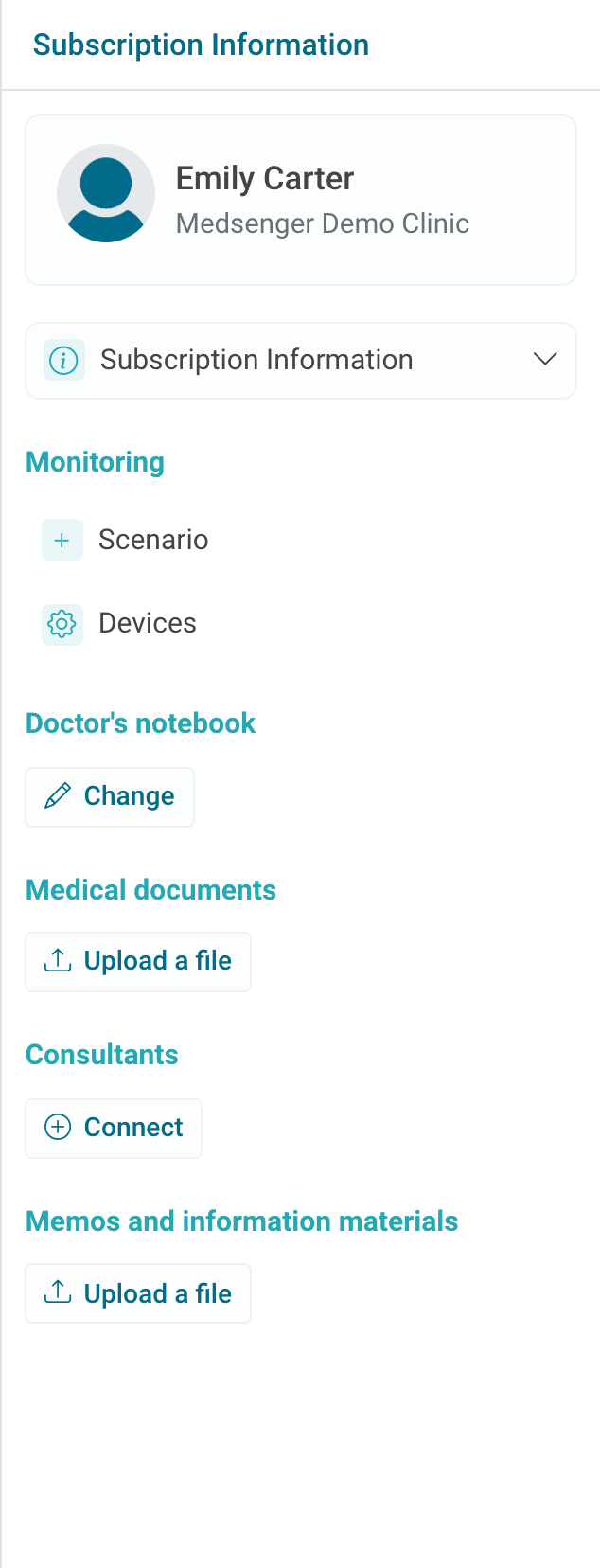
Open the patient consultation and find the Monitoring block in the right panel. If no scenario is connected yet, click Scenario.
The Monitoring scenario selection window opens. It shows clinic scenarios, categories, and short descriptions.
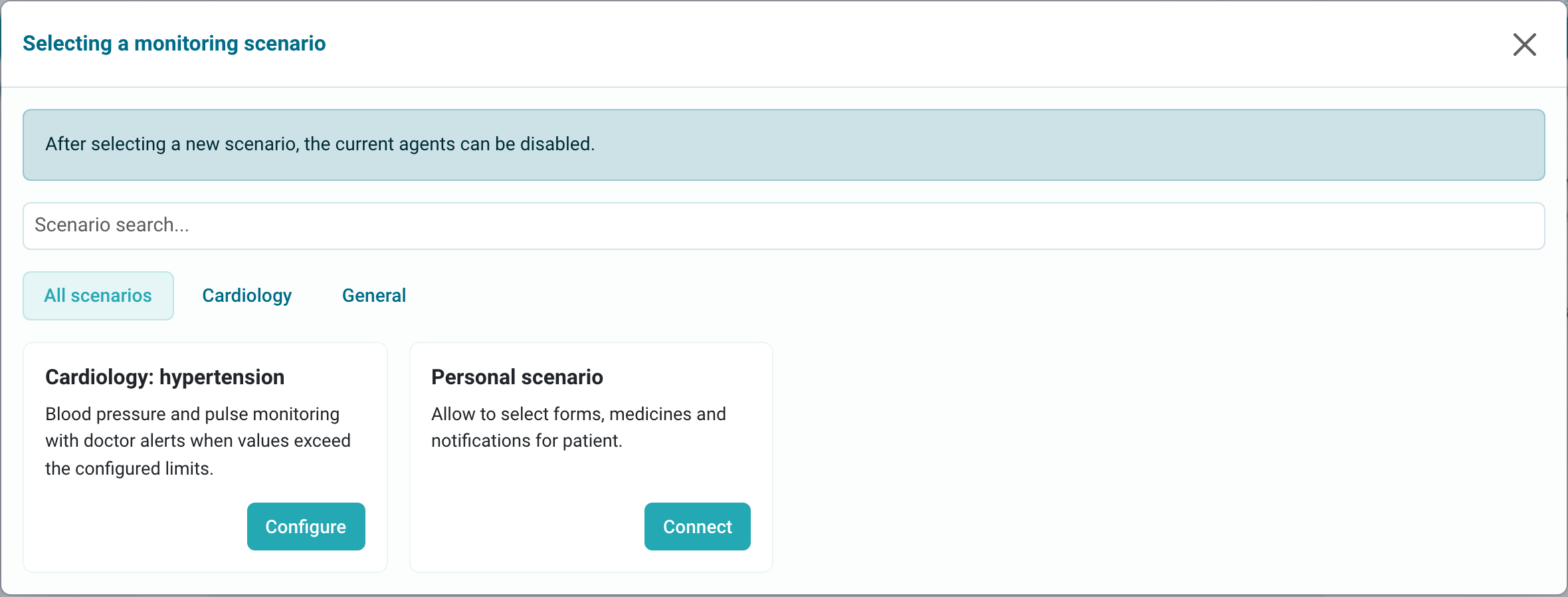
If the needed scenario is not in the list, do not connect a similar scenario without checking. First clarify whether the needed scenario is available in your clinic and suitable for the patient. A similar name does not guarantee the same questionnaires, charts, and alerts.
If your clinic provides access to the editor, you can create your own scenario.
How do I configure the scenario before connecting?
Some scenarios have the Configure button. Click it, check parameters, and fill required fields. These may be measurement thresholds, task frequency, or rules by which the system will monitor the patient's condition.
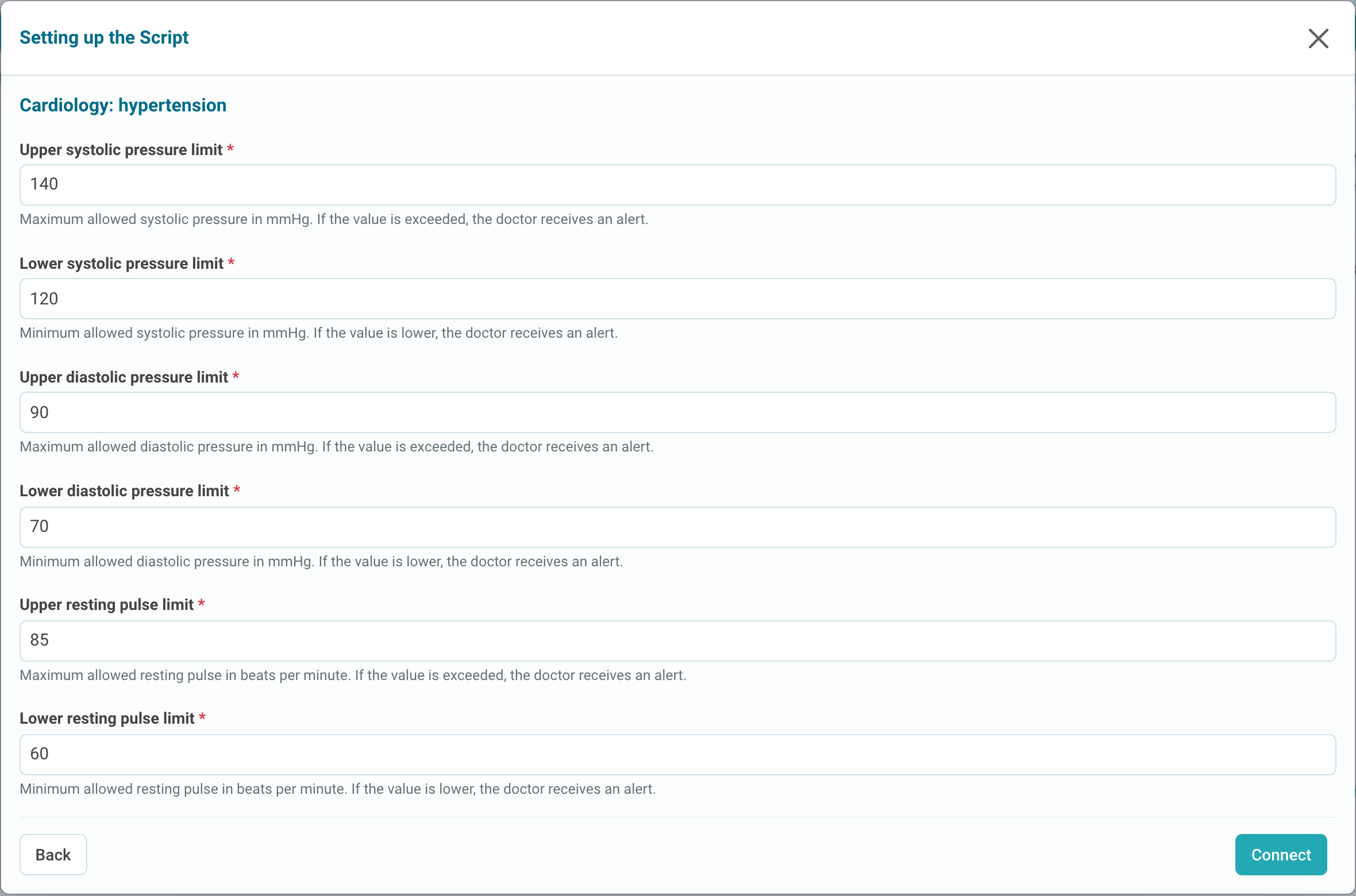
After checking, click Connect. If the scenario has no additional settings, the Connect button may be available directly in the scenario list.
If you change an already connected scenario, read the warning in the selection window. Old automatic tasks may be disabled and replaced by tasks from the new scenario. Before changing, check active tasks so the patient does not receive conflicting instructions.
After connection, check that the needed buttons appeared in the consultation and that the patient received the needed tasks. See details: what to check after connection.