How do I create my own questionnaire?
Create your own questionnaire only if there is no suitable form in the catalog. For typical tasks, first use the clinic's ready-made questionnaires: questions, schedule, and result storage are already configured there.
Open Questionnaires and algorithms, click Add questionnaire, then Add your own questionnaire.
How do I fill in main parameters?
In Questionnaire parameters, fill in the title, description for the patient, and short description for the doctor. If the patient needs an explanation of why the form was sent, add a welcome message. The text after successful completion is shown to the patient after sending answers.
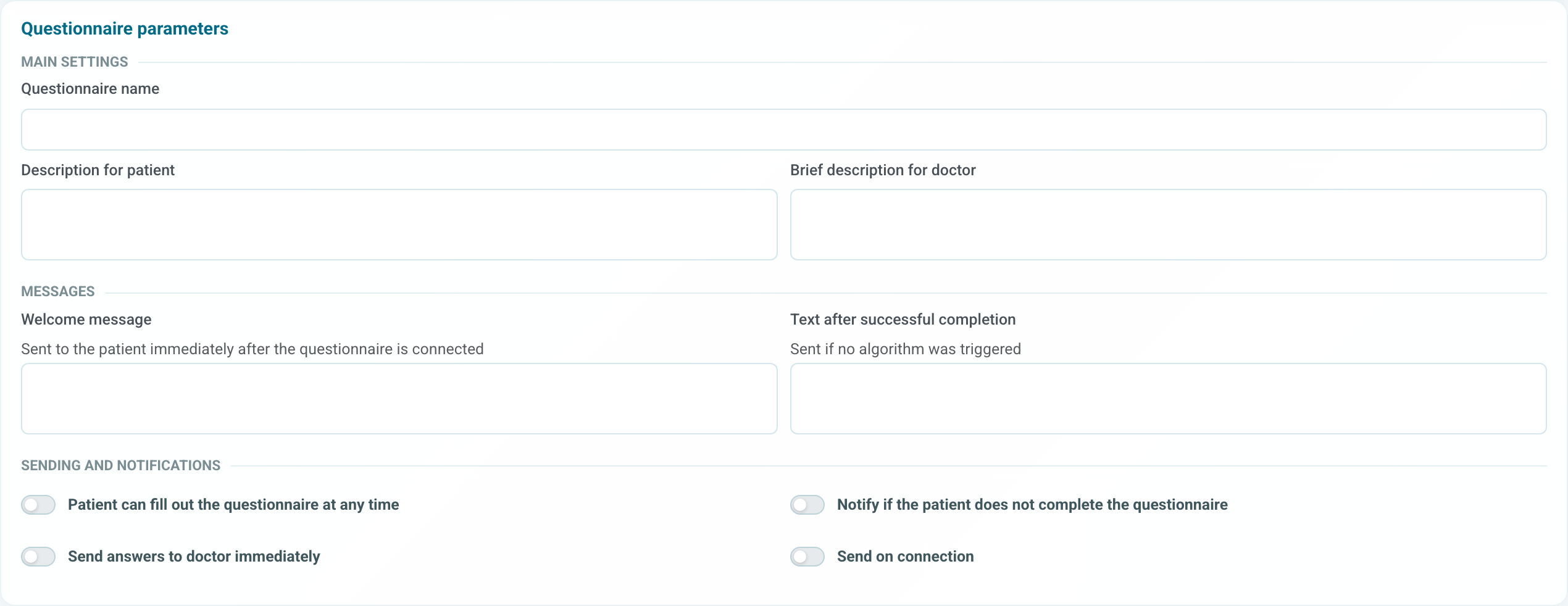
Check the switches separately:
- Patient can fill in the questionnaire at any time: the form will be available without waiting for the next schedule.
- notification about an unfilled questionnaire: the doctor will receive a message if the patient misses the form.
- Send answers to the doctor immediately: answers will arrive to the doctor immediately after completion.
- Send on connection: the patient receives the form immediately after assignment.
How do I configure the schedule?
In Schedule, choose the sending mode. For regular questionnaires, specify hours and minutes; if several sends per day are needed, add several times.

If the questionnaire should be filled in only manually, leave Filled in manually. If the form is needed on specific dates, choose the date and time mode.
How do I add questions?
Click Add question. For each question, fill in text, answer type, explanation, and category code if the answer should be saved to the medical record, charts, or reports.
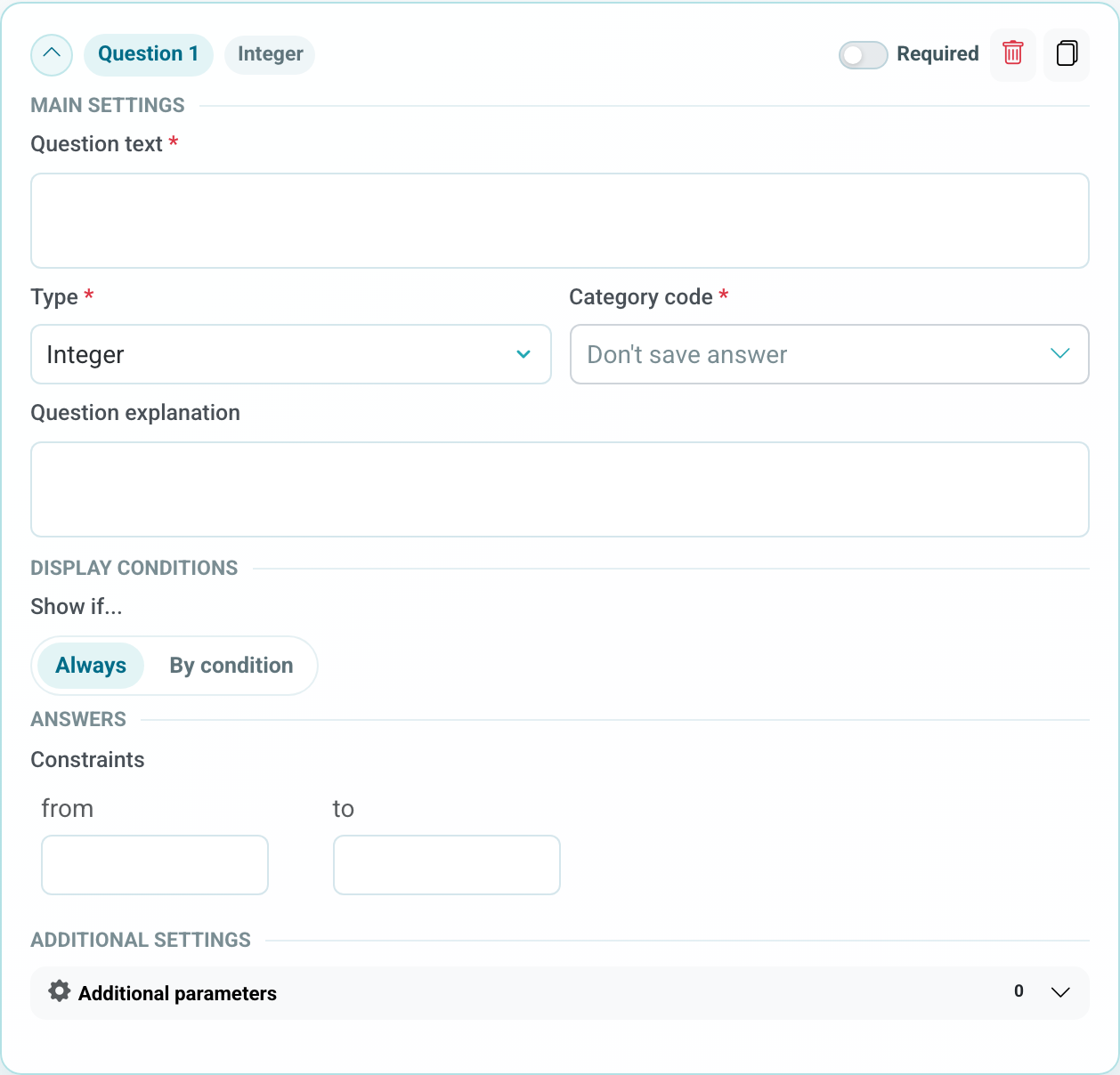
If the question requires a number, phrase it so the patient enters the number itself, not a comment. For complaints, clarifications, and free description, use a separate text question.
Common types:
- integer or decimal number: for indicators that should appear in charts;
- text or long text: for complaints and descriptions;
- single choice: for symptoms, scales, and short surveys;
- file: if the patient should attach a document or photo.
What should I check before saving?
Check title, patient text, schedule, required questions, and answer storage. If data should appear in reports, questions must have the correct category code selected, not Do not save answer.
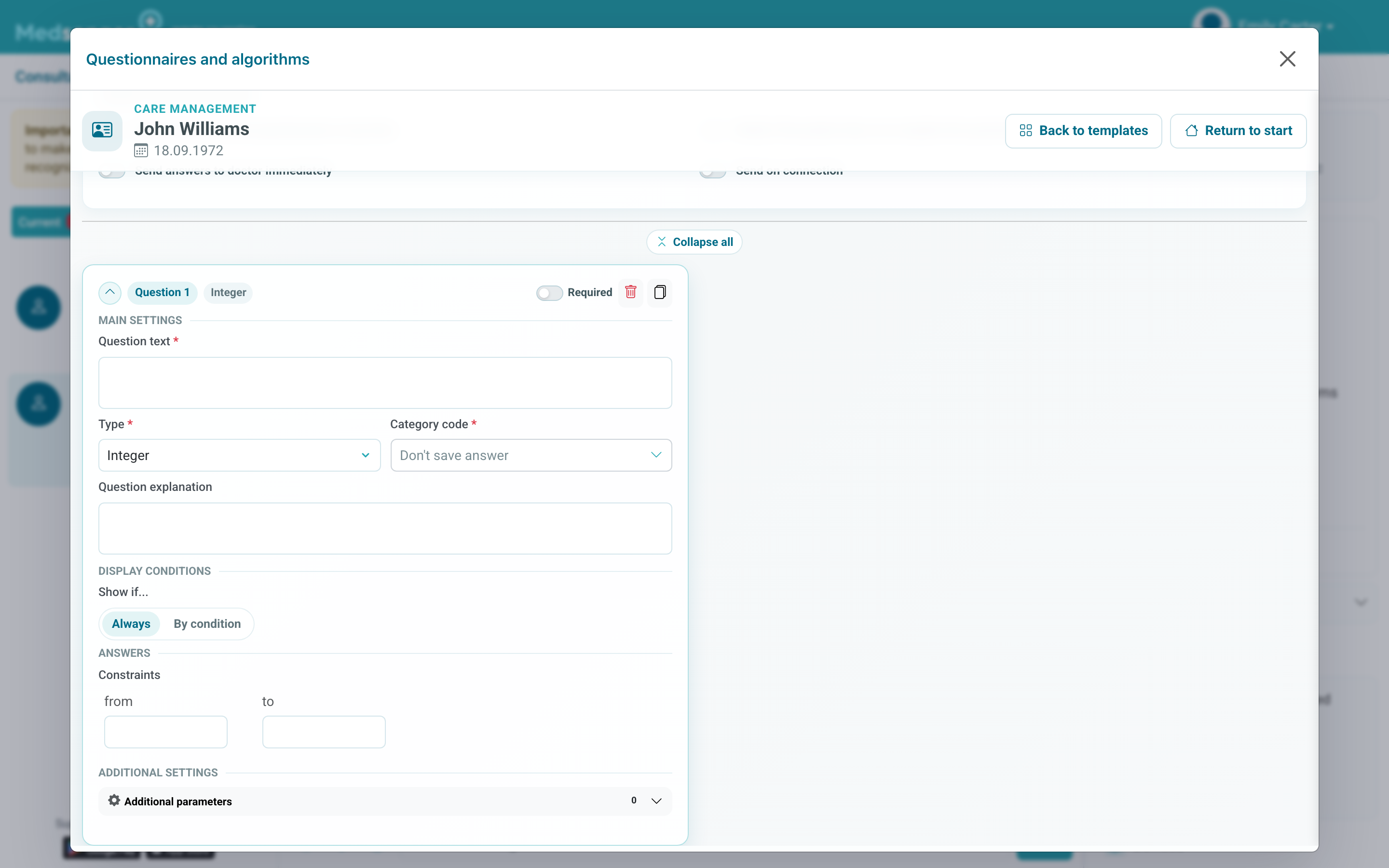
After clicking Save, check that the questionnaire appeared in the assigned forms list. If the form is sent by schedule, make sure the patient will not receive duplicates from the monitoring scenario or another manual assignment.