How do I check devices?
Remote monitoring devices are connected to a specific consultation so measurements go to the correct doctor and appear in this patient's data.
The Devices button appears in the Monitoring block if this section is available for the consultation.
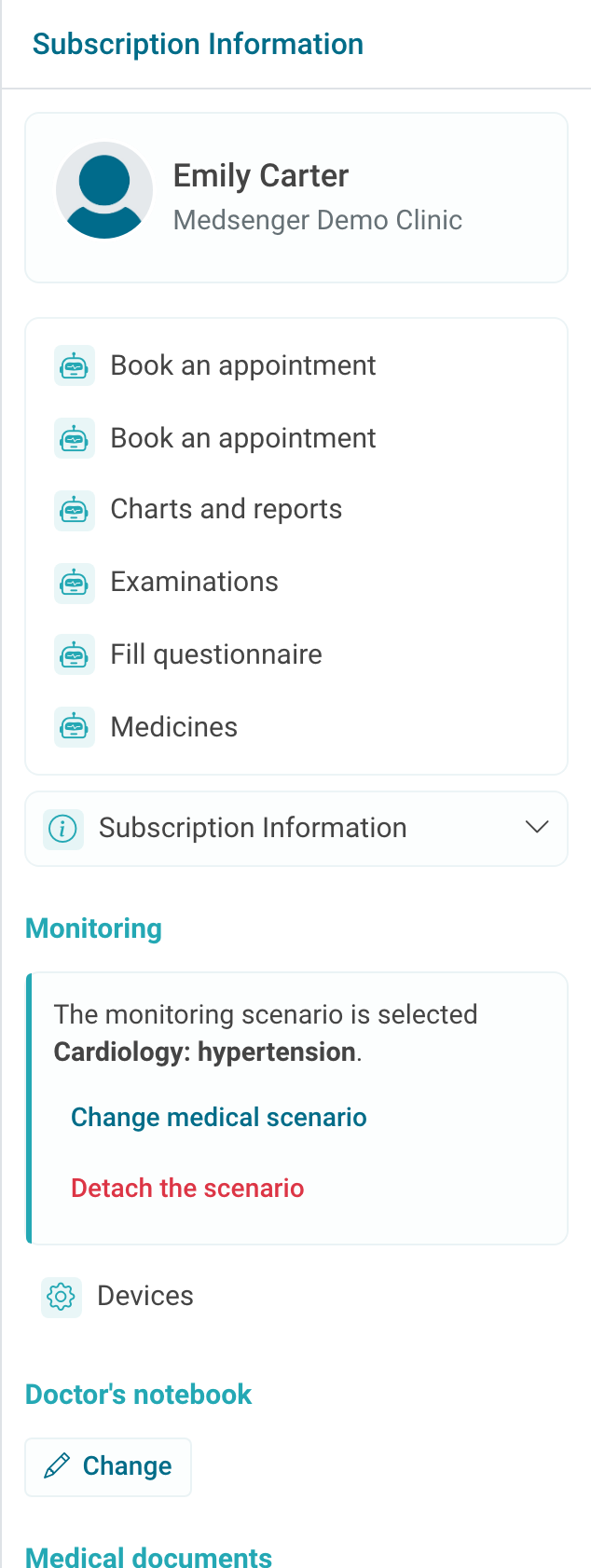
If the patient received a device from the clinic, make sure it is connected to this consultation and the patient understands how to send measurements.
It is important to distinguish two states: the device may be linked to the patient, but no data may have arrived yet.
For the first check, ask the patient to take a test measurement and check whether it appeared in charts or reports. If the indicator should appear in a specific chart, check the selected period in advance.
If the patient uses the device mobile app, clarify that the measurement reached the manufacturer's app or data transfer service. Medsenger shows the result only after successful transfer, not immediately after the physical measurement on the device.
If indicators do not appear, check the date of last transfer, selected chart period, device type, and which consultation it is linked to.
If indicators still do not appear after checking, contact Medsenger support. Specify patient full name, device type, time of the test measurement, and where you expected to see the indicator.