A video call does not start
First identify where the problem occurs: the video call button is missing, the video service window does not open, the browser does not allow device access, or the patient cannot join by link.
Check camera and microphone
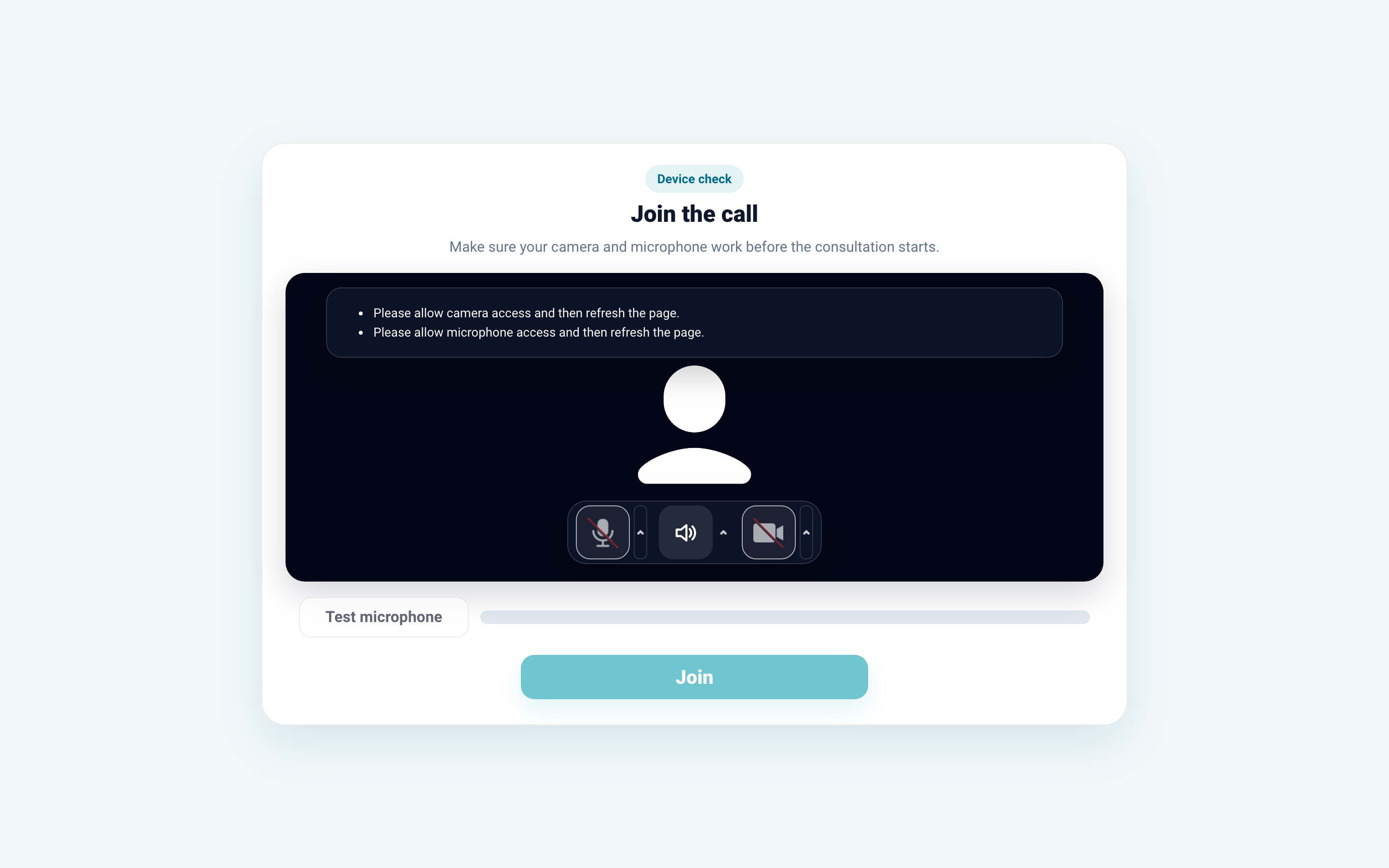
Allow camera and microphone access in the browser, close other apps that may use the camera, and open the link again.
If the browser remembered a denial, change site permissions in browser settings and reload the video service page.
If the wrong device is selected, open video service or browser settings and choose the correct camera, microphone, and speaker. For checking, you can reopen the link after changing the device.
Check link and schedule

If the patient does not join, send them a new link from the chat or schedule. If the call was scheduled, check the Calls tab, consultation time, and whether the patient received the latest link.
If the video call button is missing, check that the correct consultation is open and a video service is connected for it. If the button was there before and disappeared, check consultation period, doctor role, and clinic settings.
If the error repeats, contact Medsenger support. Specify patient full name, error time, browser, and which action did not open: instant call, scheduled call, or schedule.
After fixing the error, create a new link or check the call schedule: how to schedule a video call.