How do I assign a questionnaire?
It is better to assign a questionnaire from the clinic's ready-made form catalog. This reduces the risk of mistakes in questions, answer storage, and related charts.
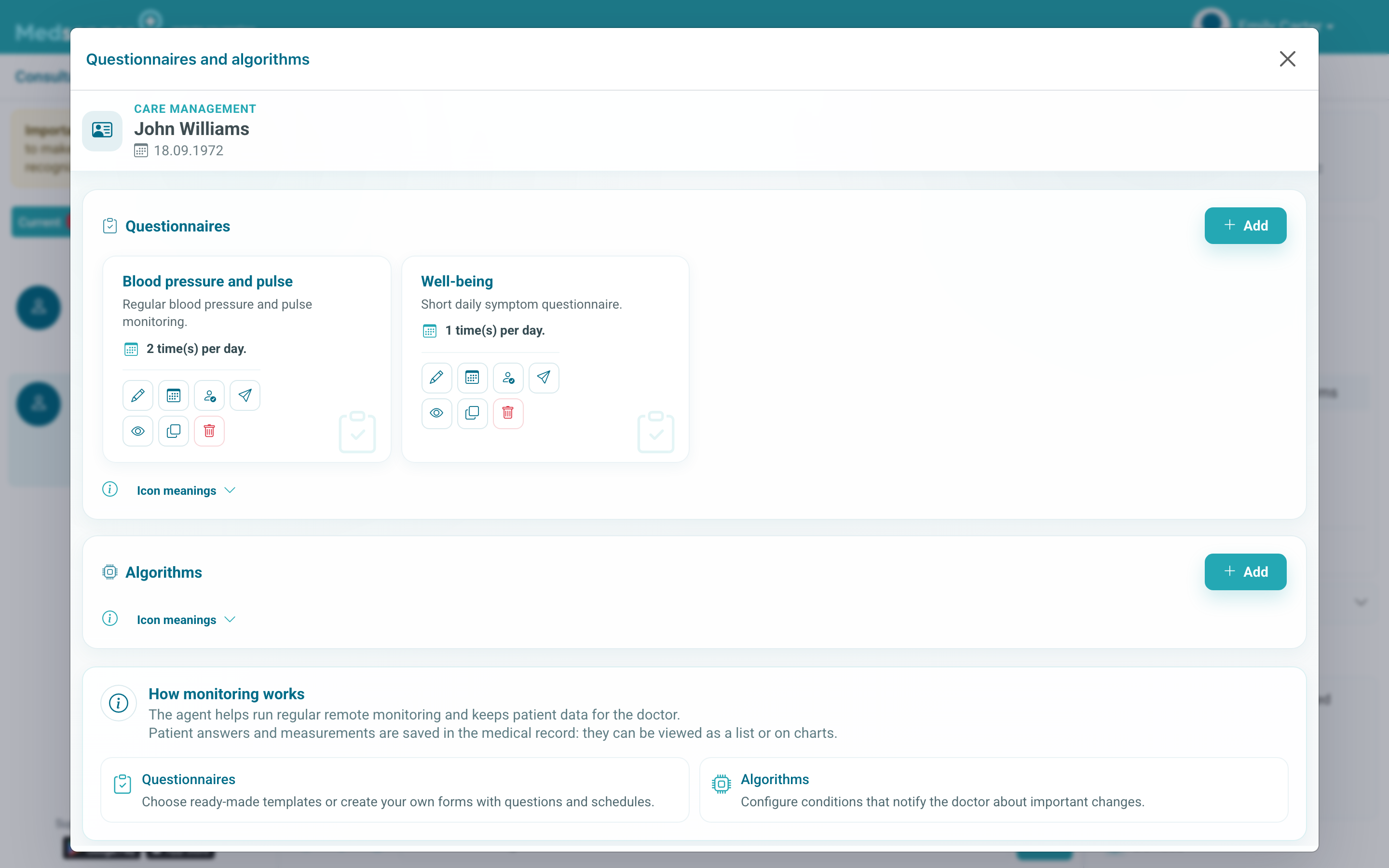
Open the patient and click Questionnaires and algorithms in the right consultation panel. The first screen shows questionnaires and algorithms already assigned.
How do I choose a questionnaire from the catalog?
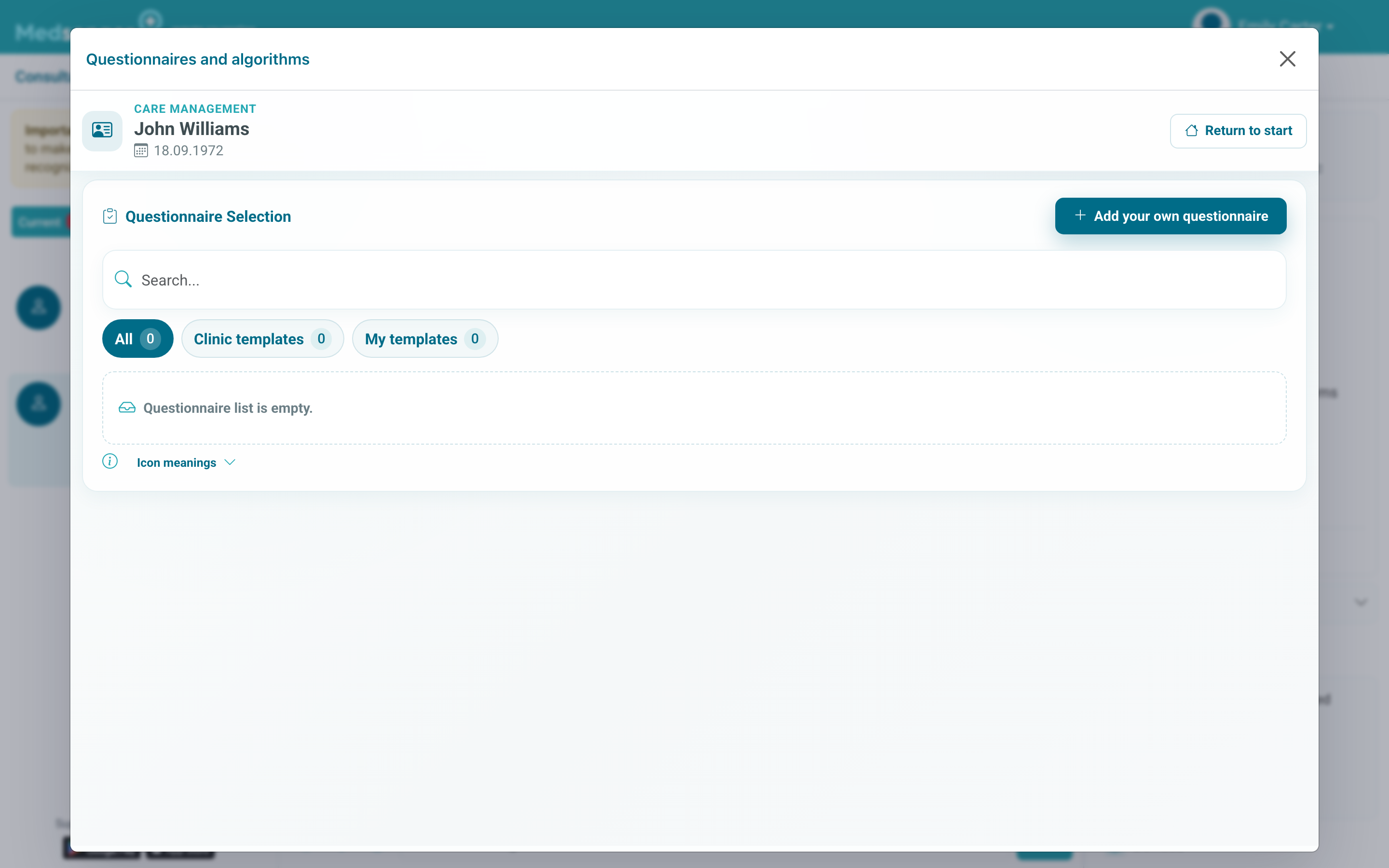
Click Add questionnaire. The catalog opens: use search, category tabs, and questionnaire cards. The card shows the name, short description, schedule, and related algorithm if there is one.
Open Actions for the suitable form and choose Connect. After connection, the questionnaire appears on the main Questionnaires and algorithms screen for this consultation.
If the form is not in the catalog, do not create a similar one manually unless necessary. First check whether the needed form exists in another category or monitoring scenario. For an arbitrary set of questionnaires, you can use Personal scenario. If a new form is needed from scratch, use the separate guide: how to create your own questionnaire.
How do I configure the schedule?
Open Actions for the assigned questionnaire and choose Change schedule. In the schedule, choose the sending mode: manually, daily, weekly, monthly, on specific dates, or every few days. For regular sending, specify the time and add several sending times if needed.

Before regular sending, check frequency and time: the patient should not receive several identical tasks from different scenarios or manual schedules.
After assignment, check whether the questionnaire appeared in the patient's chat or schedule. Look for results where the form saves them: in the medical record, charts, reports, or chat.
If the patient says the form opened but the doctor does not see the result, first check the report period and question type.