How do I add a patient or consultation?
In Medsenger, a patient is added when a consultation is created. If the patient's profile already exists in the system, the new consultation is linked to it. If there is no profile, the system creates the patient and sends an invitation to the specified email. In some clinics, an invitation can be sent by phone through SMS.
The add button appears only for doctors whom the clinic allowed to create patients or consultations. If there is no button, a clinic employee with the required permissions creates the consultation.
Where do I open adding?
Click the plus button in the consultation list header. It opens the Add patient window.

If you work in several clinics, first choose the organization. The list contains only clinics where your role is allowed to add patients.
How do I find or create a patient?
At the first step, enter the patient's email. If SMS invitations are enabled in the clinic, you can enter a phone number instead: the window will show a separate phone field. This option is enabled for the clinic separately and requires SMS payment.
Email or phone is needed not only for search: the patient will receive the invitation through this contact and will then use it to log in to Medsenger.
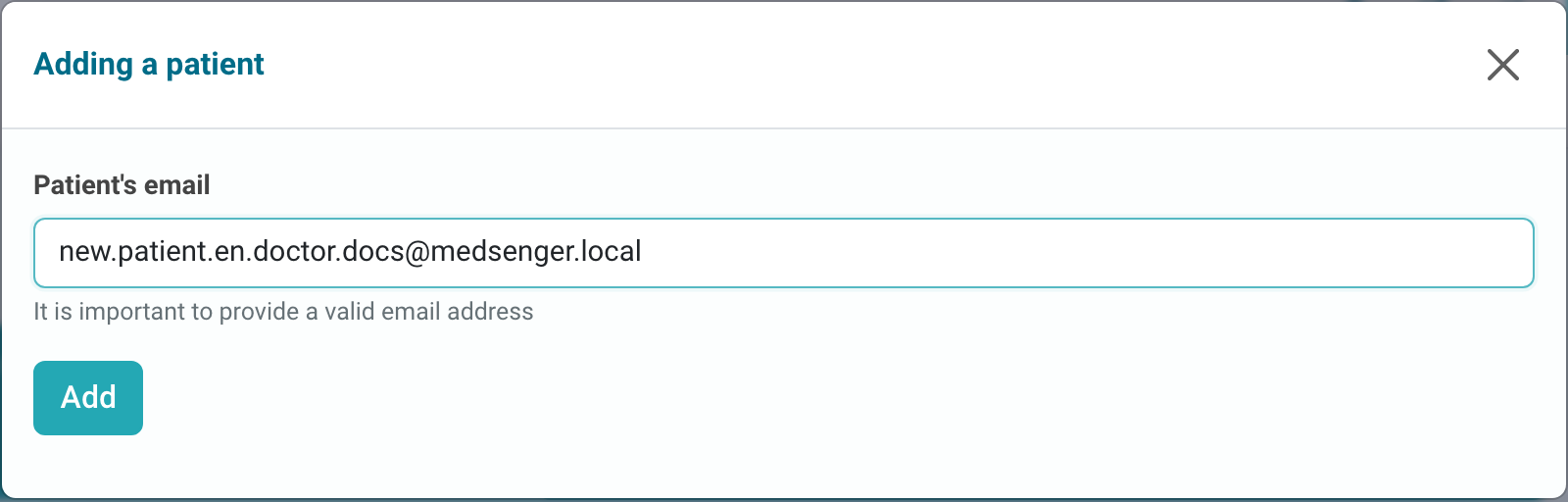
Click Add. Medsenger checks whether a patient with this contact exists. If a profile is found, check full name and date of birth so you do not link the consultation to another person. If there is no profile, the new patient form opens.
Do not use someone else's or a shared email: after activation, this contact becomes the patient's login. If the patient prefers phone access, make sure SMS invitations are enabled for the clinic. If the phone field is not shown at the first step, you cannot add a patient by phone from this window.
What patient details should I fill in?
For a new patient, fill in full name, sex, and date of birth. If the patient is added by email, phone can usually be left empty: it is needed only if the clinic requires it for its processes. The email or phone from the first step is used as the invitation contact.
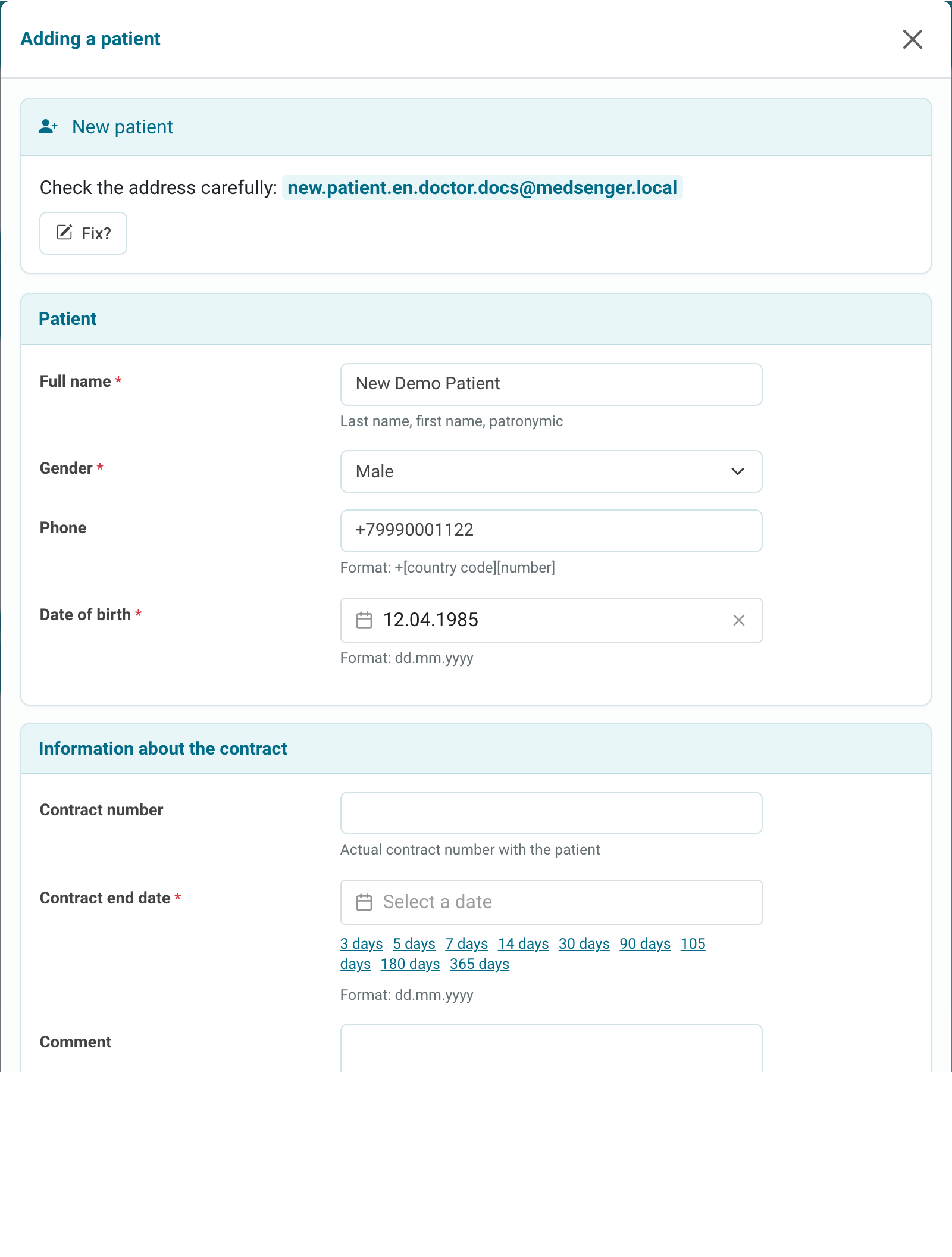
Check the contact especially carefully: if the email or phone contains an error, the patient will not receive the email or SMS for account activation and will not be able to log in with the correct login.
If the patient already exists in the system, do not change the contact in a hurry. First make sure this is the same person and the clinic really wants to use the new login method.
How do I fill in consultation parameters?
In the Contract information block, specify contract number, end date, response rule, consultation type, and an internal comment if needed. If the contract number is not specified, Medsenger will choose it automatically. In this window, contract means the consultation being created. The field set depends on clinic settings.
Some clinics additionally show delayed consultation activation, video call option, or patient identification fields. Fill in only the fields that apply to the selected workflow.
These parameters define the patient's access period and the doctor's working conditions in this consultation.
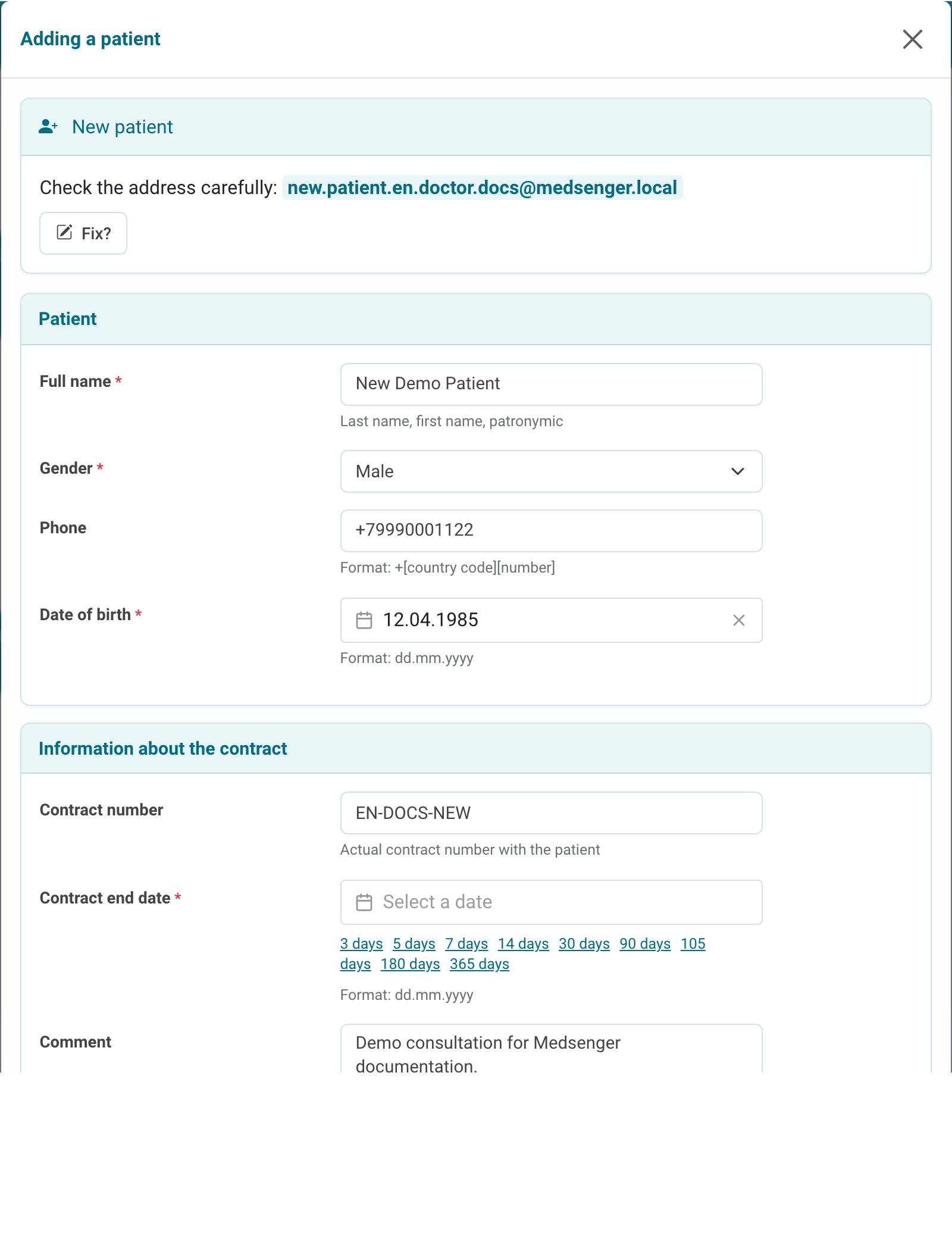
After clicking Add, the consultation appears in the list and the patient receives an activation invitation. Open the created consultation and check access period, response rule, needed actions in the right panel, and patient activation status.
If the consultation was created as delayed, its dates will be adjusted after patient activation. Until then it may not look like a regular active consultation.
If the system says that a consultation with this patient is already open, do not create a new record manually. Find the patient in the list or contact the clinic employee who manages consultations.