Where can I see terms and actions?
After selecting a patient, the right panel shows consultation terms and available actions. Here you can see the access period, response rule, consultation type, and connected sections.
Where can I see consultation terms?
Open the Subscription information block. This is the card of the selected consultation: it shows number, validity period, patient details, response rule, consultation type, and additional parameters if configured by the clinic.
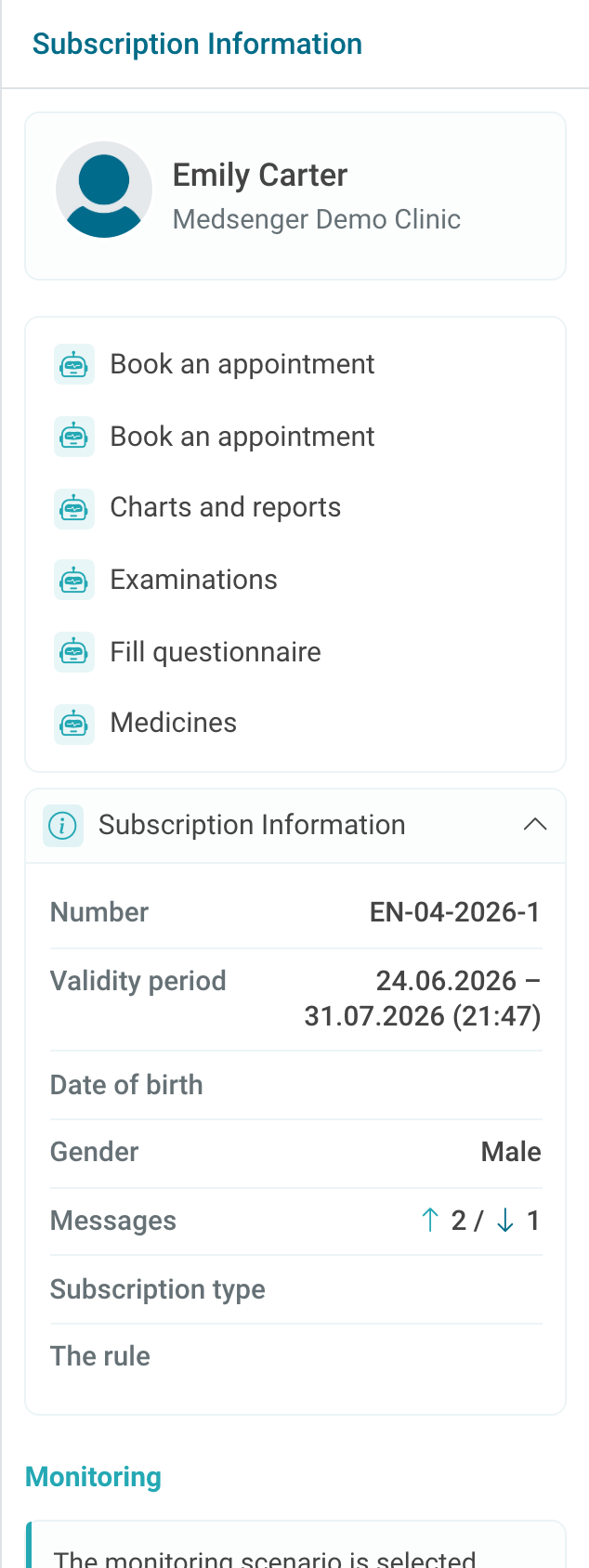
If the patient writes that the consultation is unavailable, check validity period, consultation status, and archive. Completed consultations remain available for viewing.
In an archived consultation, the input field and work actions are limited. If the consultation still requires a final answer or doctor's conclusion, it may remain in the current list until this action is completed.
Usually, a patient has only one active consultation with one doctor. A direct doctor-patient chat and a consultation where the same doctor is connected as an assistant may appear separately. In that case, check the doctor's role and consultation period: documents, monitoring, and response rule belong to the selected chat.
What actions are available on the right?
The right panel may contain actions for charts, questionnaires, medications, examinations, reminders, video calls, documents, and consultation period management.
Choose the action according to the task: answer the patient, view data, assign a task, add a document, or change the access period.
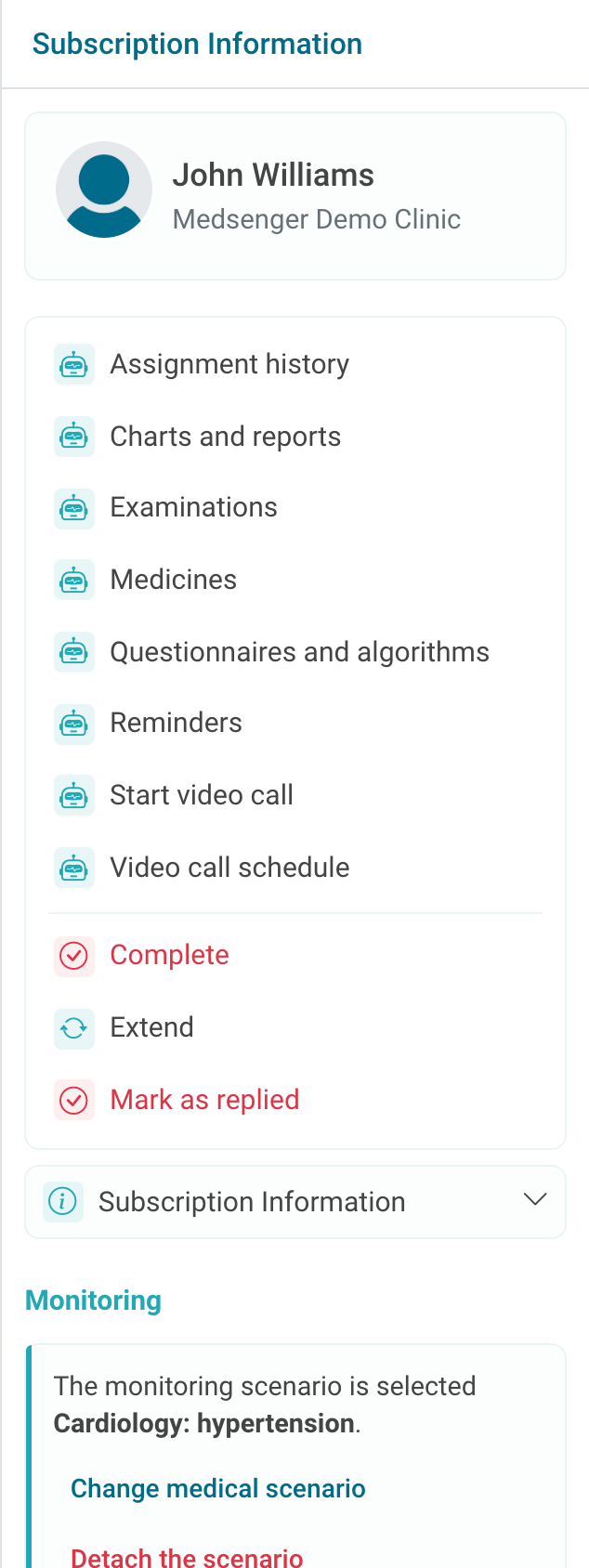
If the needed button is missing, check whether the correct patient is selected, whether the consultation is active, and whether the needed scenario or device is connected. If the scenario is connected but the button did not appear, refresh the page and check access permissions for your role.
Which actions depend on clinic settings
Some consultation actions are available to the doctor only if they are enabled in the clinic. If an action is disabled for the doctor's role, the button is not shown, and a clinic employee with the required permissions performs it. If the doctor needs this option regularly, ask the clinic administrator to enable it for your role.
These actions include:
- adding a patient or new consultation;
- extending consultation period;
- closing a consultation early;
- marking a message answered;
- changing consultation type.
If you expect to see one of these actions but the button is missing, contact the clinic administrator or the employee responsible for consultation settings. Specify patient full name, consultation number, and the action that should be available. This is not a login error: most often the action is not enabled for the doctor's role.