How do I extend a consultation?
Only an active subscription can be extended. This option must be enabled by the clinic's main administrator; if it is not enabled, the extension button is not shown.
If a new treatment episode starts or a new contract is needed, follow the clinic rules.
Where do I click Extend?
Open the patient and check the current period in Subscription information. If the subscription is active and extension is enabled for the clinic, the right panel shows the Extend button.

If the button is missing, check that the current consultation is selected, not an archived one. Extension may also not be enabled by the clinic's main administrator or may be unavailable for the selected consultation type.
How do I choose a new date?
Click Extend. In the extension window, select the new consultation end date and confirm with Extend.
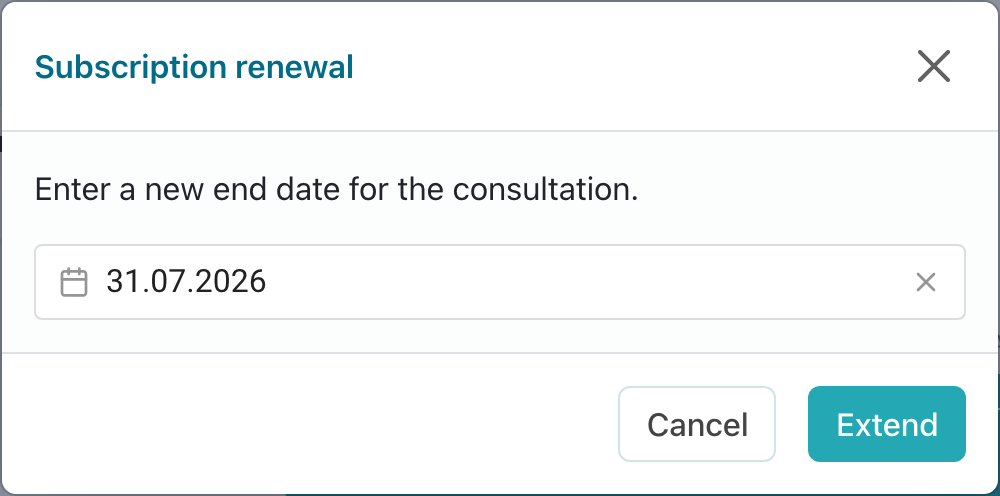
The new date must be no earlier than tomorrow in the clinic time zone. Choose a period that covers the actual support period: after saving, the patient will see the updated consultation end date.
After extension, check the period in Subscription information and make sure the consultation remains in the current list. If the patient already saw a notice that the consultation ended, write in the chat that access has been extended.
If the consultation has already ended and there is no extension button, contact the clinic employee who manages consultations. You can create a new consultation with the same patient or ask the clinic administrator to reactivate the old consultation if archived chat reactivation is enabled by the main administrator. After reactivation, check monitoring settings if monitoring was connected before.
Do not create a new consultation only to extend access until it is clear how the clinic handles contract, access period, and observation history.