Doctor notifications do not arrive
Notifications help avoid missing patient messages and response deadlines. If notifications do not arrive, first check where the problem is: email, mobile app, or consultation list.
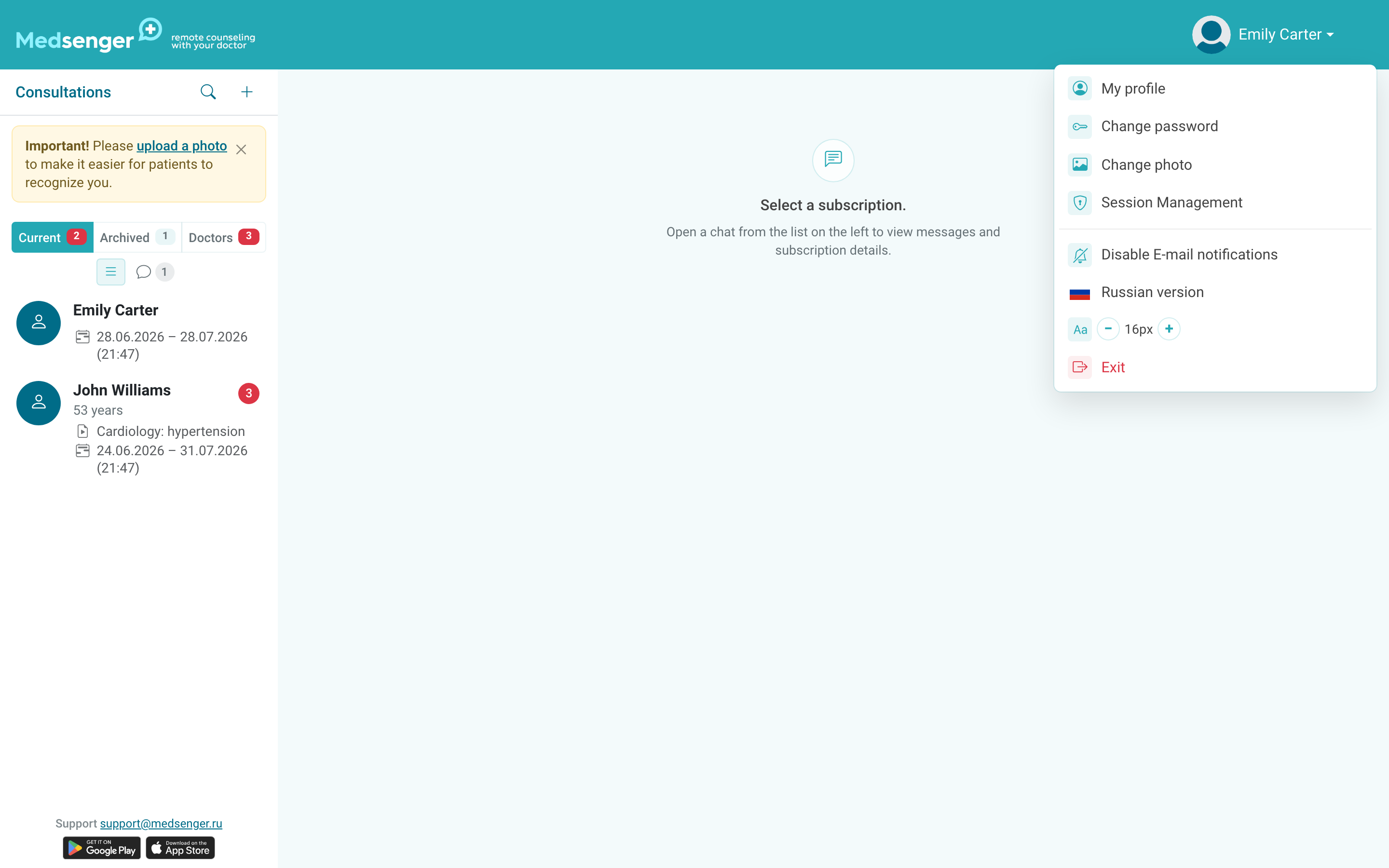
Email notifications.
In the doctor profile, check the correct email and email notification settings. If email notifications are disabled, emails about new messages will not arrive even for an active consultation.
Also check Spam and forwarding rules in the work mailbox.
Mobile app.
If you use the mobile app, make sure the account was activated from the clinic email and you are logged in with the same email. Then check push notification permission in phone settings, Do Not Disturb mode, and background app restrictions.
If push notifications do not appear after password update or device change, log out of the app and log in again. If this does not help, reinstall the app.
Consultation list.
Even if external notifications do not arrive, the consultation list in Medsenger remains the main work screen: check unread, unanswered, and overdue messages in the left column.
If notifications are needed for duty work, do not disable all channels at once. Email and push notifications may work independently: absence of email does not always mean push is broken, and vice versa.
If the problem repeats, contact Medsenger support. Specify doctor full name, account email, device, browser or app, approximate message time, and which channel failed: email or push.