How do I check task completion?
Open Assignment history if you need to understand which tasks and actions were already sent to the patient and what happened afterward.
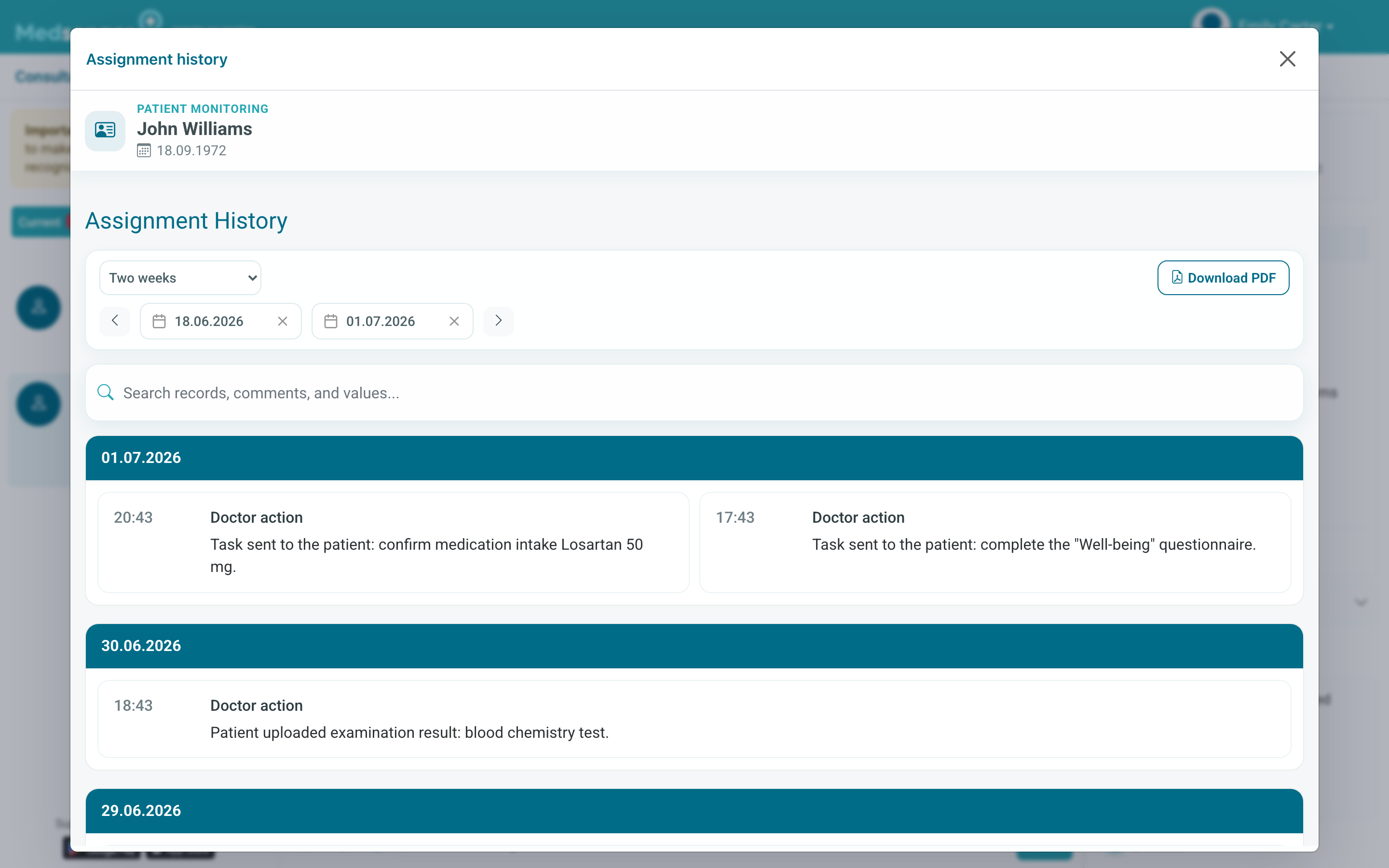
Use history after sending a task manually or when the patient reports a problem. This helps distinguish "the task was not sent" from "the task was sent, but the patient did not complete it or did not understand it".
Look at date, time, and record text. History shows what was sent to the patient and what the patient did. Look for the actual result, such as a file, conclusion, or indicator, in the appropriate section.
| What the patient did | Where to check the result |
|---|---|
| Filled in a questionnaire | Medical record, charts, reports, or chat |
| Confirmed medication | Medications, assignment history, or heatmap |
| Uploaded an examination | Examinations, consultation documents, or chat |
If there are several similar records in history, compare sending time and task text. This makes it easier to understand which message belongs to the current scenario and which remained from a previous assignment.
If the patient does not complete tasks, first clarify whether the instruction is clear and whether notifications arrive.
If the button does not open, contact Medsenger support. Specify task name, patient full name, error time, patient device, and attach a screenshot of the screen where the action does not work.