How does a doctor create a monitoring scenario?
In the scenario editor, a doctor can build a monitoring program from prepared questionnaires and other tasks.
How do I open the editor?
Open scenarios.medsenger.ru and sign in with the same email address or phone number and password you use for Medsenger.
Technical support enables access to the editor. If the editor is unavailable, contact support and include your clinic's name.
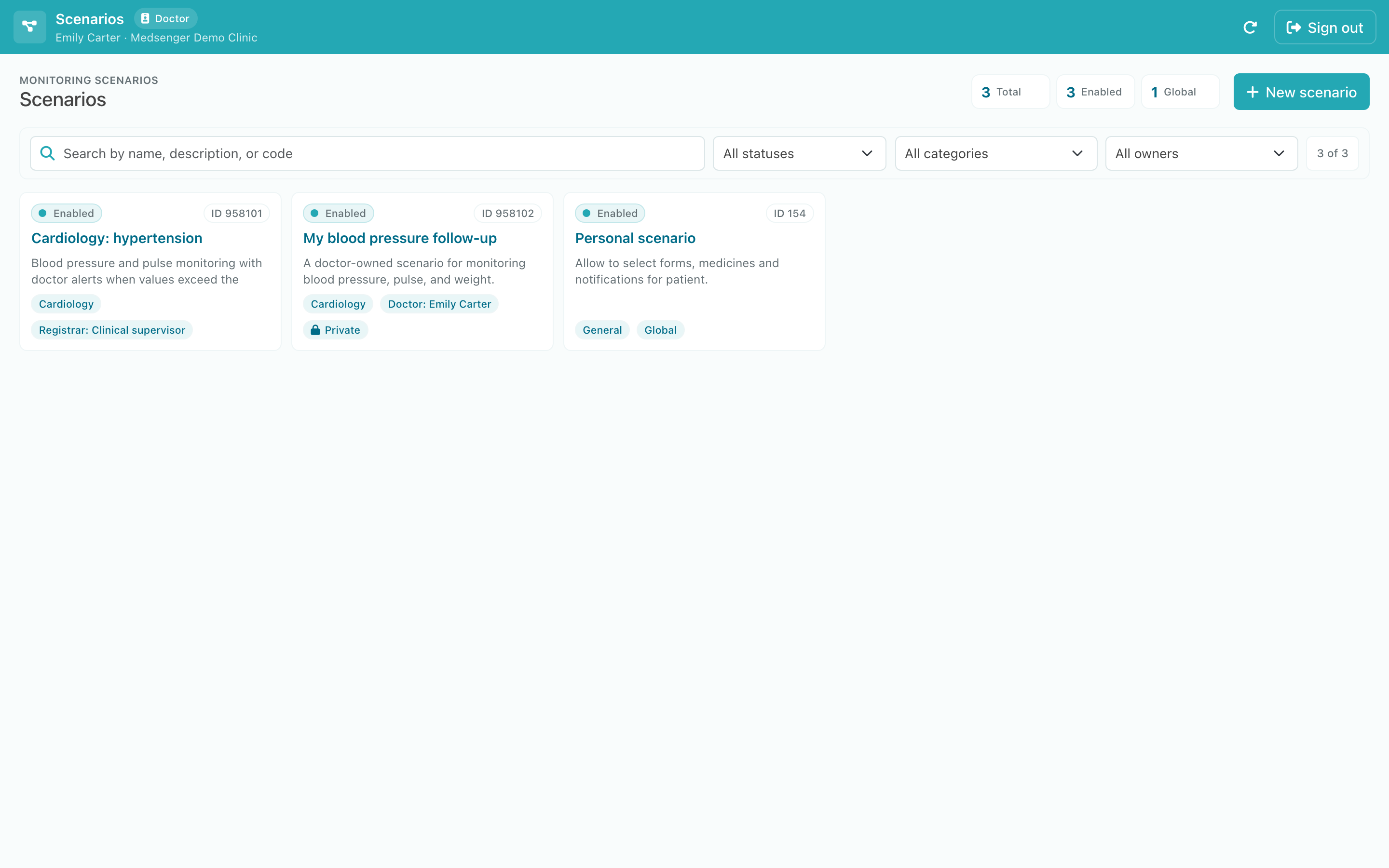
Which scenarios can I change?
You can change only your own scenarios. They are marked with the doctor's name. Ready-made scenarios and public clinic scenarios can be viewed and copied. A yellow notice indicates that the opened scenario is read-only.
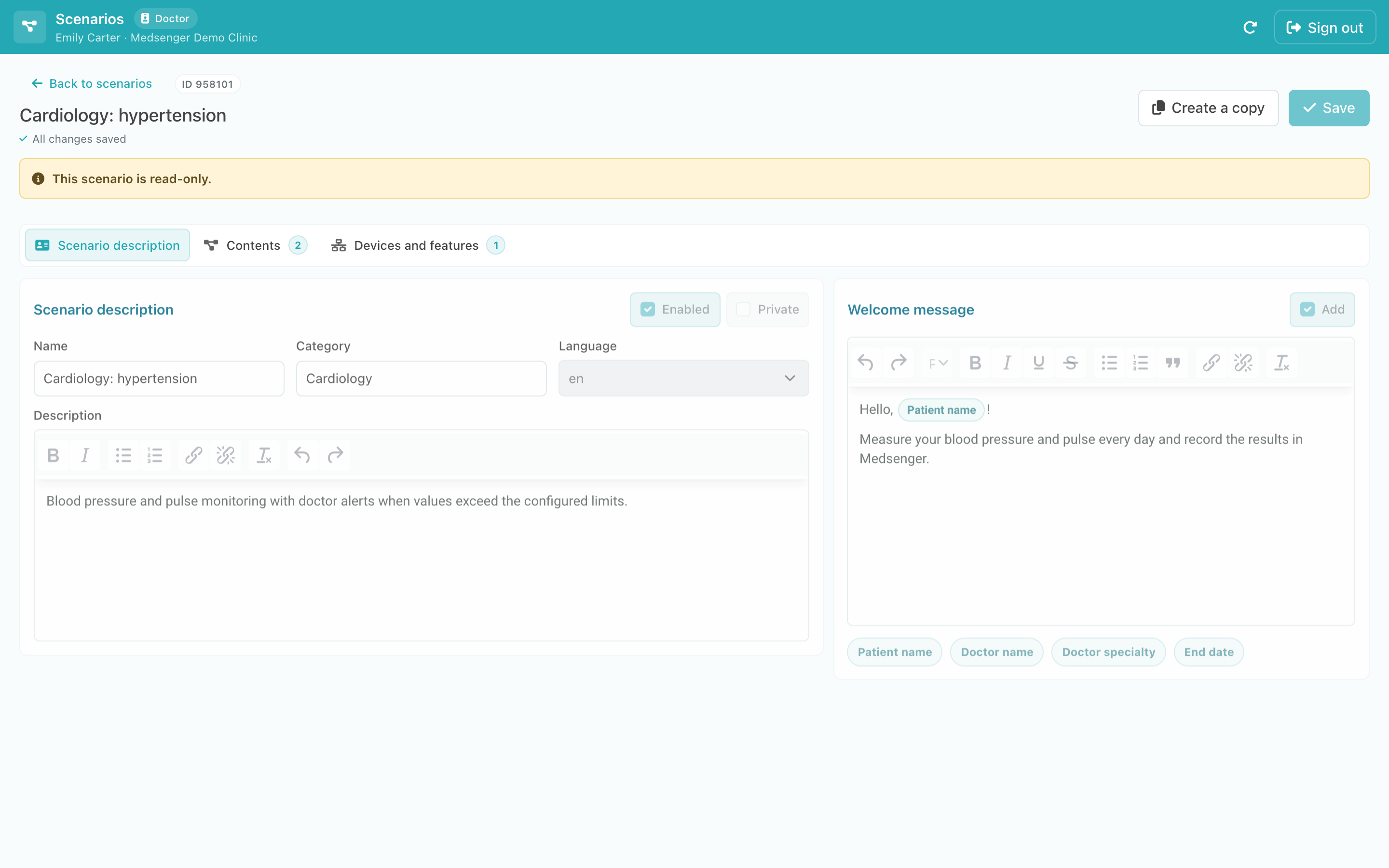
How do I create my own scenario?
- Click New scenario. To reuse an existing program, open it and click Create a copy.
- Enter a name, category, and short description. Doctors use these details when choosing a scenario in a consultation.
- Add a welcome message if needed. The patient receives it when the scenario is connected.
- Keep Private selected if the scenario is only for you. Clear it to let other doctors in your clinic view and copy the scenario.
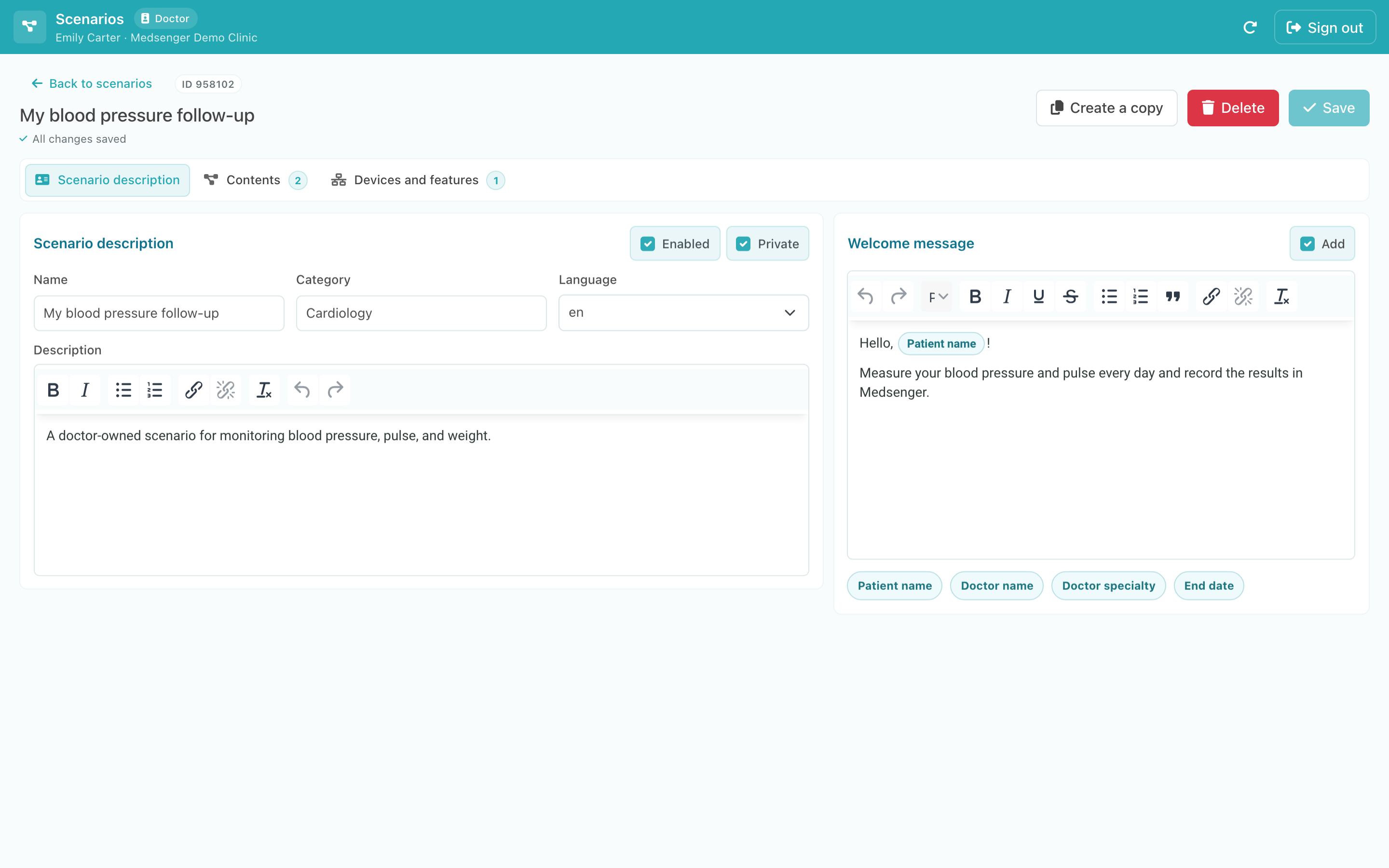
How do I add tasks?
Open Contents. Select a task type on the left, click Add, and choose an item from the catalog. Check the schedule and patient message separately for every selected item.
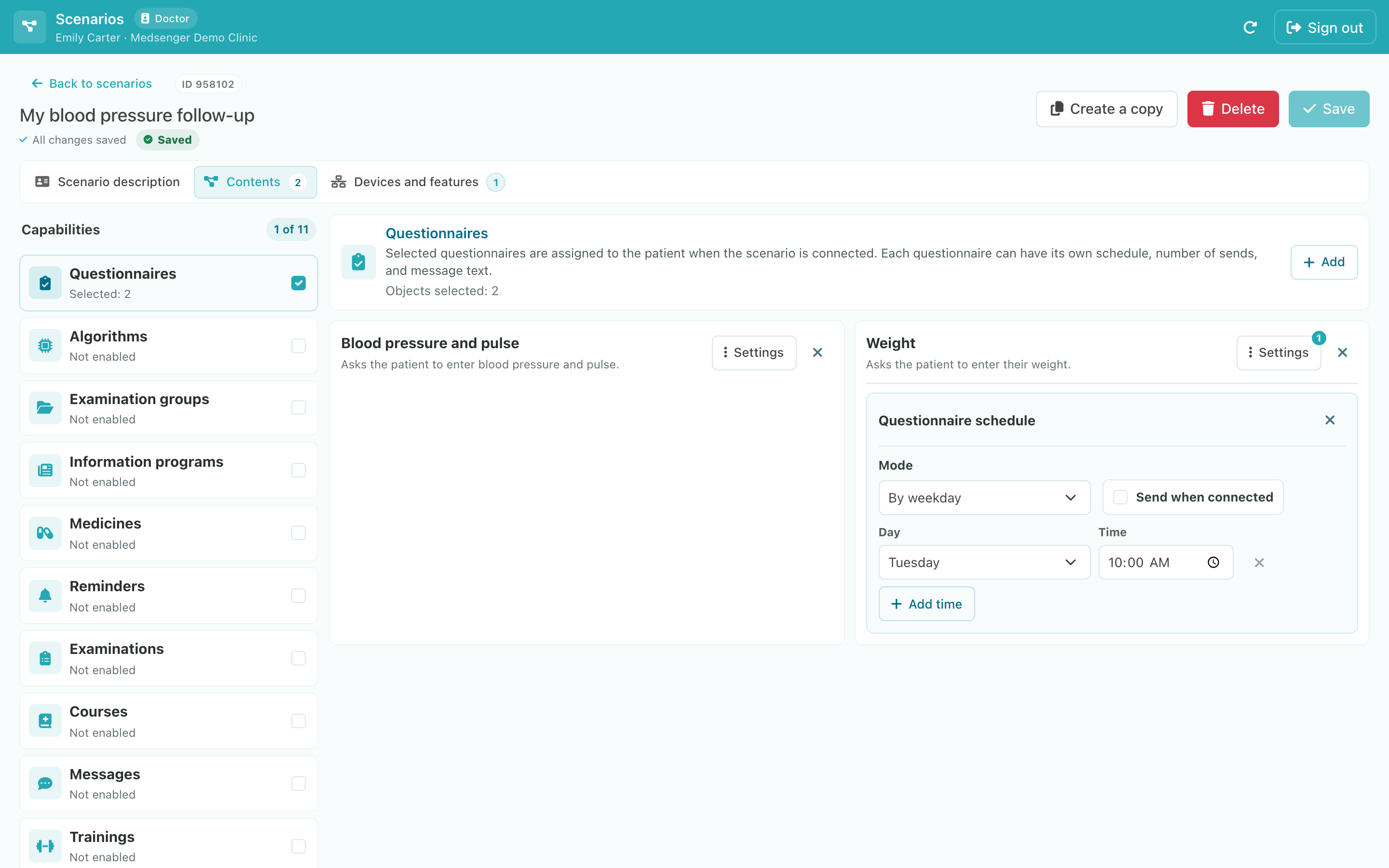
Questionnaire questions cannot be changed in the scenario editor. If you need a new questionnaire, first create its template, then return to the scenario.
Use Devices and features to enable additional scenario features. Doctor assistants are added by a clinical supervisor or clinic administrator; doctors do not see this tab.
Click Save, connect the scenario to a test consultation, and complete the patient flow. See how to connect monitoring and what to check after connection.