How do I create or edit a service?
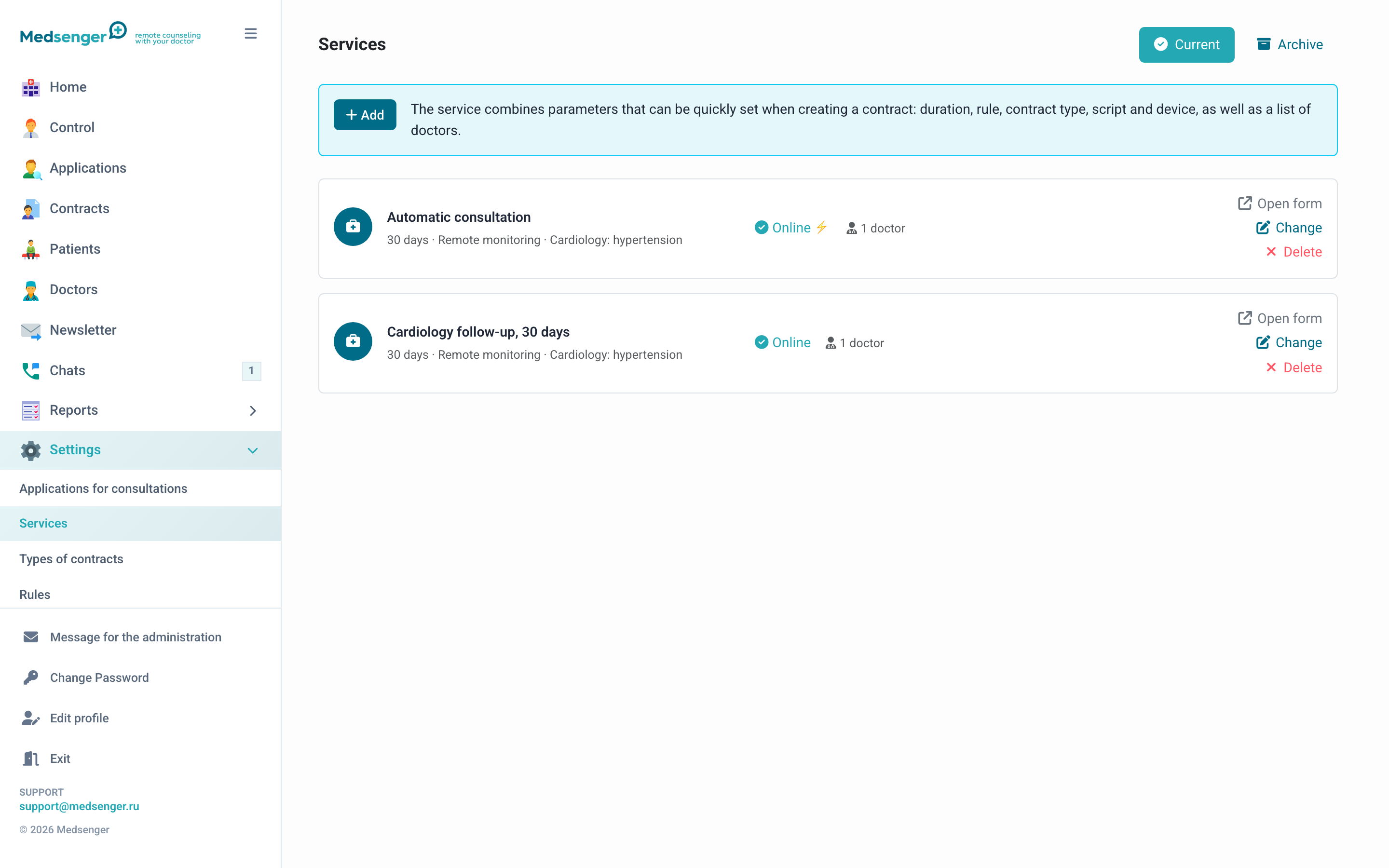
A service is a consultation template. It stores the period, response rule, consultation type, monitoring scenario, devices, doctors, and price so clinic staff do not fill the same fields manually every time.
When to use a service
Create a service when the clinic regularly opens similar consultations: for example, with the same specialty, period, tariff, or monitoring program.
If consultations are rare and differ a lot, the parameters can be filled manually when the consultation is created.
What to fill in
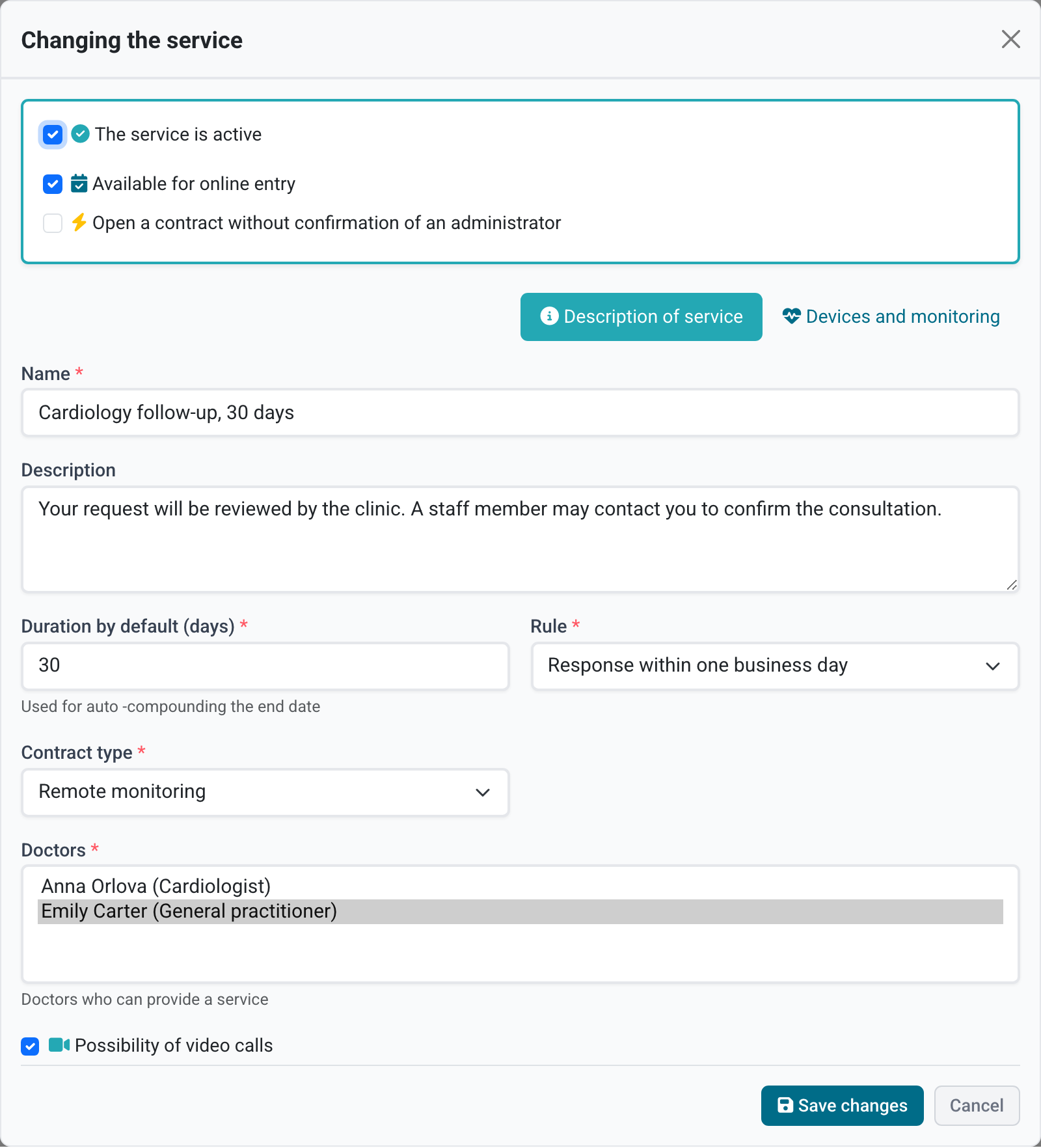
| Field | Meaning |
|---|---|
| Name | Visible to clinic staff, in reports, and to the patient if the service is published online |
| Duration | Defines the consultation end date |
| Consultation type | Helps filter consultations and build reports |
| Response rule | Defines how soon the doctor should reply to the patient |
| Monitoring scenario | Connects tasks, charts, devices, or video calls |
| Doctors | Defines who can provide consultations for this service |
| Price | Used for online requests if payments are enabled in the clinic |
Create a service
- Open Clinic settings → Services.
- Click Add.
- Fill in the main fields and select doctors.
- If needed, connect a monitoring scenario, devices, and price.
- Save the service and create a test consultation.
Edit or remove a service
Changing a service affects only new consultations and new requests. Existing consultations keep the parameters that were applied when they were created.
If the service is no longer needed, move it to archive. Archiving does not delete consultation, request, or payment history.
Check after changes
- new consultations get the correct period;
- the response rule matches the service description;
- the monitoring scenario is current;
- the doctor list is up to date;
- the price is correct if the service is used in online requests.
To show the service to patients in the booking form, configure its publication: how to publish a service for online requests.