Email notifications
Medsenger sends email notifications for important events so the doctor, patient, and administrator do not miss consultation actions.
Employee and patient activation
| Event | Who receives notification |
|---|---|
| New doctor added | Doctor receives account activation email |
| Consultation created for new patient | Patient receives invitation, doctor receives new patient notification |
| Consultation created for active patient | Patient receives message about opened consultation, doctor receives notification |
| Patient activated account | Patient receives consultation access |
If the invitation did not arrive, first check user email, Spam, and activation status on the doctor, patient, or contract page.
Messages and response deadlines
| Event | Who receives notification |
|---|---|
| Patient wrote to doctor | Doctor receives new request notification |
| Doctor answered patient | Patient receives answer notification |
| Response deadline is close | Doctor receives warning |
| Response deadline is missed | Doctor receives urgent notification, administrator sees overdue status in supervision and reports |
Warning time depends on the doctor response rule. If notifications arrive too early or too late, check response rule and clinic time zone.
Contracts and requests
The administrator may receive notifications about new online requests, consultation completion, upcoming end dates, and payment-related events if these functions are connected in the clinic.
For online requests, notifications should go to the employees who actually process requests. Otherwise, the patient may wait for confirmation longer than clinic regulations allow.
Full message text
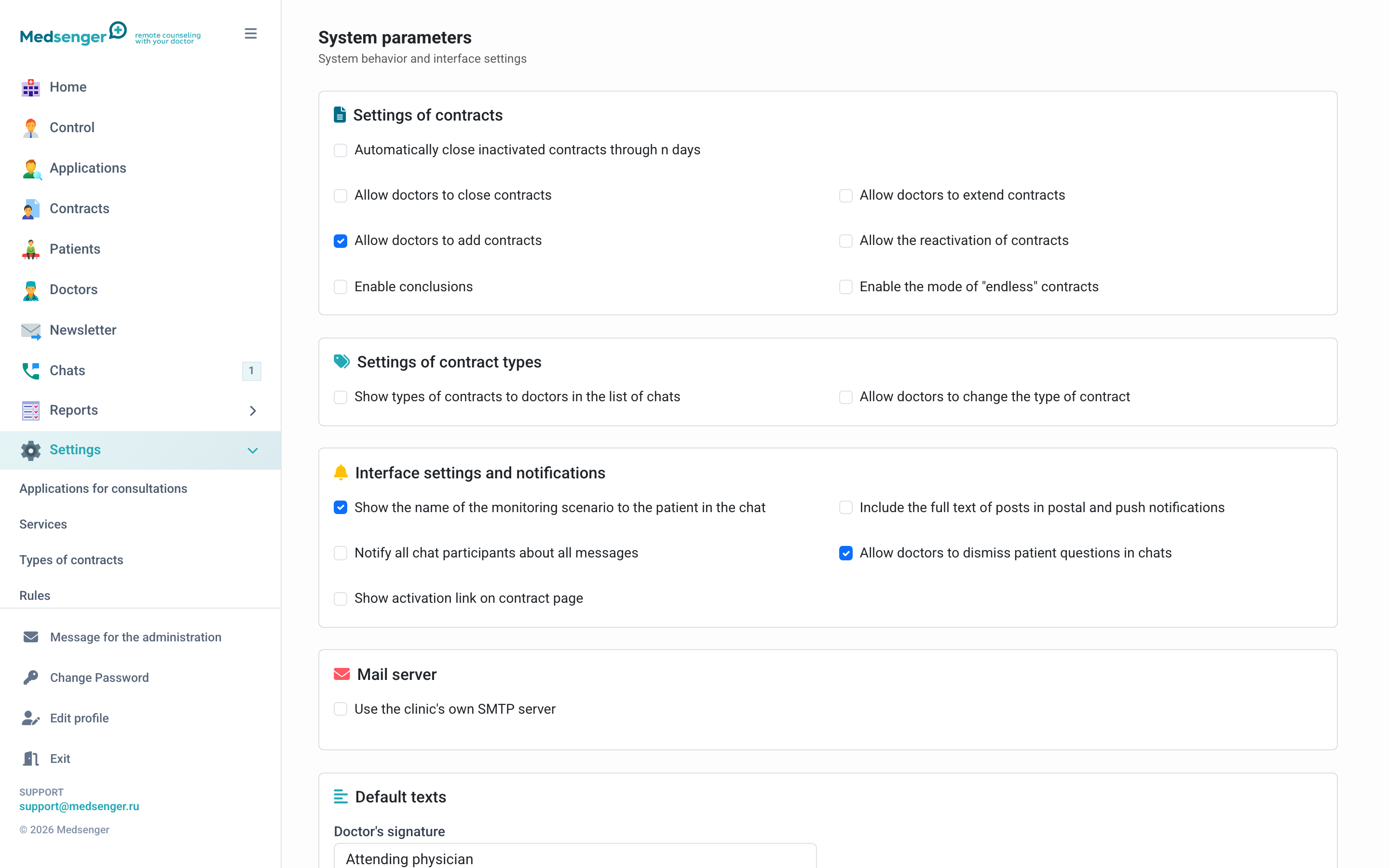
By default, a notification reports the event, but does not necessarily contain the full medical message text. If full text is enabled, some medical information may appear in a user's mailbox or push notification.
Before enabling, make sure this is allowed by your clinic's personal data processing rules.
If notifications do not arrive
Check:
- user email is correct;
- account is activated;
- user did not disable email notifications in profile;
- email did not go to Spam;
- the event that should send email really happened;
- clinic settings or sender email were not changed recently.
For testing, create a test consultation, send a message from patient, and make sure the doctor receives a notification.