Notification check
Use this checklist after clinic launch, response rule changes, online request enabling, or user complaints about emails and push notifications.
Before checking
Prepare a test doctor, test patient, and test consultation. Do not test new settings on a real patient if a safe training example can be created.
Check:
- doctor and patient email are entered without mistakes;
- patient can activate account;
- consultation has a response rule;
- clinic time zone is correct;
- emails from Medsenger are not blocked by the clinic email domain.
Account activation
Check doctor and patient separately:
- Send invitation.
- Make sure the email arrived.
- Open activation link.
- Set password.
- Log in to the cabinet.
If the email did not arrive, check email, Spam, and invitation resend. If email already became the login of an activated user and must be changed, contact Medsenger support.
Chat messages
Check both directions:
- Patient writes to doctor.
- Doctor receives notification.
- Doctor answers patient.
- Patient receives notification.
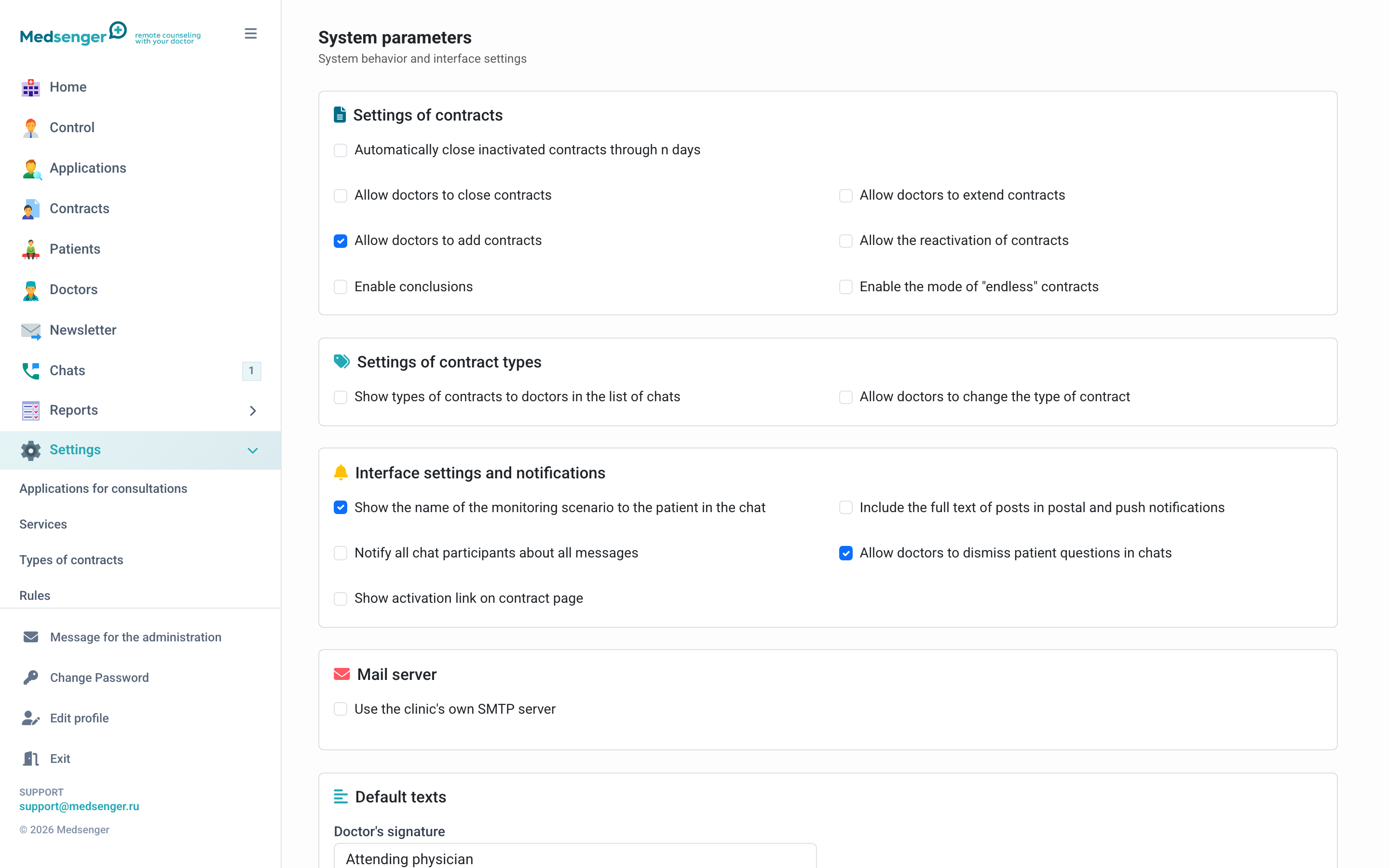
If full message text is enabled in notifications, check that the text really appears in email or push. If the setting is disabled, the user should receive only the fact of a new message.
Doctor response deadlines
Deadline notifications depend on response rule, working hours, and time zone.
Check:
- response rule is selected in the consultation;
- working hours and weekends match clinic regulations;
- doctor receives warning before deadline;
- urgent notification appears after overdue;
- after answer, overdue counter updates.
For testing, it is convenient to create a short response rule in a training consultation.
Requests and payment
For online booking, check:
- patient submits a test request;
- administrator receives new request notification;
- with manual confirmation, patient receives further instruction;
- with automatic opening, patient receives consultation access;
- with payment, patient receives payment step and, after payment, access or clear request status.
If payment succeeded but the consultation was not created, check payment report and request page.
Doctor assistants and patient relatives
If the clinic uses doctor assistants or relative access, check:
- invitation arrives to the correct person;
- notifications are received only by participants who need them;
- after consultation completion, extra notifications do not continue.
Push notifications
Push notifications depend on the user's browser or mobile app.
Check:
- user allowed notifications on the device;
- app is installed and user is logged in;
- notifications are not disabled in phone settings;
- email notifications are not disabled if the user expects emails.
If push does not arrive, check the same event through email. This makes it easier to understand whether the issue is in the Medsenger event or the user's device.
What to fix in clinic regulations
- who checks new requests;
- who monitors overdue responses;
- whether full message text should be included in emails;
- who helps doctors with access;
- who answers the patient if they did not receive an email or do not see consultation.
What to include in a support request
If the problem cannot be resolved inside the clinic, send Medsenger support:
- clinic name;
- user full name and email;
- consultation or request number;
- event time;
- notification channel: email or push;
- screenshot of error or email;
- what exactly you expected to receive.