Patient list
Available to: Registrar, Administrator
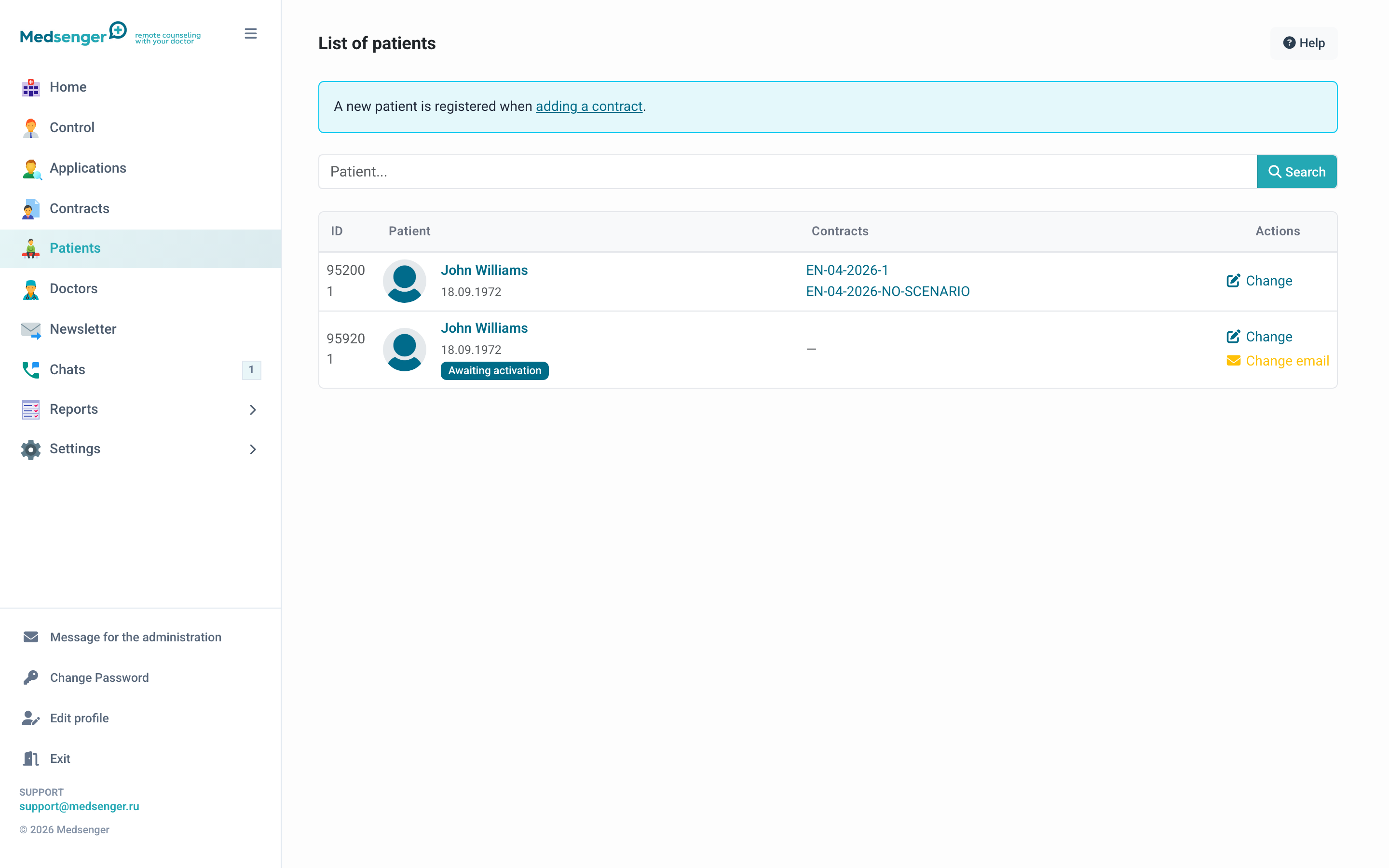
The Patients section contains all patients of your clinic. A new patient appears in the list automatically when a contract is added; patients do not need to be registered separately.
If you need to add a new patient manually, create a contract for them. Detailed steps: how to add a patient.
What can be done in the list
- Search by patient name
- View profile: click the patient name
- Edit data: the Edit button for full name, date of birth, sex
- Change email: available if the patient has not activated the account yet; it resends the invitation to the new address
- Resend invitation if the patient did not receive the activation email
- Send SMS activation if SMS notifications are connected in the clinic
Patient statuses
| Status | Meaning |
|---|---|
| Not activated | The patient received an invitation but has not followed the activation link yet |
| Activated | The patient logged in, consultation is available |
Patient page
The patient page shows:
- personal data: full name and date of birth;
- list of active and completed contracts;
- interaction history with the system.
Patient activation
The patient activates the account through a link in email or SMS. Before activation, the patient is shown as Not activated and cannot fully use the chat.
If the patient says the email did not arrive:
- Check that email is entered without mistakes.
- Ask the patient to check Spam.
- Resend the invitation.
- If the email is incorrect and the patient has not activated the account yet, change the email and resend the invitation.
If the patient already exists
If the patient previously had consultations in the clinic, a new contract is linked to the existing profile. Re-registration is not needed: the patient logs in with the previous email and sees the new contract in the subscription list.
Data protection
Change patient personal data only after a confirmed request from the patient or clinic employee. Contract history and conversations are saved in the system and are not deleted when consultation ends.