Request processing and payment
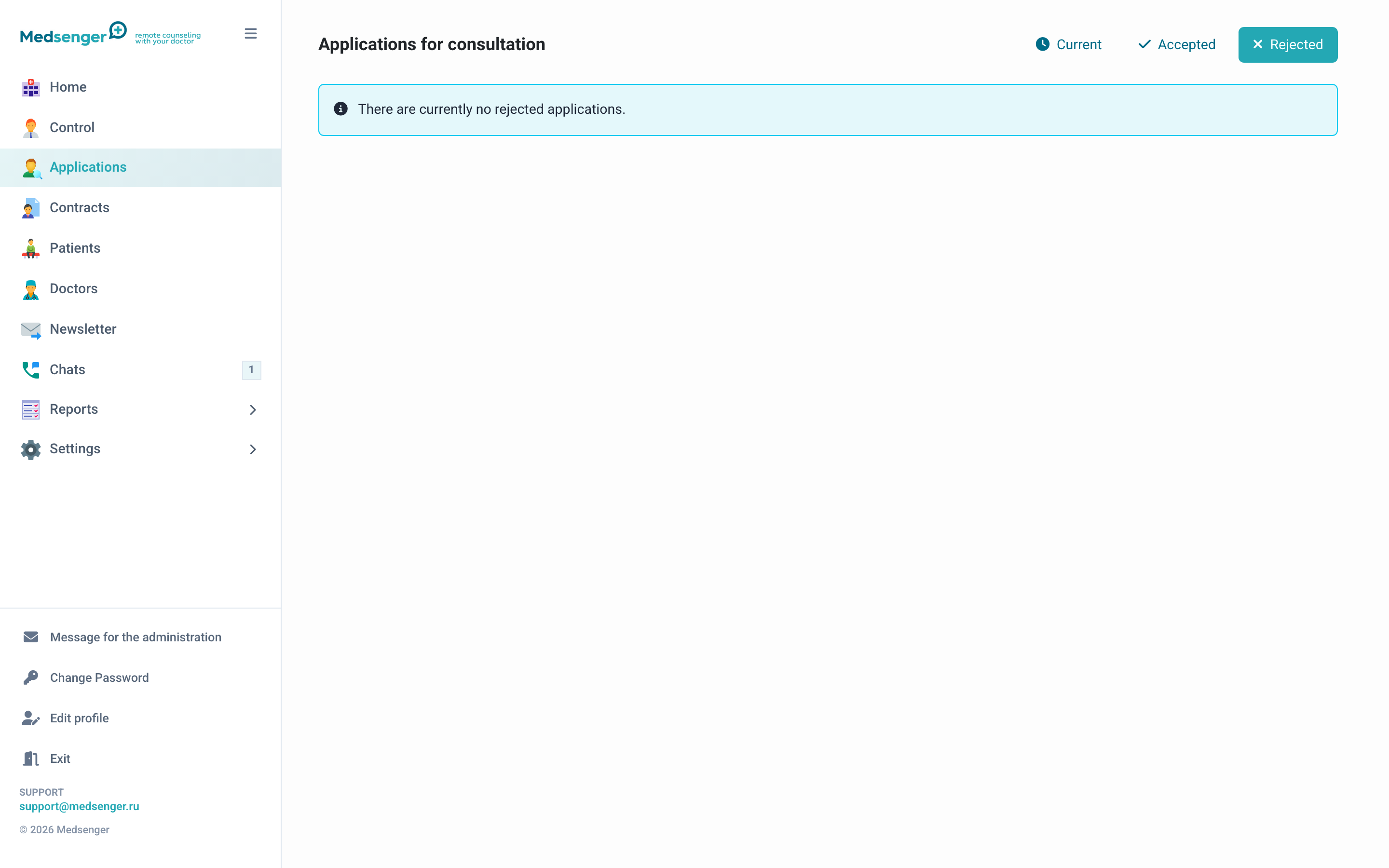
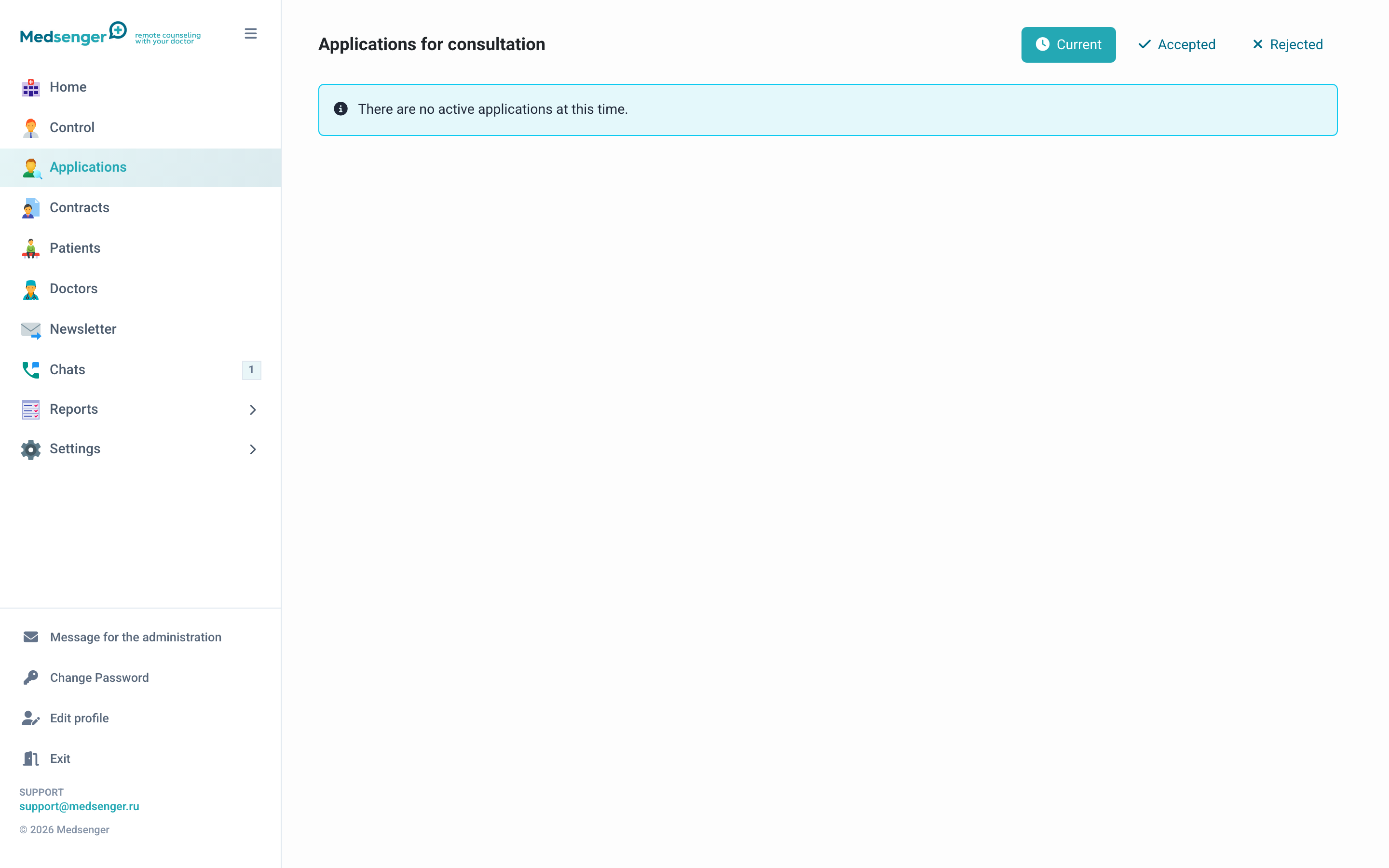
The Requests section shows patient submissions from the online booking form. The administrator checks data, documents, and payment, then confirms the request or declines it with a clear reason.
What modes exist
The clinic can use one of two modes.
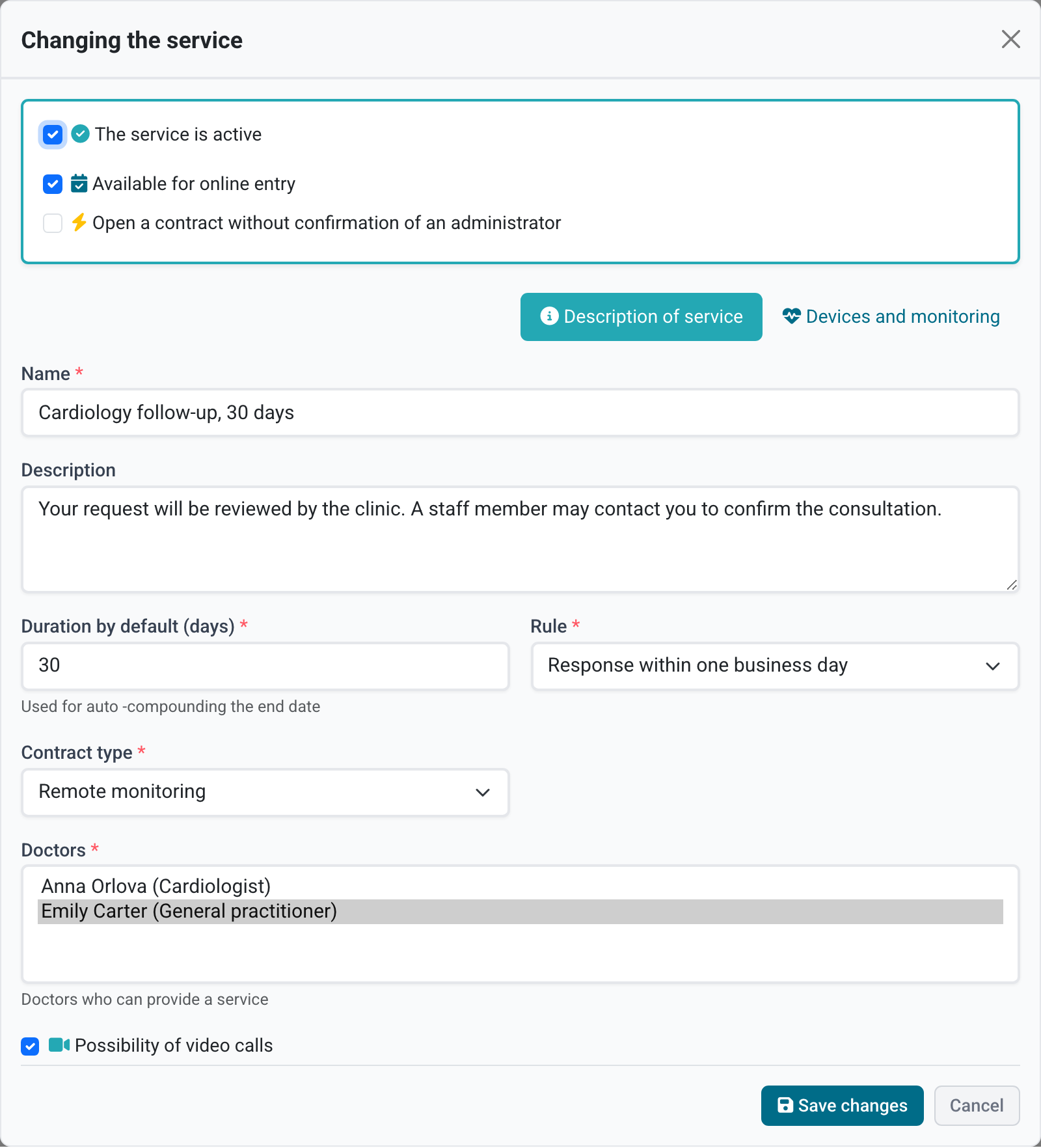
Manual confirmation. The request goes to the administrator. The administrator checks data, contacts the patient if needed, then confirms the request and creates a consultation.
Automatic opening. The consultation is created without manual processing if the patient filled required data and met service conditions. If the service is paid, payment must be completed first.
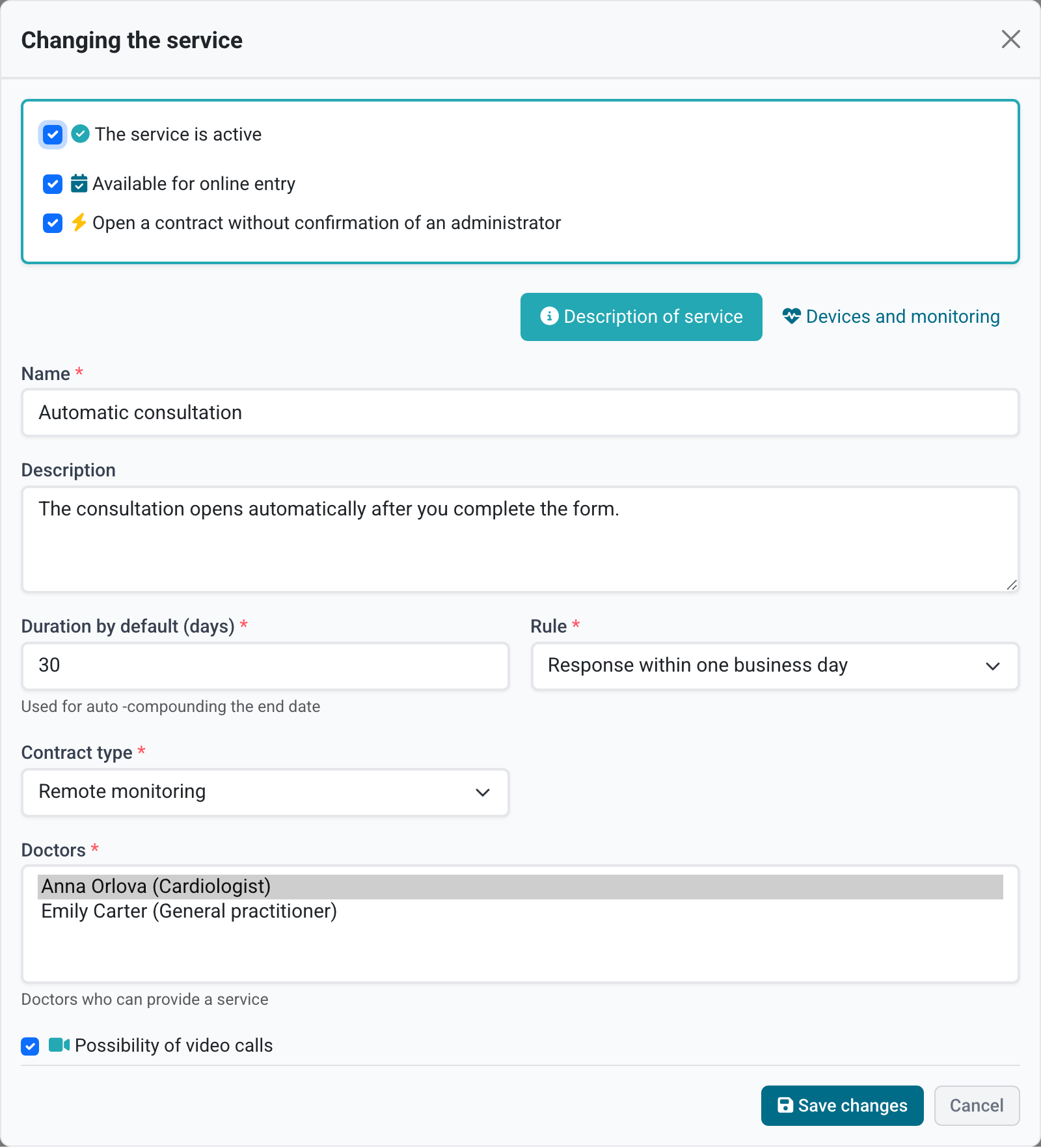
The mode depends on doctor or service settings. If you are not sure how a specific service should work, open its settings and check confirmation method.
What to check in a new request
On the request page, check:
- selected service or doctor;
- patient full name, date of birth, email, and phone;
- patient comment;
- uploaded documents;
- whether the patient was previously in the clinic;
- payment status if the service is paid;
- whether an active contract with this doctor already exists.
If data is missing, contact the patient before confirmation: by phone, email, or through request chat.
How to confirm a request
If everything is correct, click Confirm. After confirmation, Medsenger creates a contract, and the patient and doctor receive notifications.
After creation, open the contract and check doctor, period, response rule, contract type, monitoring scenario, and documents.
How to decline a request
If the consultation cannot be opened, click Decline and specify the reason. The patient receives a notification, so phrase the reason briefly and clearly.
Do not use decline instead of clarifying data: if the issue can be resolved by phone or email, contact the patient first.
Payment
If payment is enabled for the service, the patient pays before consultation opening or before confirmation according to clinic rules.
Check:
- payment status;
- amount;
- connection between payment and request or service;
- whether the contract was created after successful payment.
If the patient paid but the contract was not created, check the request and payment report. If needed, contact Medsenger support and specify request number, payment time, and patient email.
Request statuses
| Status | Meaning |
|---|---|
| Waiting for review | Administrator must process the request |
| Requires payment | Patient has not completed payment yet |
| Confirmed | Contract created |
| Declined | Request closed with rejection reason |
Accepted requests are available on a separate tab.
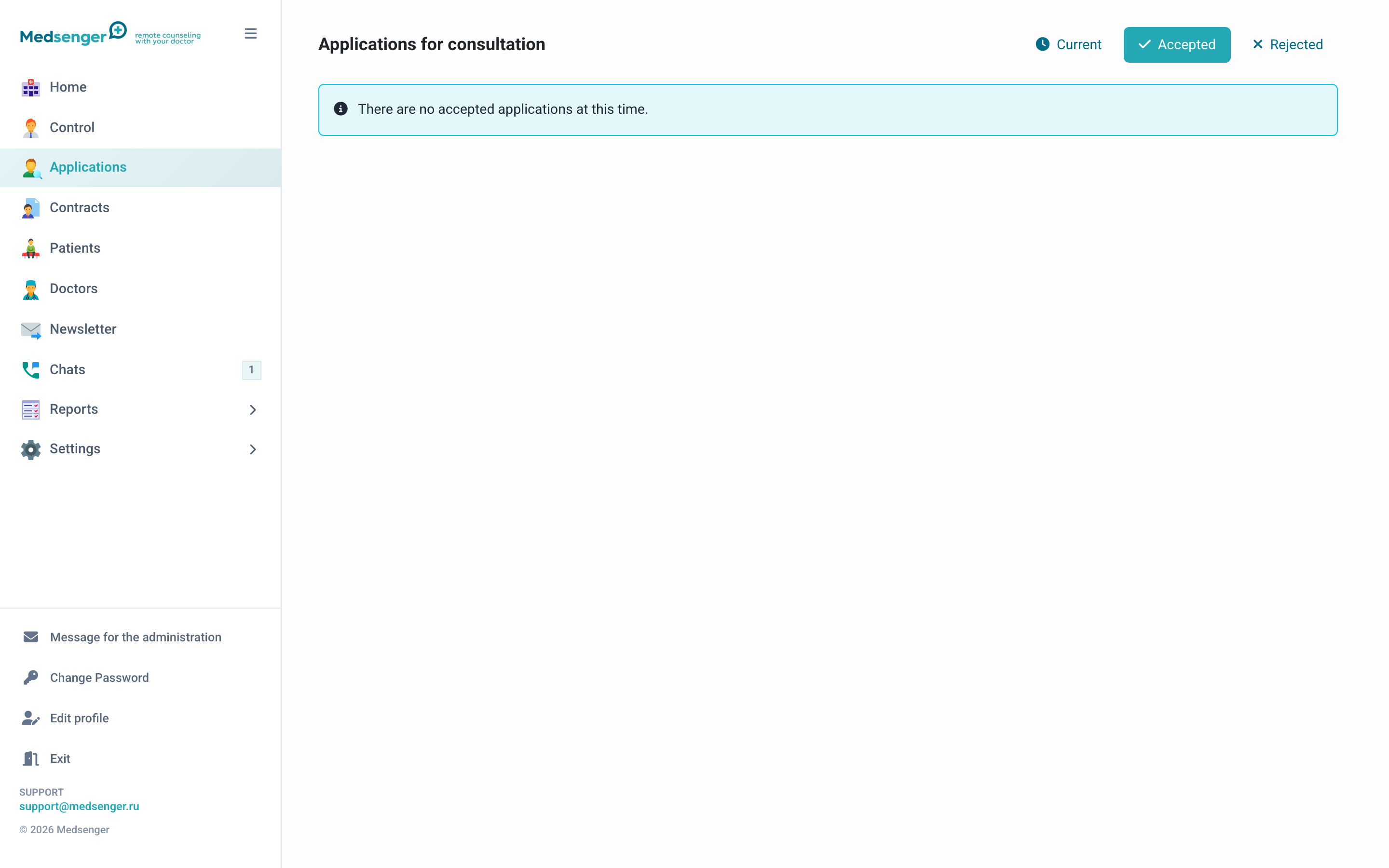
Declined requests also remain in history so the administrator can return to the rejection reason.