How do I create a consultation?
In Medsenger, a patient is added when a consultation is created. There is no separate Add patient button in the patient list: first create a contract, and the system will create a new patient profile or link the consultation to an existing profile.
Open creation
In Contracts, click Add.

The same form may open from the home page through Add contract.
Find the patient by contact
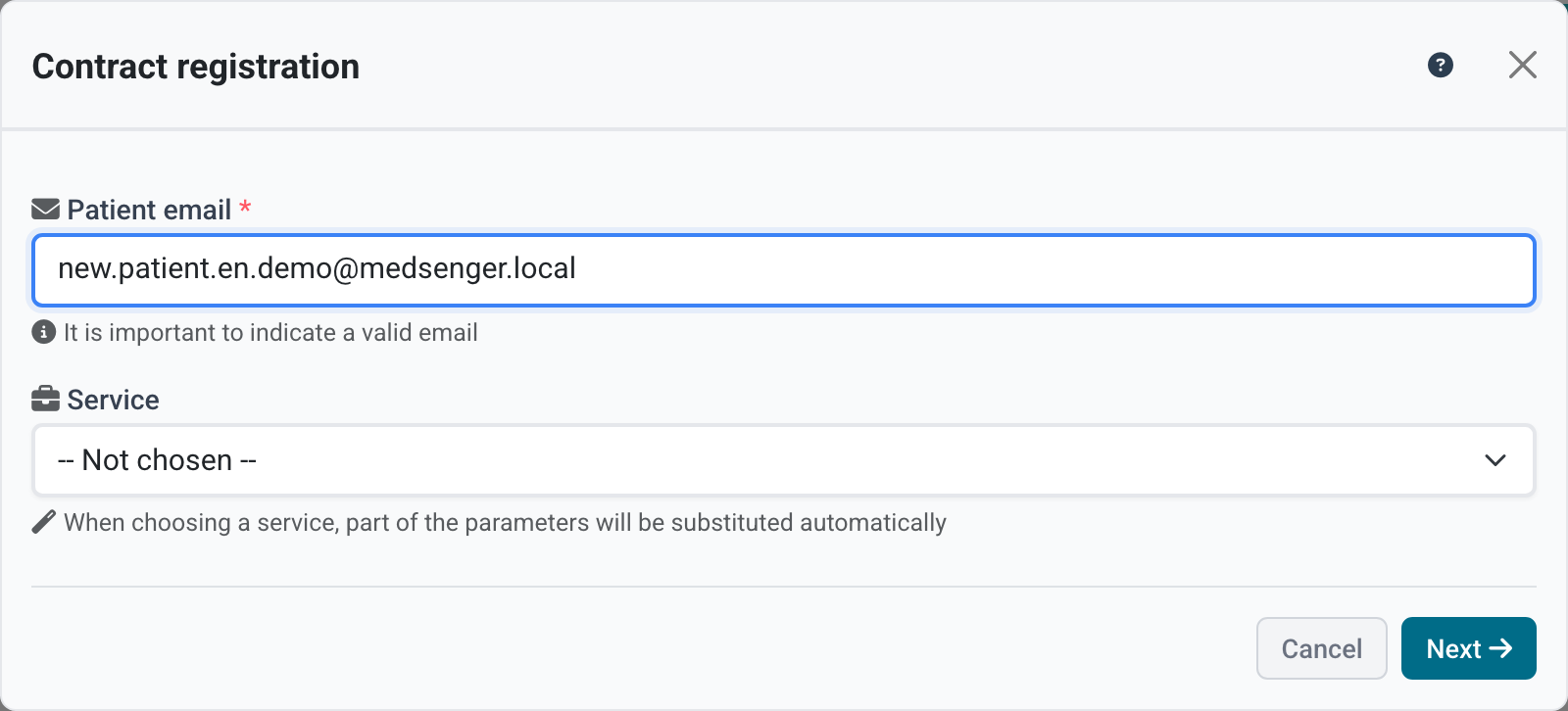
Enter the patient's email and click Next. If SMS invitations are enabled in the clinic, you can add a patient by phone.
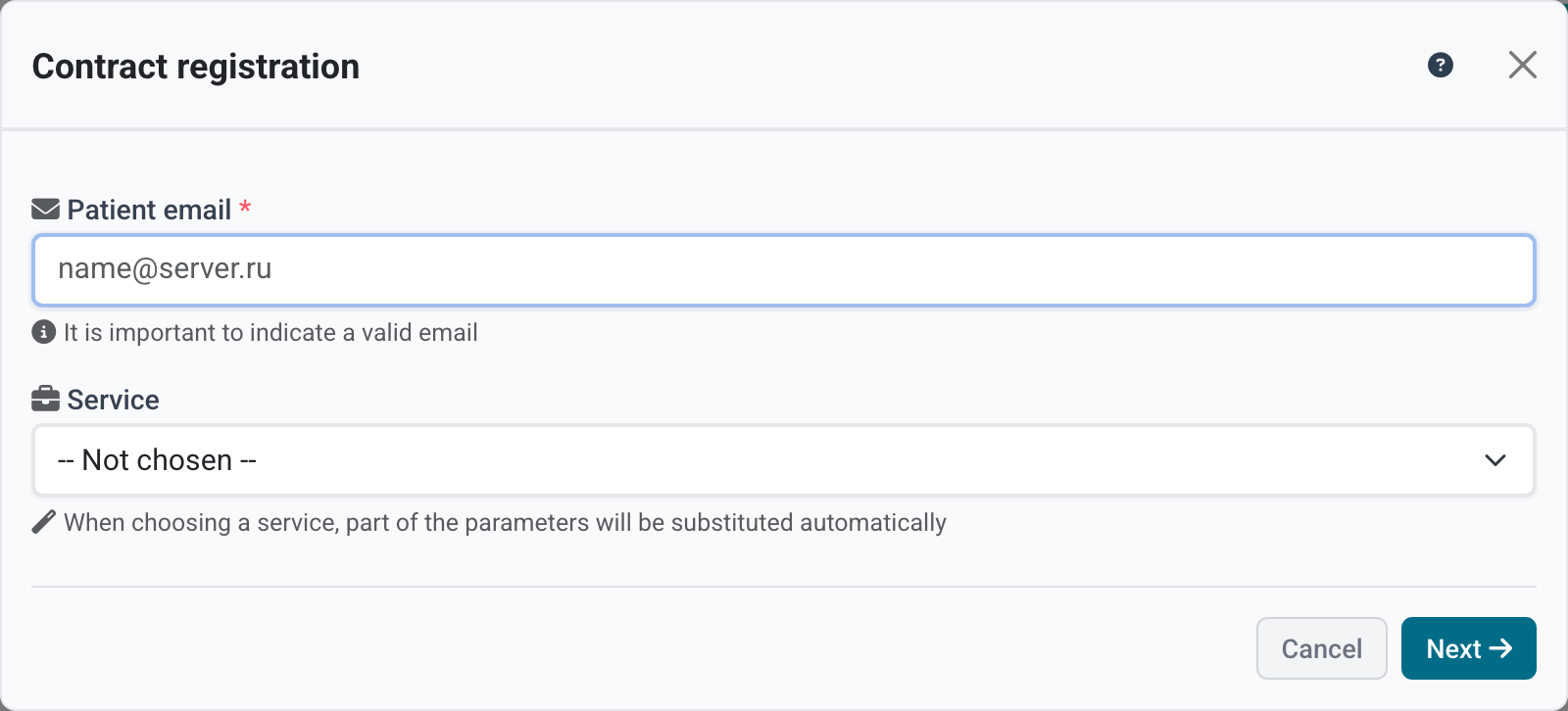
If the patient already exists, Medsenger shows the found profile. Check full name and date of birth so you do not create the consultation for the wrong person.
If there is no patient, the new patient form opens.
Fill in patient and consultation
For a new patient, fill in full name, sex, date of birth, and phone if the clinic needs it.
Then fill in consultation parameters:
- contract number from the clinic workflow if it exists;
- end date;
- doctor;
- response rule;
- contract type for filters and reports;
- service and monitoring scenario if needed;
- medical documents that the doctor should see.
If the contract number is not specified, it will be selected automatically.
After creation
After clicking Add, the patient appears in the patient list, and the consultation appears in the contract list. The patient and doctor receive notifications.
Check:
- the patient received an invitation and can activate access;
- the doctor sees the patient;
- period and response rule are correct;
- monitoring scenario is connected if needed;
- medical documents are uploaded to the correct place.
If the patient did not receive an invitation, open the patient or contract page and resend the invitation.