If something does not work
Most administrator problems come down to three checks: is this the correct patient, is the consultation active, and is the needed option enabled in the clinic.
Patient did not receive an invitation
Check the patient's email or phone on the patient page and contract page.
Then check:
- whether the contract was created;
- whether the patient activated access earlier;
- whether the email went to Spam;
- whether SMS sending is enabled if the invitation should go by phone;
- whether the resend invitation button is available.
If the contact is incorrect, fix it before resending.
Doctor did not receive an invitation
Open the doctor page and check email, activation status, and clinic membership.
If the doctor has not activated the account yet, resend the invitation. If the email is incorrect and the doctor has already activated, contact Medsenger support: email is the login.
Patient does not see the consultation
Open the contract page and check:
- the patient in the contract is correct;
- the contract is active and not archived;
- the patient activated the account;
- the end date has not passed;
- the invitation was sent to the email or phone the patient uses for login.
If the patient logs in with another contact, they may not see the needed consultation.
Doctor does not see the patient
Check that the doctor is specified in the contract as the current doctor. Then check whether the consultation is completed or archived.
If the doctor was changed, the new doctor should see the consultation, while the old doctor may see only history according to clinic rules.
Monitoring buttons are missing
Open the contract page and check:
- whether monitoring scenario is connected;
- whether the needed action is included in this scenario;
- whether the consultation is active;
- whether the doctor role has access to the action;
- whether the consultation needs to be reopened after the change.
If the scenario is connected but the button is still missing, send contract number, scenario name, and the expected button to support.
Patient received text without a button
This happens if the message was sent as regular text or the action is not connected to an interactive button.
Check which task should have arrived: questionnaire, medication, examination, video call, or information message. Then open the contract and make sure the corresponding action is connected.
No data in the medical record
Check:
- the patient actually submitted a form or measurement;
- the correct period is selected;
- the form saves answers to the medical record, not only to the chat;
- the doctor opened data for the correct patient and consultation.
If the patient has data but the doctor does not see it, include patient full name, contract number, form name, and an example value in the request.
Request did not create a consultation
Open the request and check its status.
If the request requires manual confirmation, the administrator must confirm it. If the request should open automatically, check service settings and payment status.
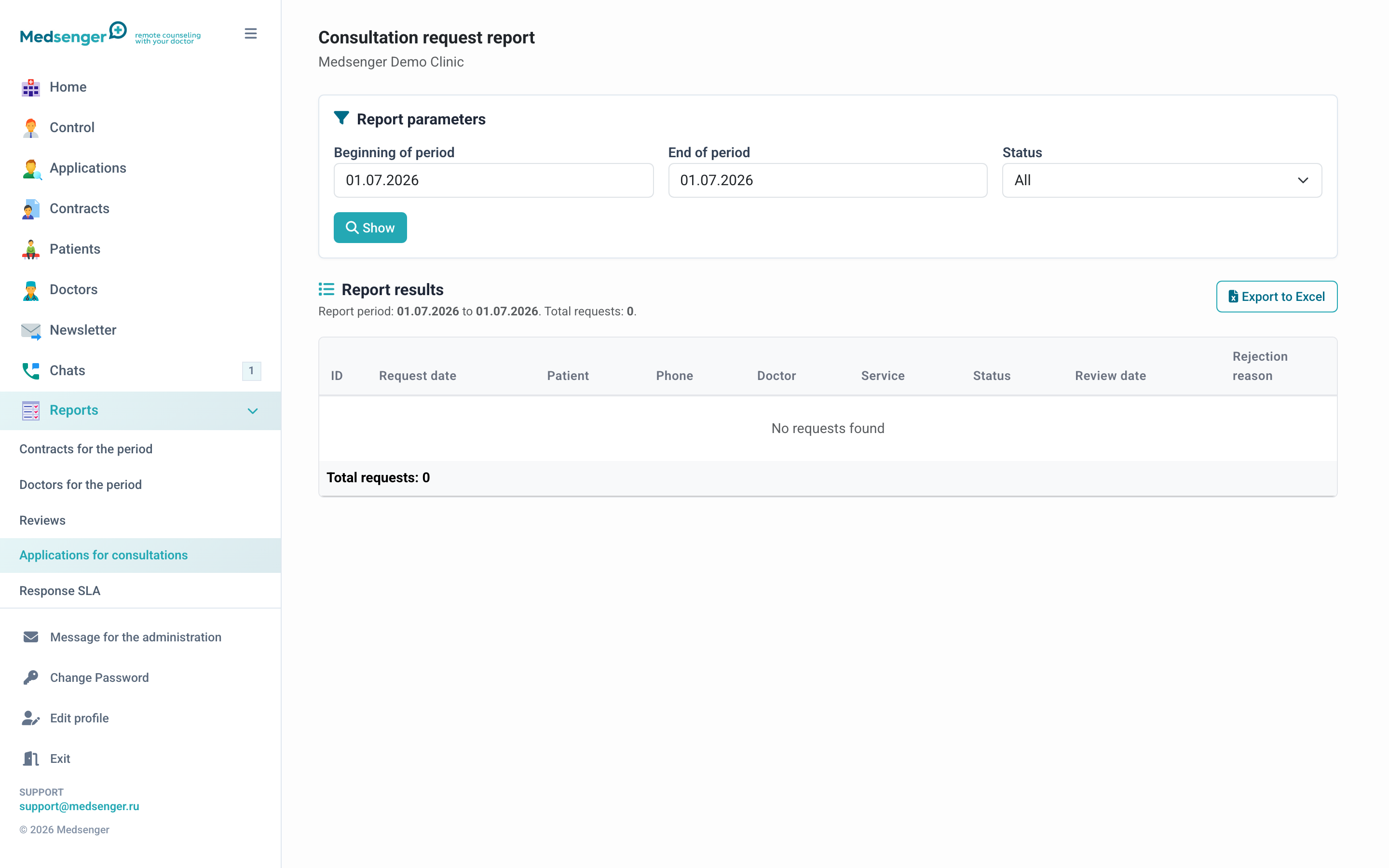
If the patient paid but the consultation was not created, check the payment report and send support the request number, patient email, and payment time.
Notifications do not arrive
Check:
- user email;
- account activation;
- Spam folder;
- whether email notifications are disabled in the user profile;
- response rule and clinic time zone;
- whether notification settings were changed recently.
For testing, create a training consultation and send a test message from patient to doctor.
What to include in a support request
If the problem cannot be resolved, send Medsenger support:
- clinic name;
- patient or doctor full name;
- contract or request number;
- what exactly you expected to see;
- what actually happened;
- error screenshot;
- event time and login email of the user.