How do I submit an online request?
An online request is an additional way to request a consultation through Medsenger. It is available only in clinics that accept requests. If the clinic has not given you a link to the form, contact the medical organization in the usual way.
How do I open the form and choose a consultation?
The form opens from a clinic link: from the website, from a message, or through a direct link to a service or doctor. If the link already points to a specific service or doctor, some steps may be skipped.
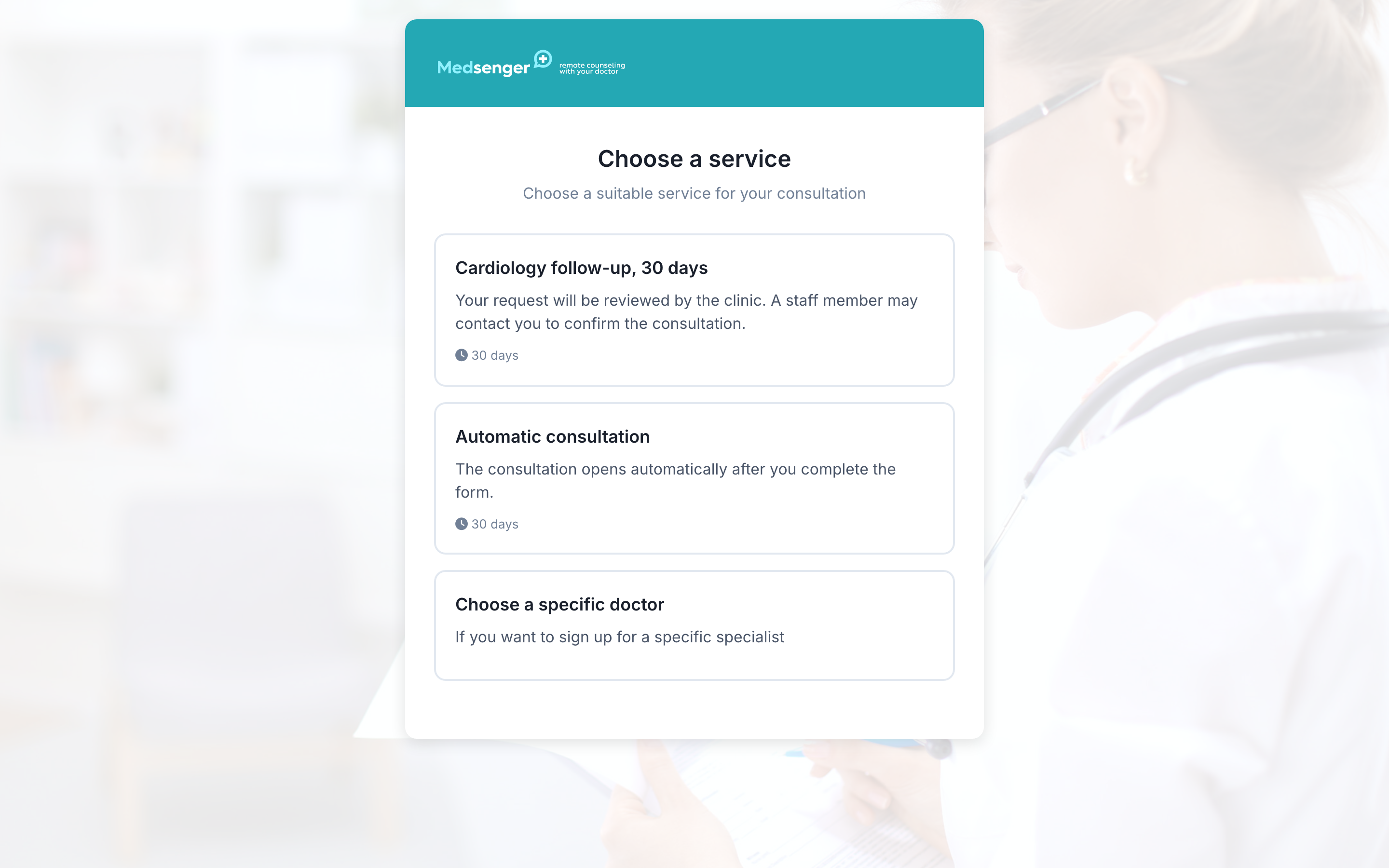
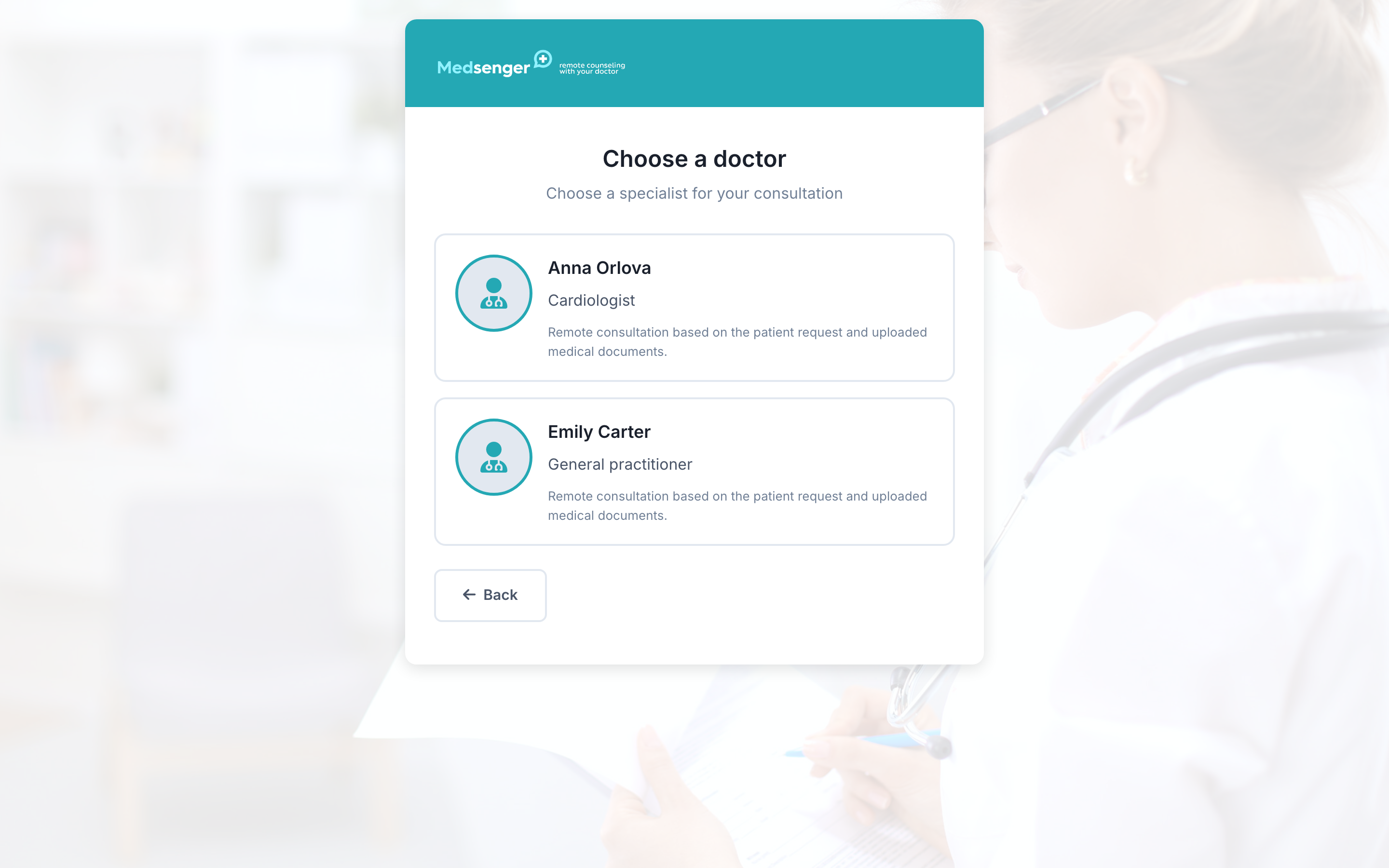
The form may show services, price, consultation duration, and available doctors. If several doctors provide the service, choose a specialist. If there is only one doctor, the form may choose them automatically.
If the form says that the clinic is not currently accepting remote consultation requests, you cannot submit a request through Medsenger. Contact the clinic in the usual way.
How do I confirm my email?
A confirmation code is sent to the email address you entered. Enter the code in the form to continue.
This email will be linked to the request and your Medsenger account.
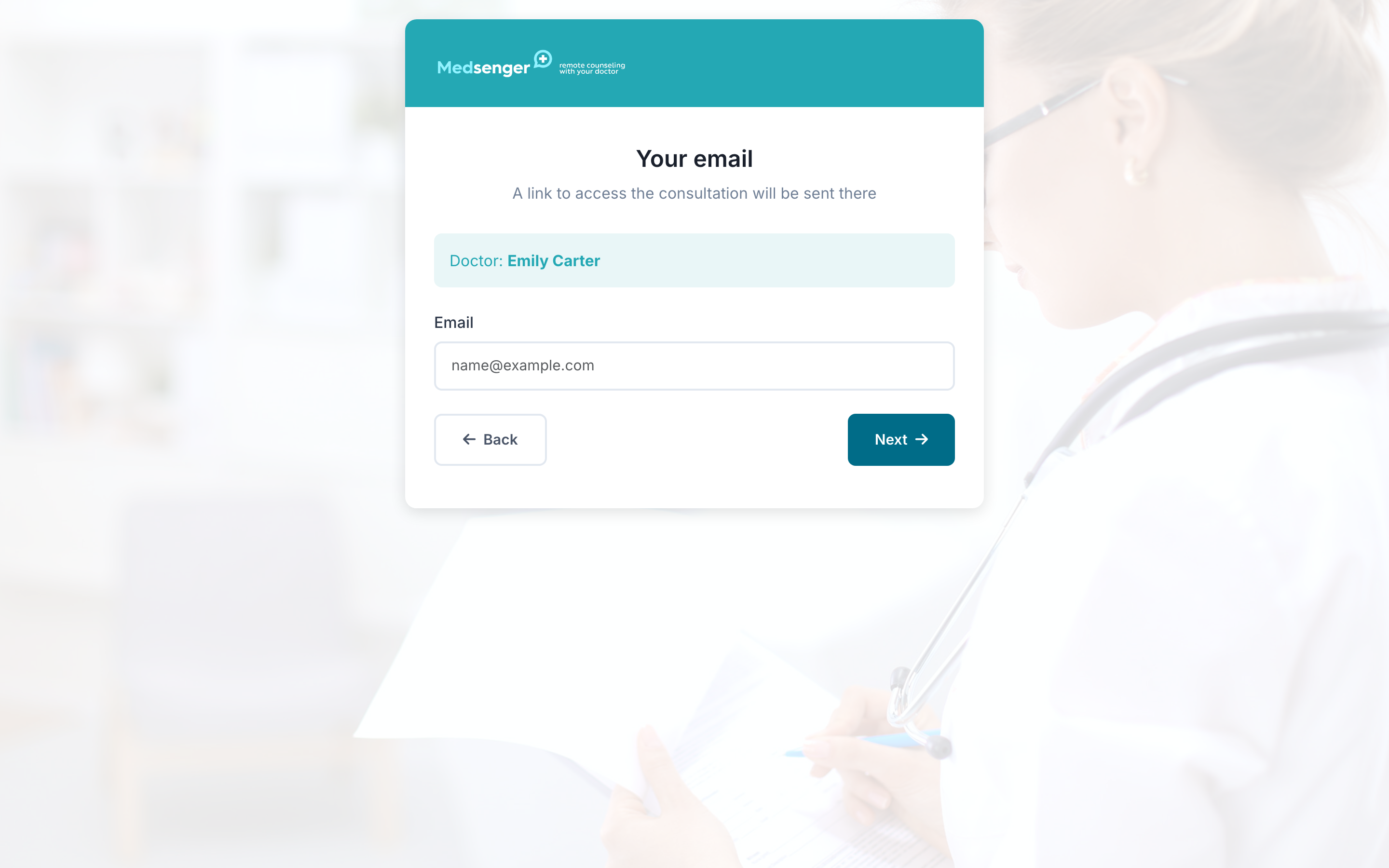
After the code is sent, the confirmation field opens.
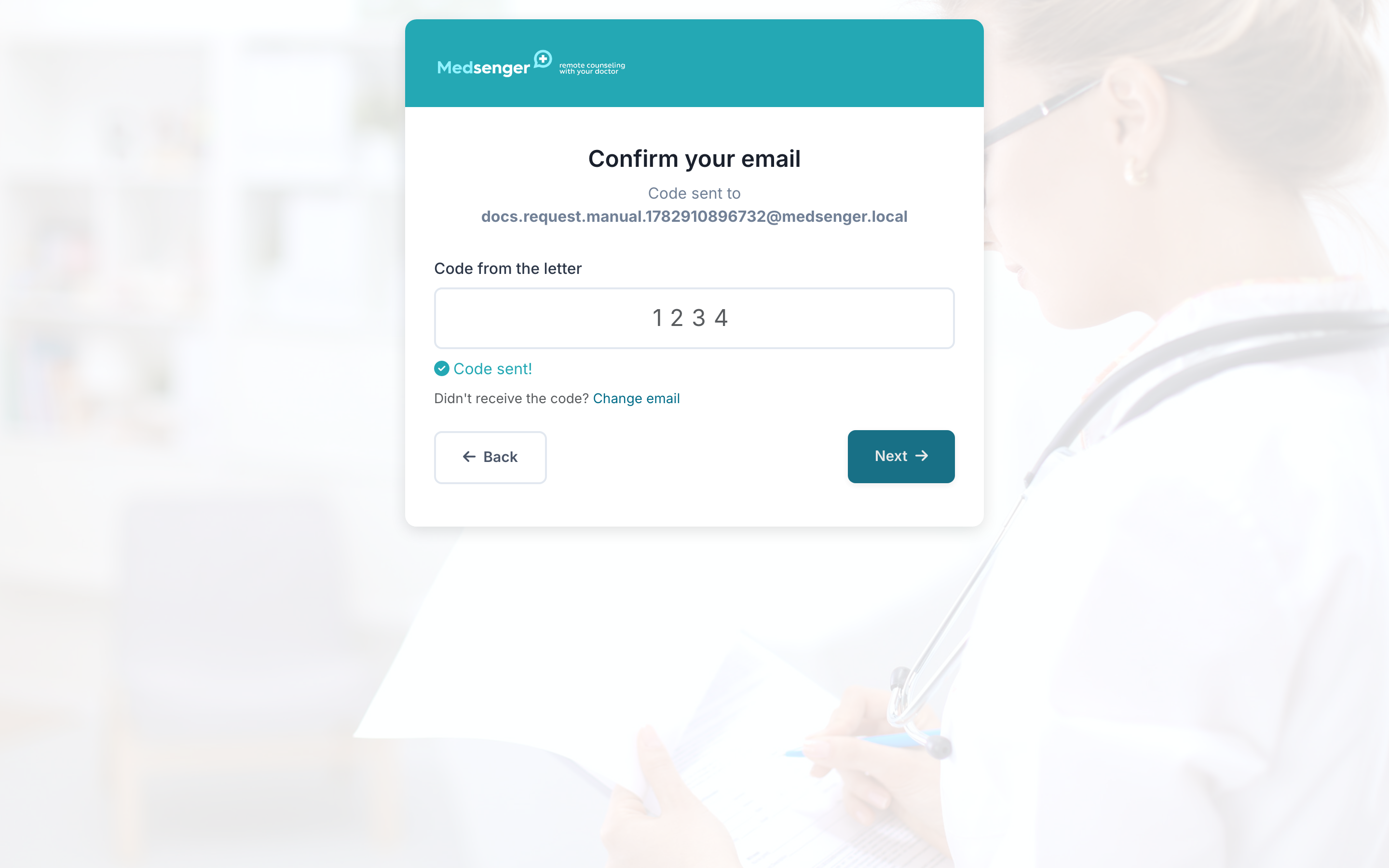
If the code does not arrive, check Spam, check the email address in the form, and request the code again. If the email still does not arrive, contact the clinic.
What details and documents are needed?
After email confirmation, Medsenger checks whether an account with this address already exists. If the account is found, the form will not ask you to enter all details again.
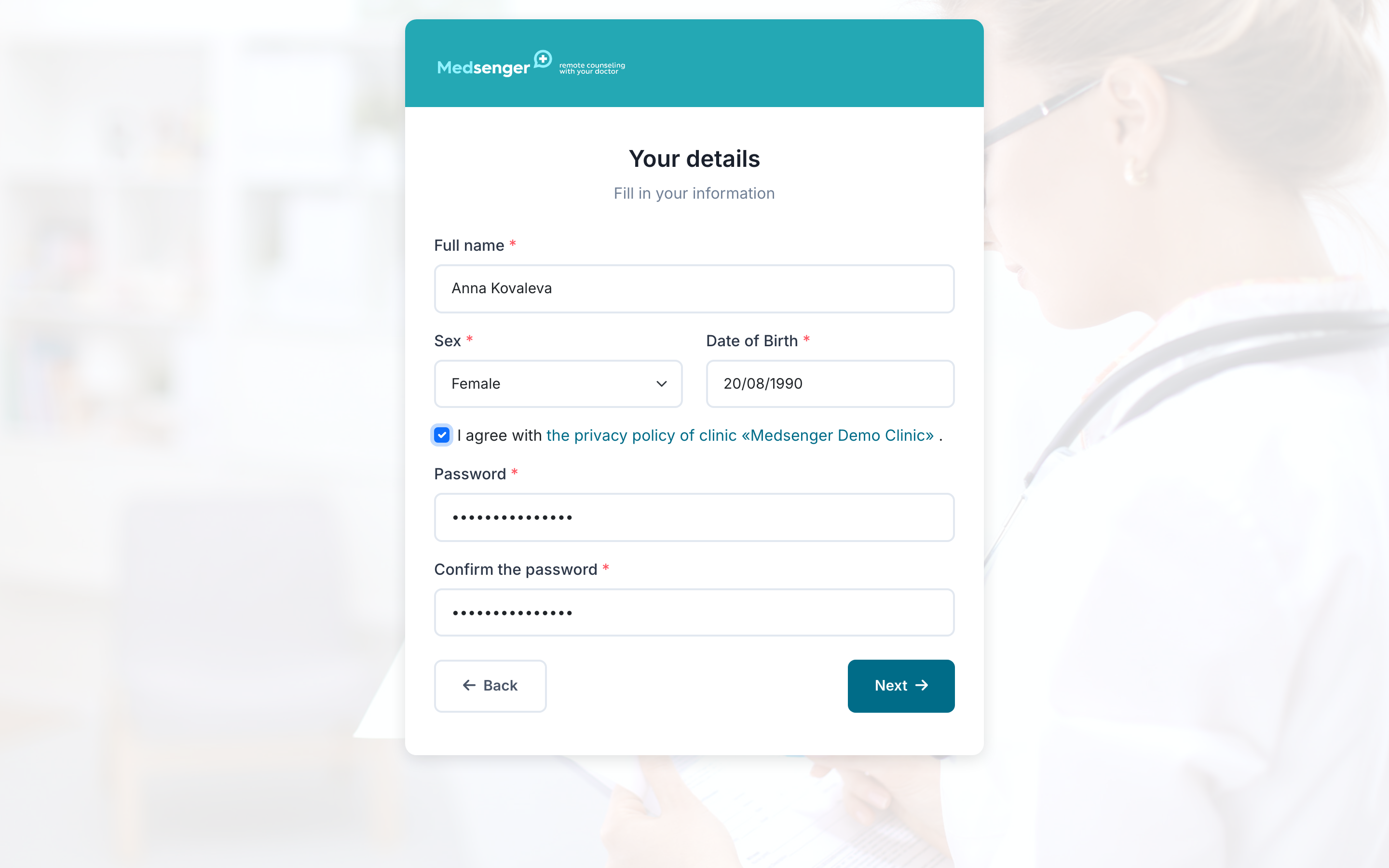
If there is no account yet, enter full name, sex, date of birth, consents, and a password if the selected service or doctor supports automatic opening of the consultation.
If the form asks for a password and shows an error, choose a longer password and do not use obvious parts of your name or email.
In some clinics, the form may ask for passport details for one-time identity confirmation through ESIA. This step appears only where the clinic requires it.
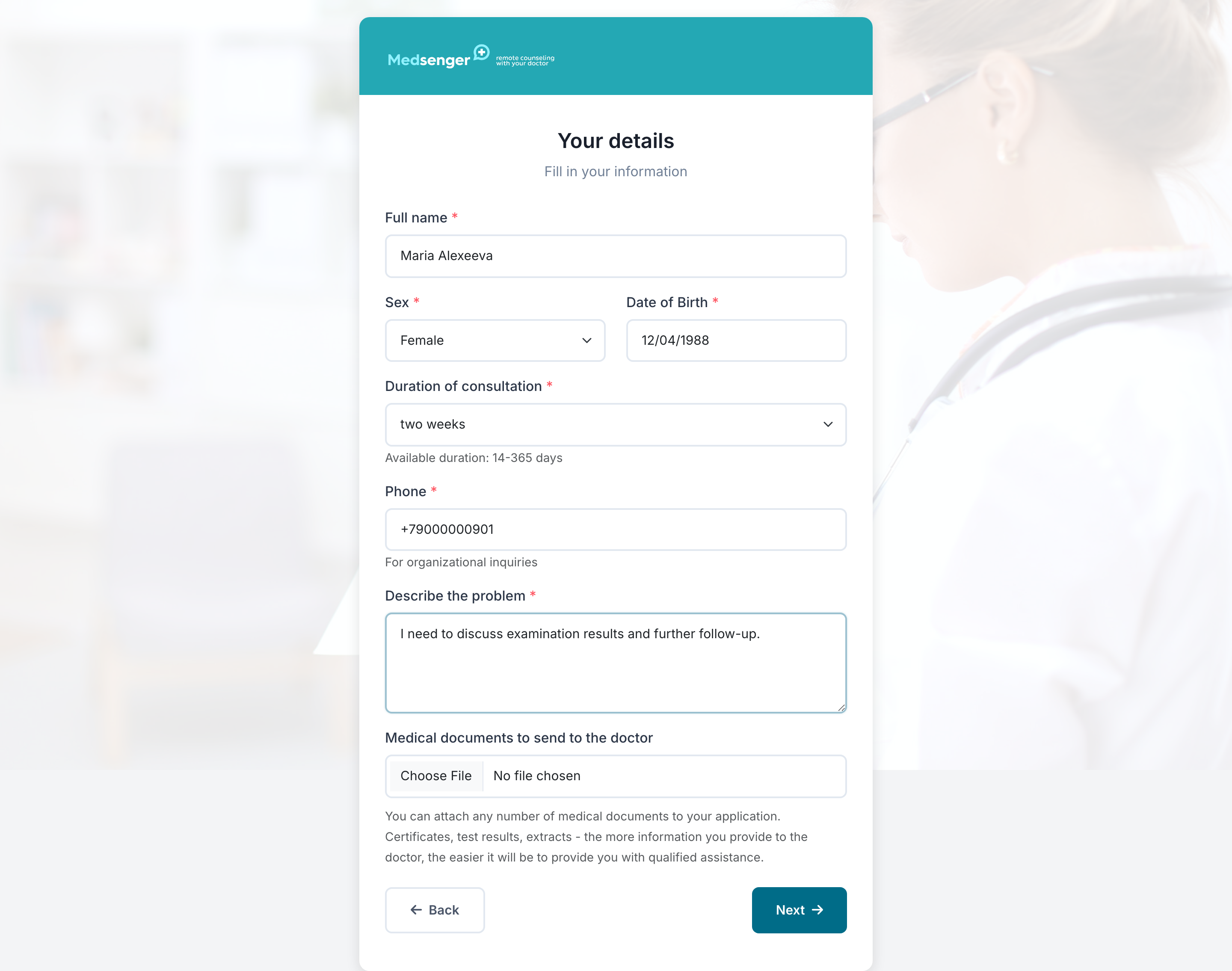
If the consultation request requires clinic confirmation, the form will ask for a phone number and a short description of the issue. The phone number is needed so the clinic can confirm the consultation, agree on time, or arrange payment.
You can attach discharge summaries, test results, reports, and other documents to the request. The file must open on your device and pass the security check. The maximum file size in the form is 50 MB.
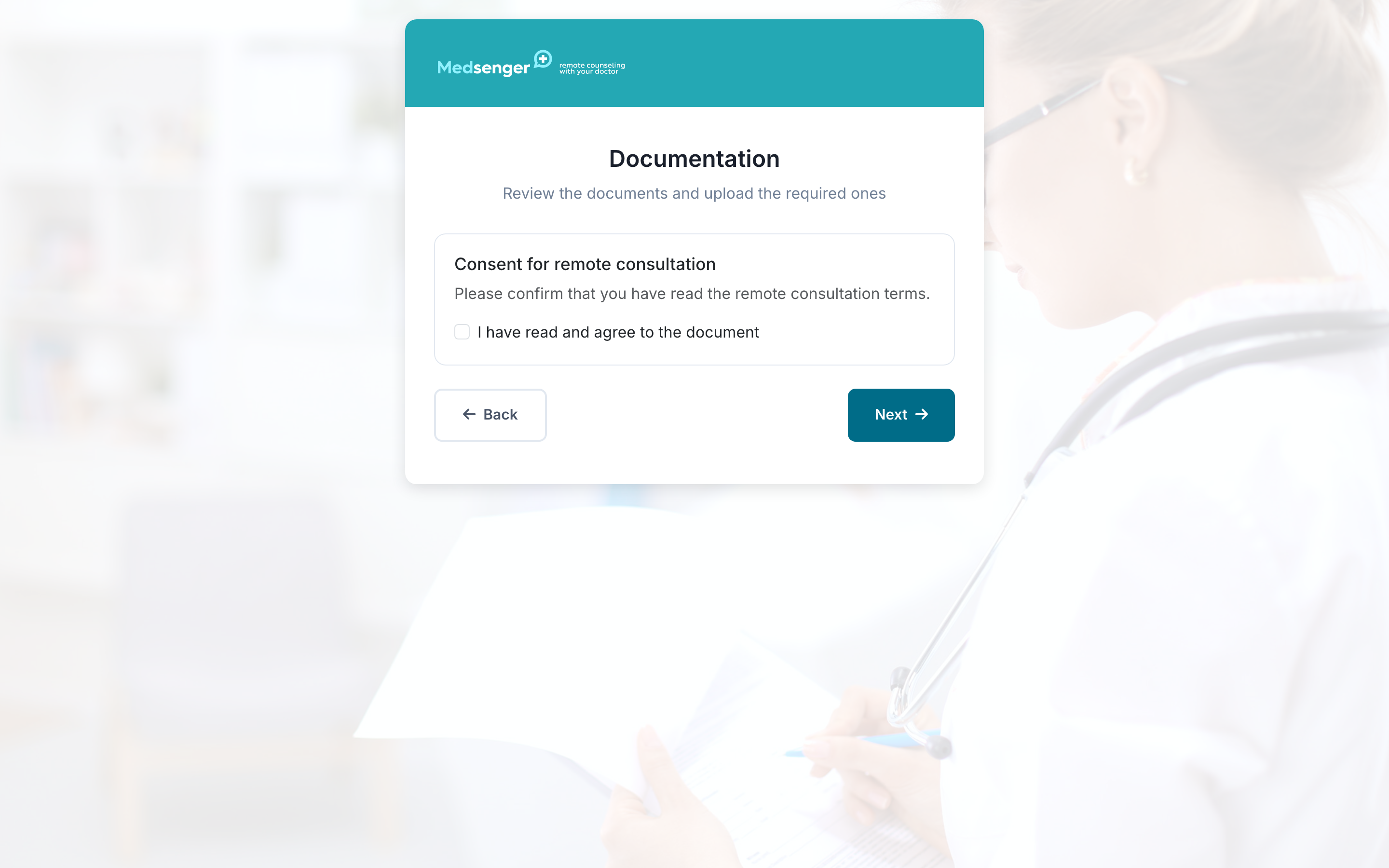
Some clinics add mandatory documents. In this case the form shows a separate Documents step: you need to download the document, tick the consent box, or upload a signed file. If a mandatory document is not completed, the request cannot be sent.
How do I submit the request?
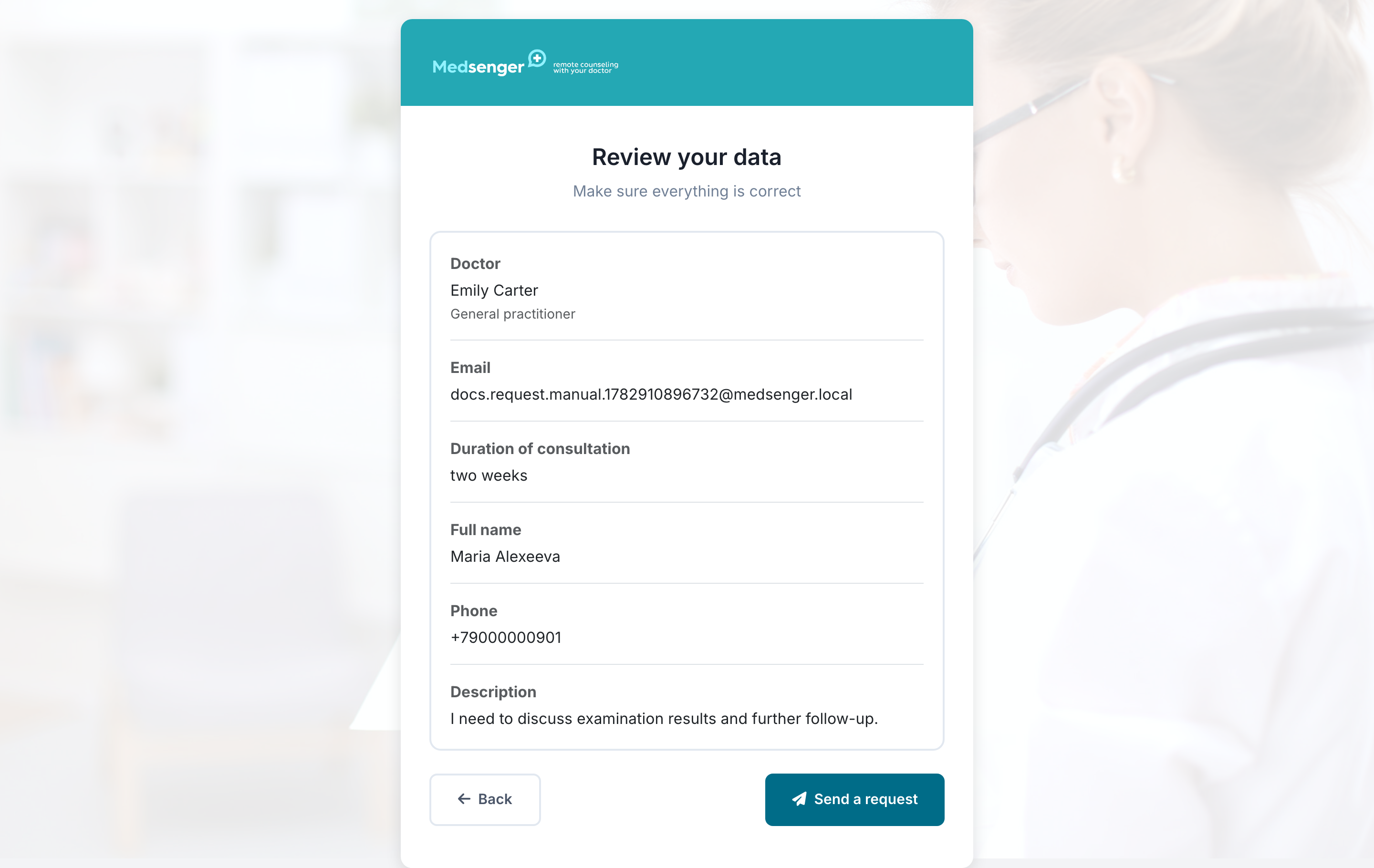
Before submission, the form shows a data review screen. Check the service or doctor, email, full name, phone number, issue description, and attached documents. After you click Submit request, the form will show the request number or the next step.
What happens after submission?
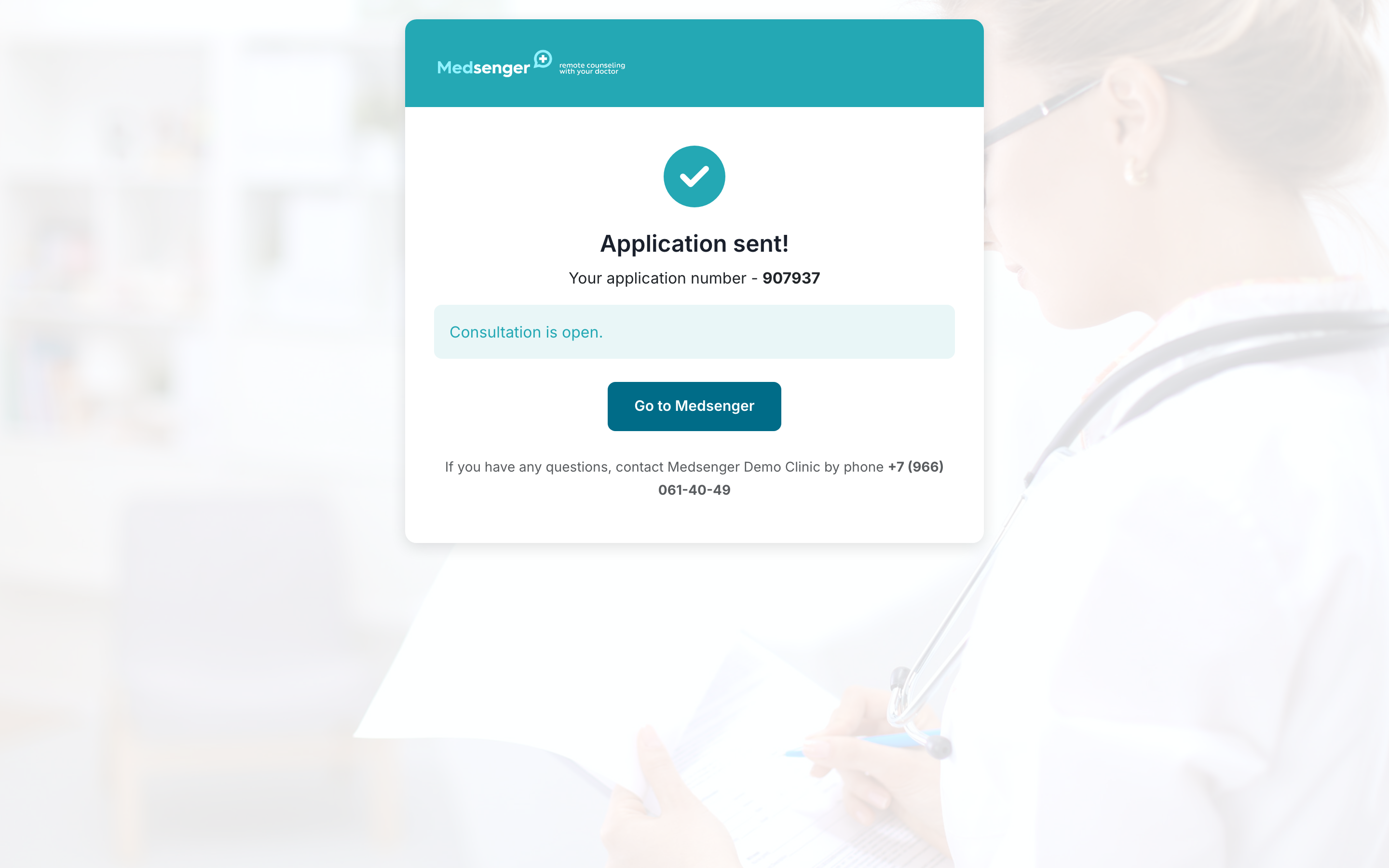
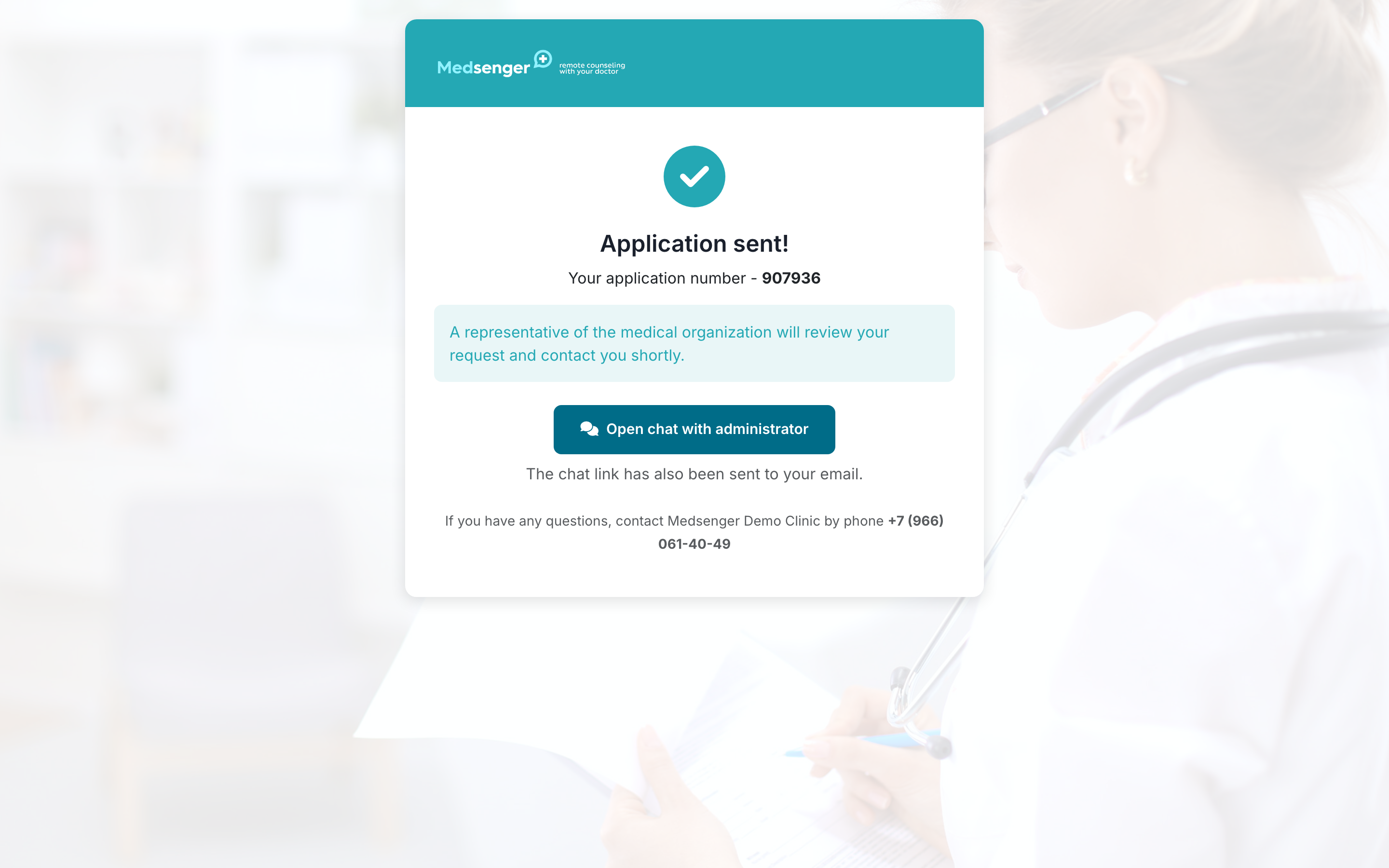
If the request is reviewed by the clinic, you will see the request number and a message that the medical organization will review it. If details, time, or payment need to be confirmed, a clinic employee may contact you by phone, email, or through the request chat. After the consultation is confirmed, you will receive access to Medsenger.
In some cases, the consultation opens automatically for the selected service or doctor. Then, after submission, the form activates the consultation and shows Consultation opened and the Go to Medsenger button.
If you did not have a Medsenger account before, the form will ask you to set a password before submitting this type of request.
If the selected service is paid and can open automatically, the Pay button appears after submission. Go to payment and, after successful payment, return using the payment page button if it is available. After you return, the form will finish opening the consultation and show the Go to Medsenger button.