How do I communicate with the doctor?
How do I send a message or file?
Write your question in the field at the bottom of the screen and click Send. The message will appear in the consultation chat.
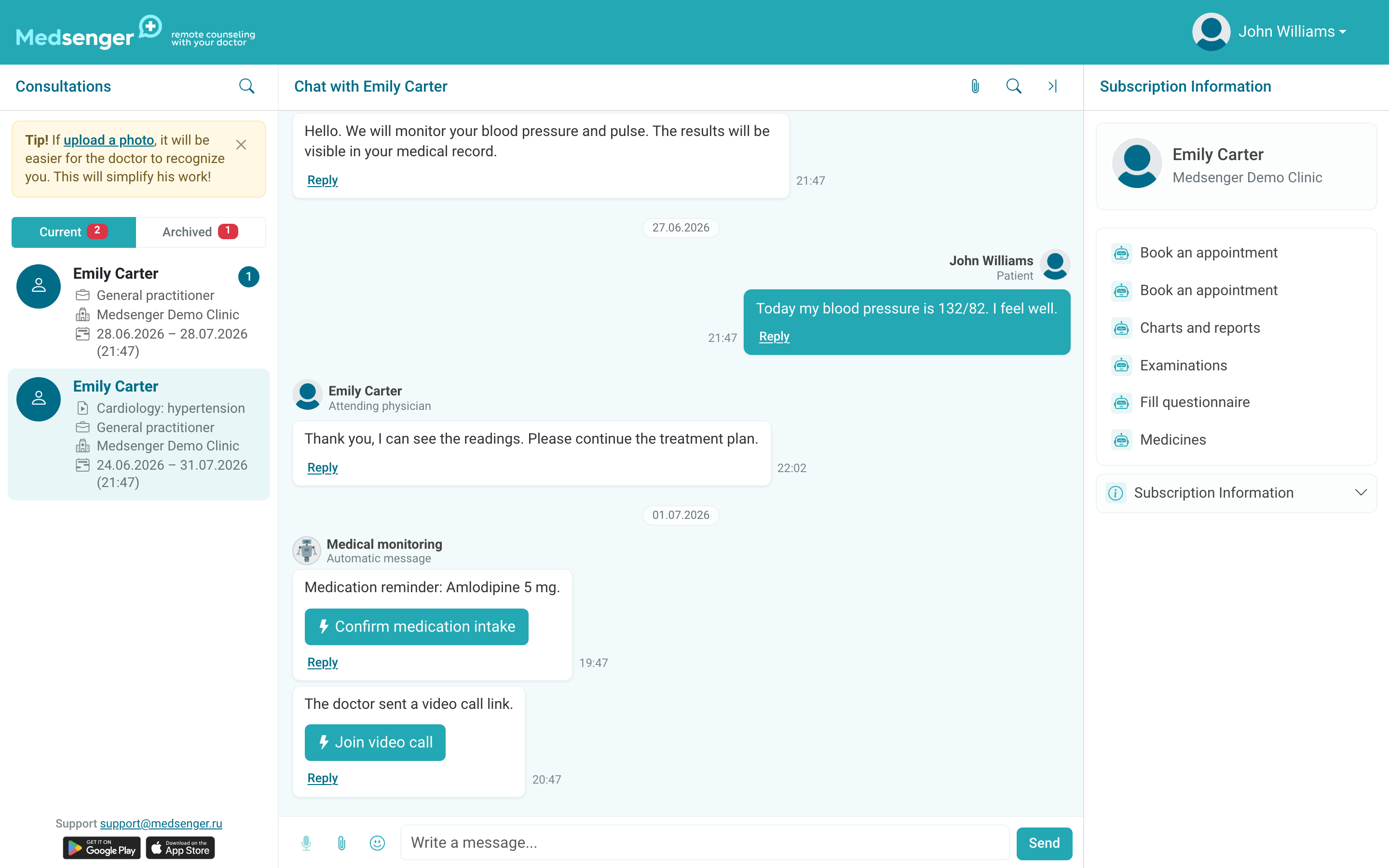
Message formats:
- Text
- File or photo: click the paperclip
- Voice message: click the microphone, record, and send
- Reply to a message: click Reply on the needed message
Important: if the issue is urgent and requires immediate medical help, do not wait for an answer in the chat. Contact emergency services or use the channels recommended by your clinic.
Through the chat, you can send the doctor photos, examination results, or other files. Before sending, make sure the file is related to the current question and is easy to read.
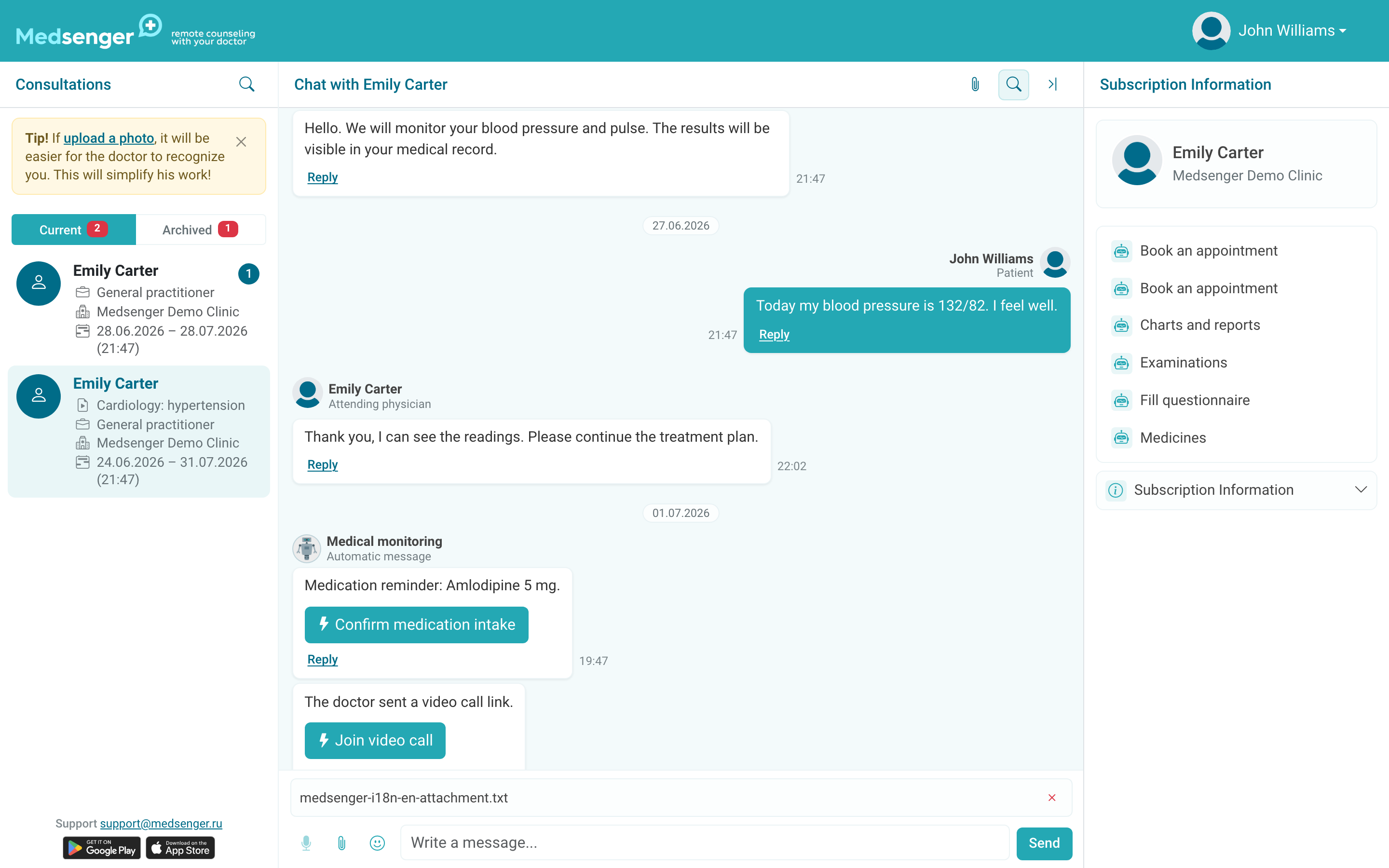
Upload limits: images up to 24 MB, other files up to 100 MB. The file still passes a security check: type, extension, content, and antivirus scanning.
If you send a photo of a document:
- capture the whole document;
- avoid glare and blur;
- check that the date, full name, and conclusion are visible;
- do not send another patient's documents.
When should I expect an answer?
The response time is specified in your subscription or clinic rules. When the doctor replies, you may receive an email or push notification if they are enabled.
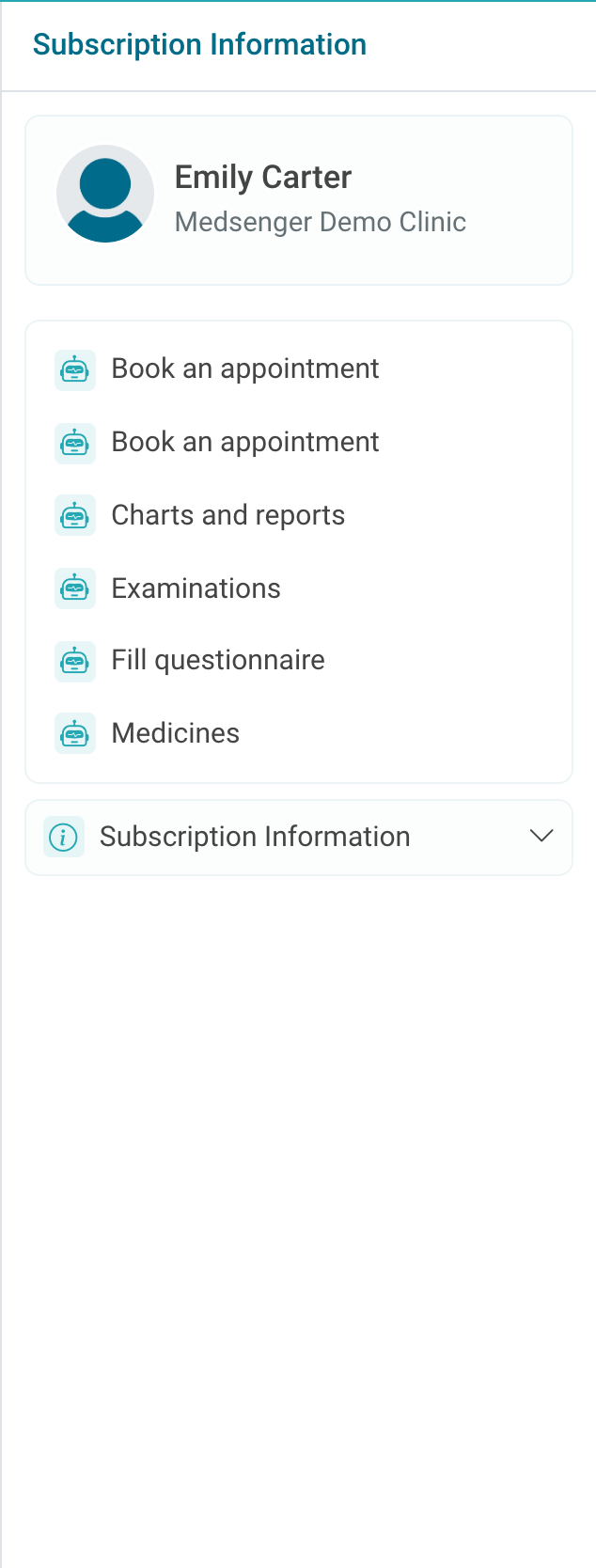
If the subscription period has ended but your last message has not been answered, the doctor will still be able to answer it. You cannot send new messages in a completed subscription.
What notifications appear in the chat?
Besides doctor's messages, the chat may contain:
- Questionnaires and monitoring tasks to fill in and submit
- Reminders for medications or measurements
- Information messages from the clinic
- Video call links from the doctor
- Messages from a clinic employee
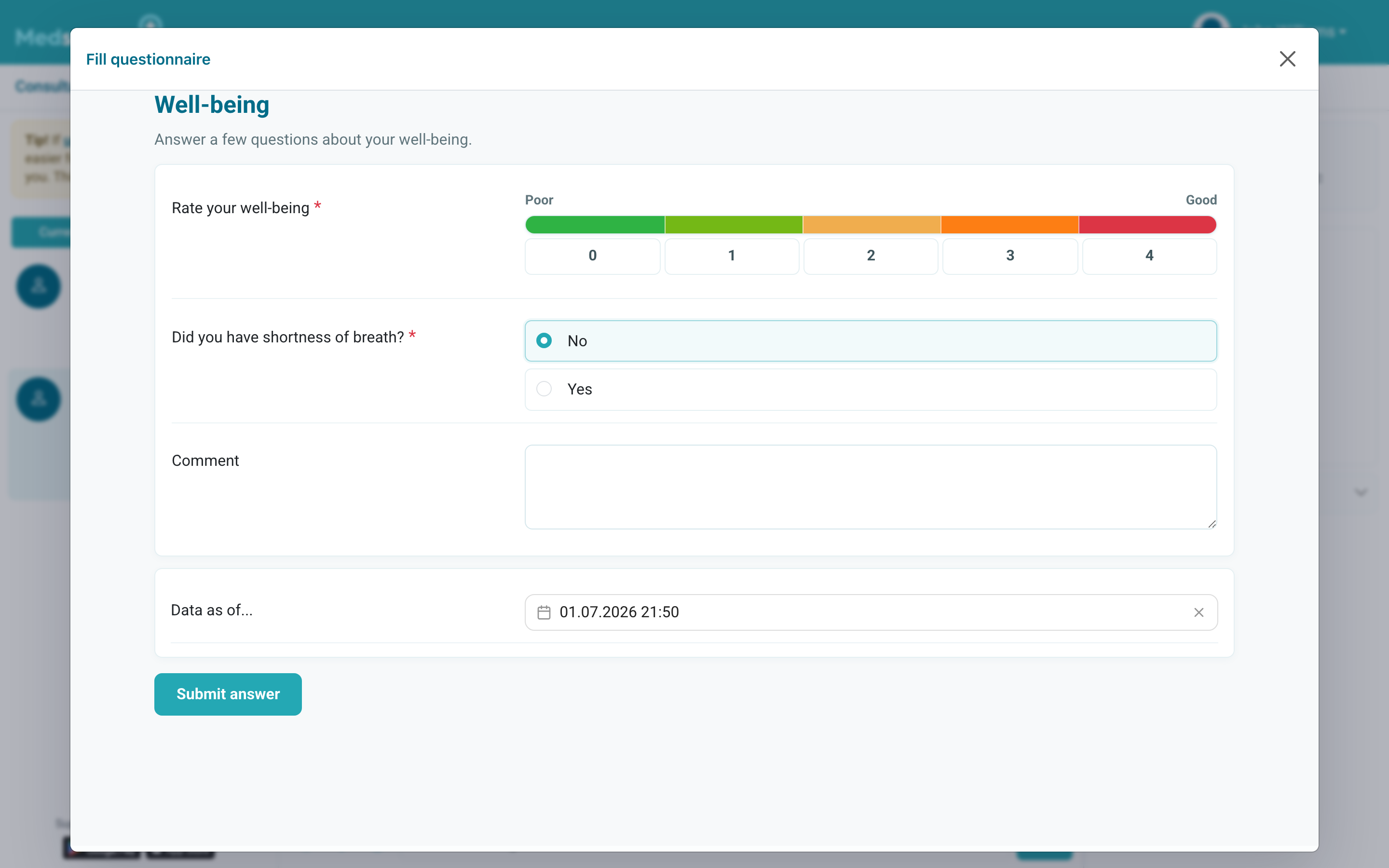
Interactive messages differ from regular text: they contain an action button, for example Fill in questionnaire. Click it to open the form directly in the chat.
These messages may arrive automatically according to the monitoring schedule. If there is no button or the form does not open, refresh the page and write to the doctor.
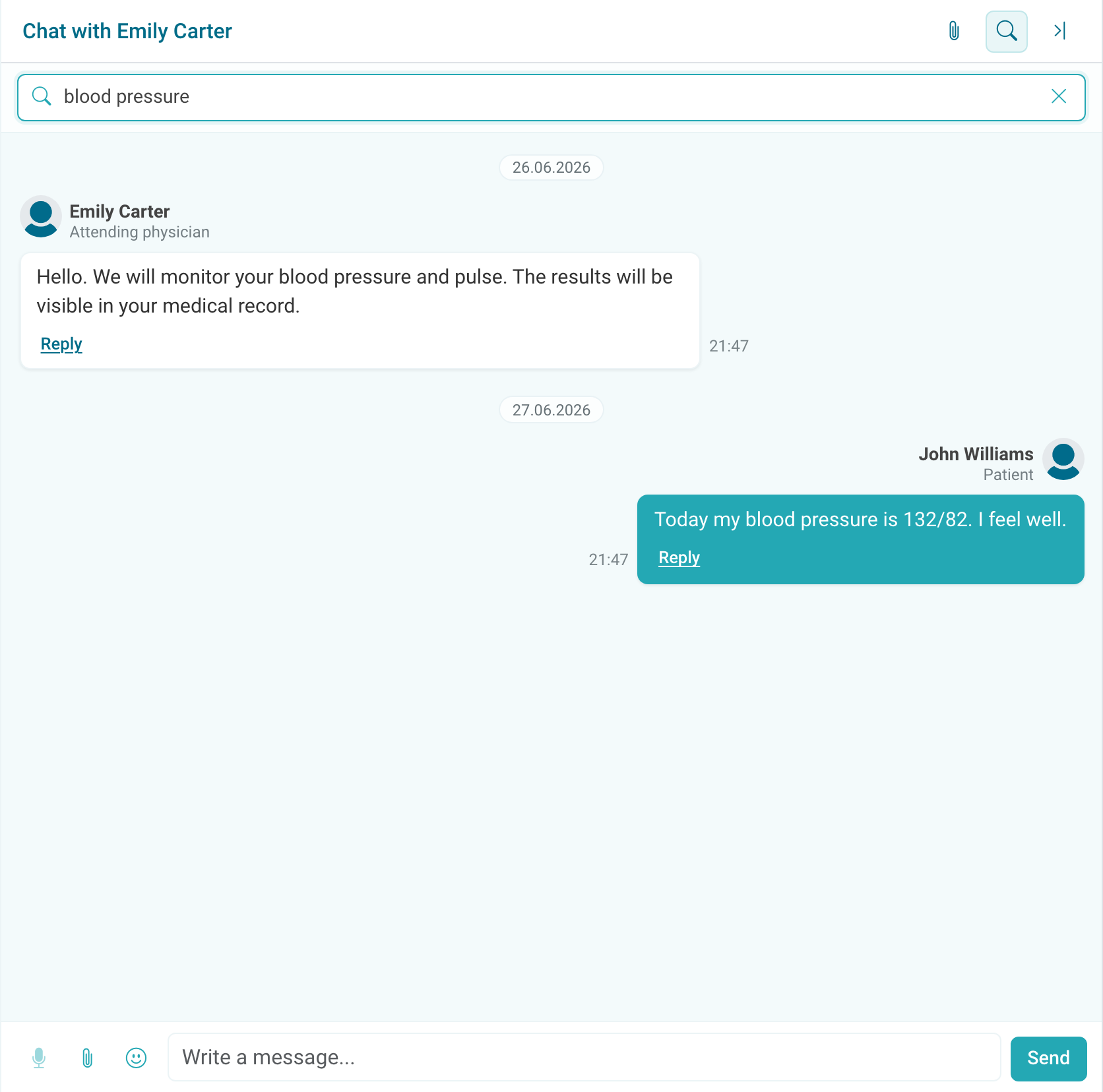
How do I find a message in the conversation?
Click the search icon in the chat header to search message history.
How do I join a video call?
If video calls are enabled for your subscription, the doctor may start a video consultation. You will receive a notification with a link to join it in the browser or through the app.
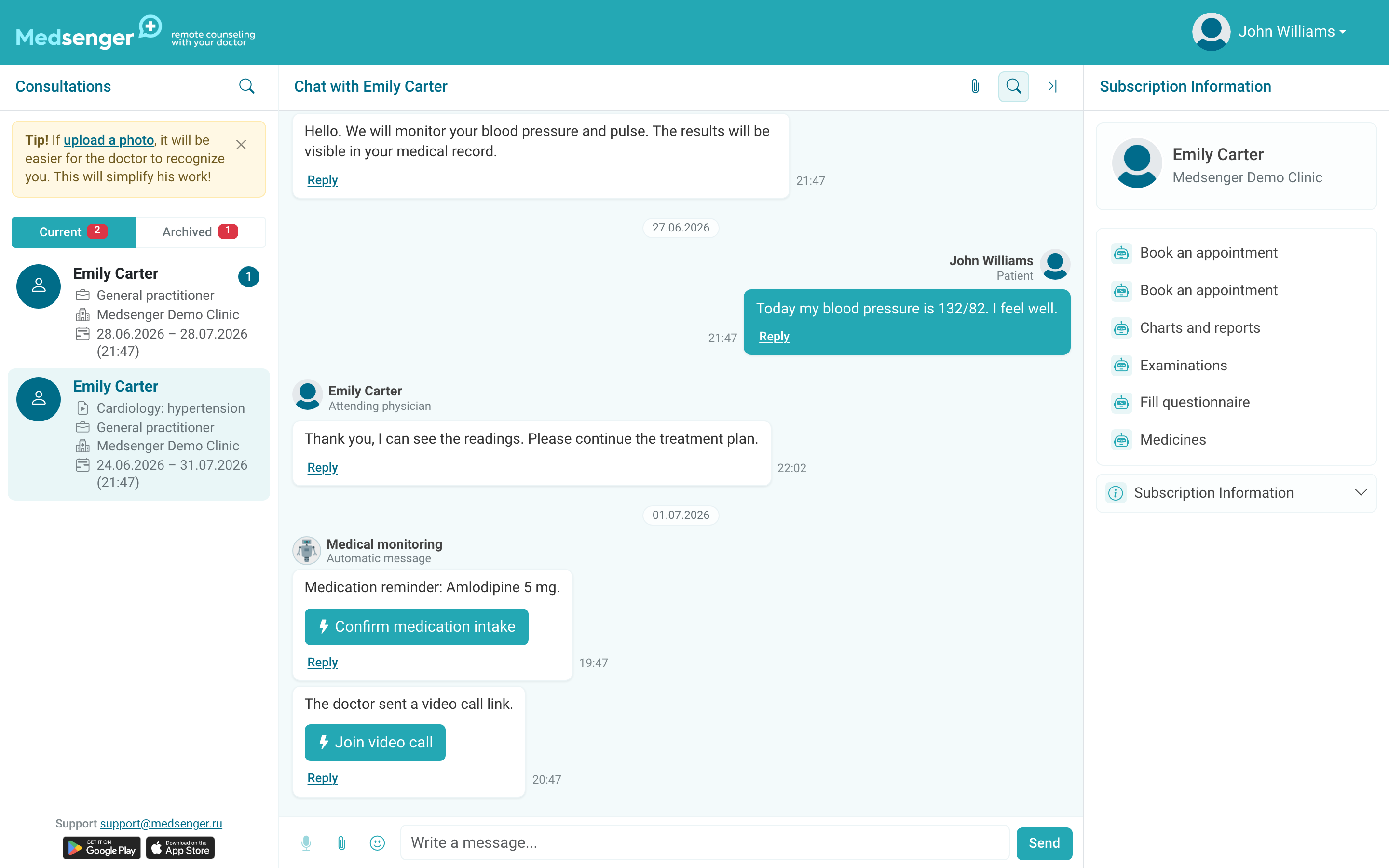
Sometimes the doctor or clinic allows the patient to choose the video consultation time. In this case the right panel shows the Video call schedule button.
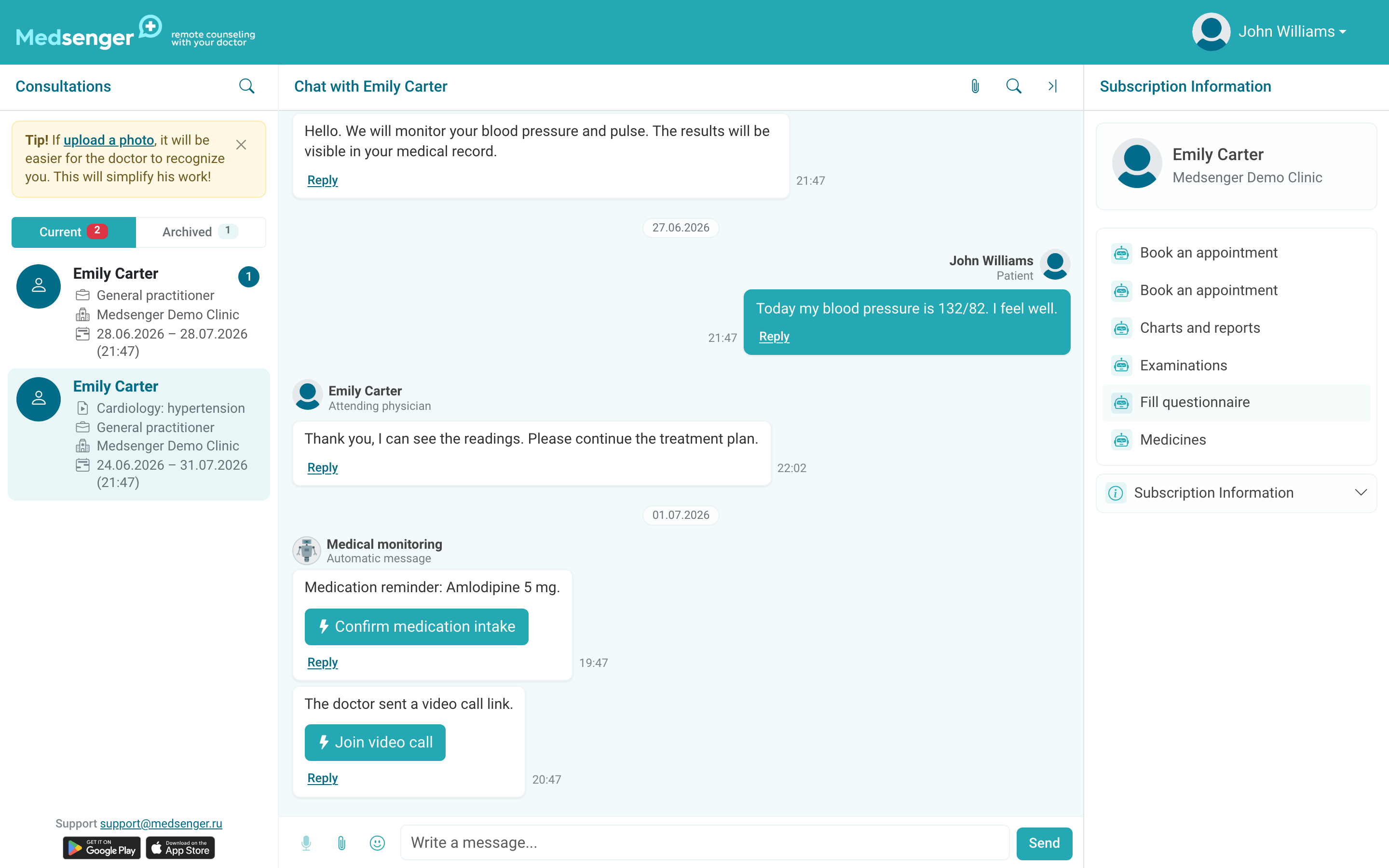
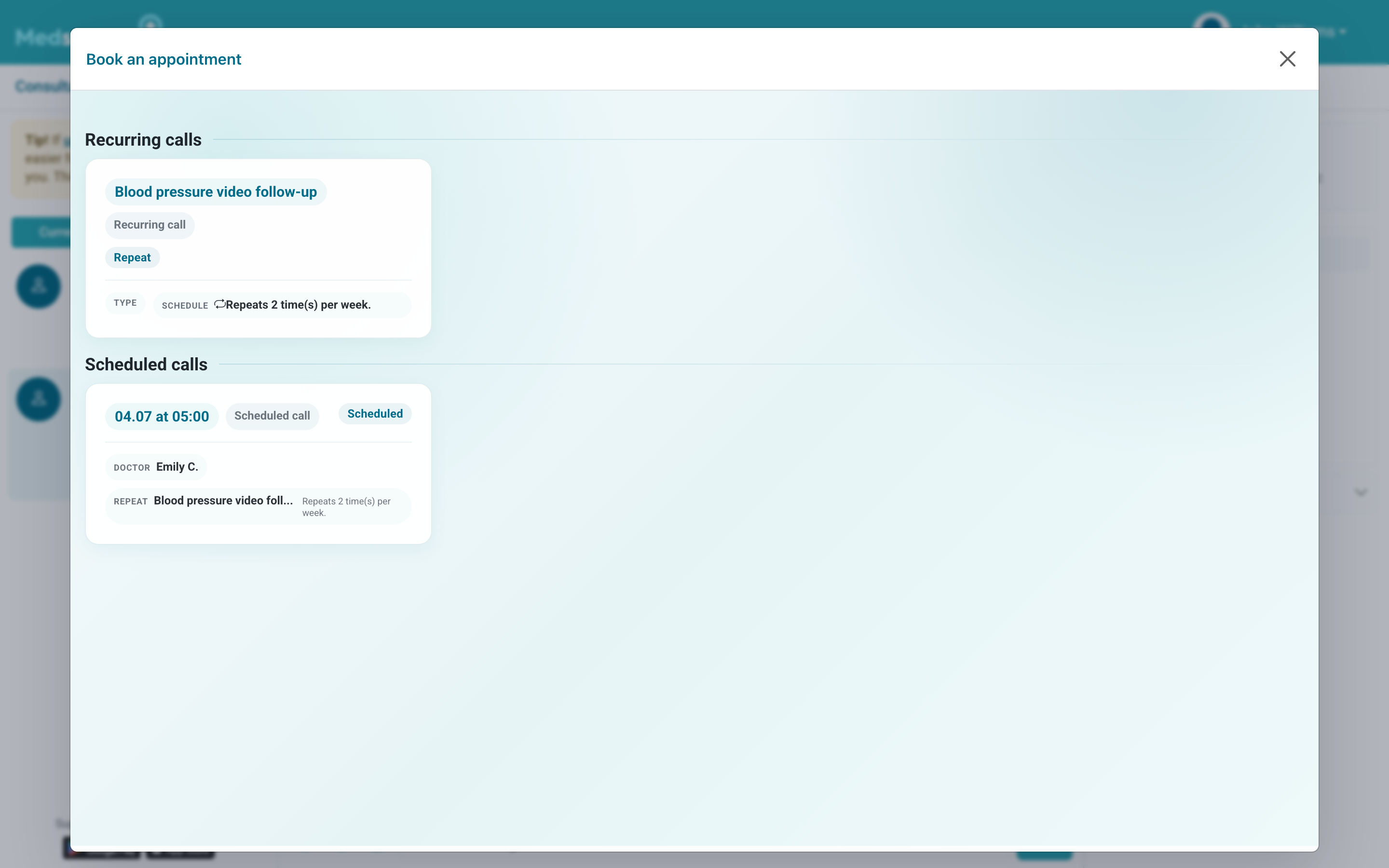
Open the schedule, choose an available time, and confirm the appointment. If a call is already scheduled, it will appear in the same window.
Before the call, check your internet connection, battery level, and camera and microphone permissions. If the camera or microphone does not work, refresh the call page, close other apps using the camera, and try another browser or the mobile app.