How do I complete assignments?
Assignments in Medsenger may arrive in the chat or be available in the right panel of the subscription. These include questionnaires, measurements, medications, examinations, and data transfer from devices.
Where do tasks appear?
If monitoring is connected to your subscription, the system will send questionnaires to the chat. They may ask about well-being, blood pressure, symptoms, or medication intake.
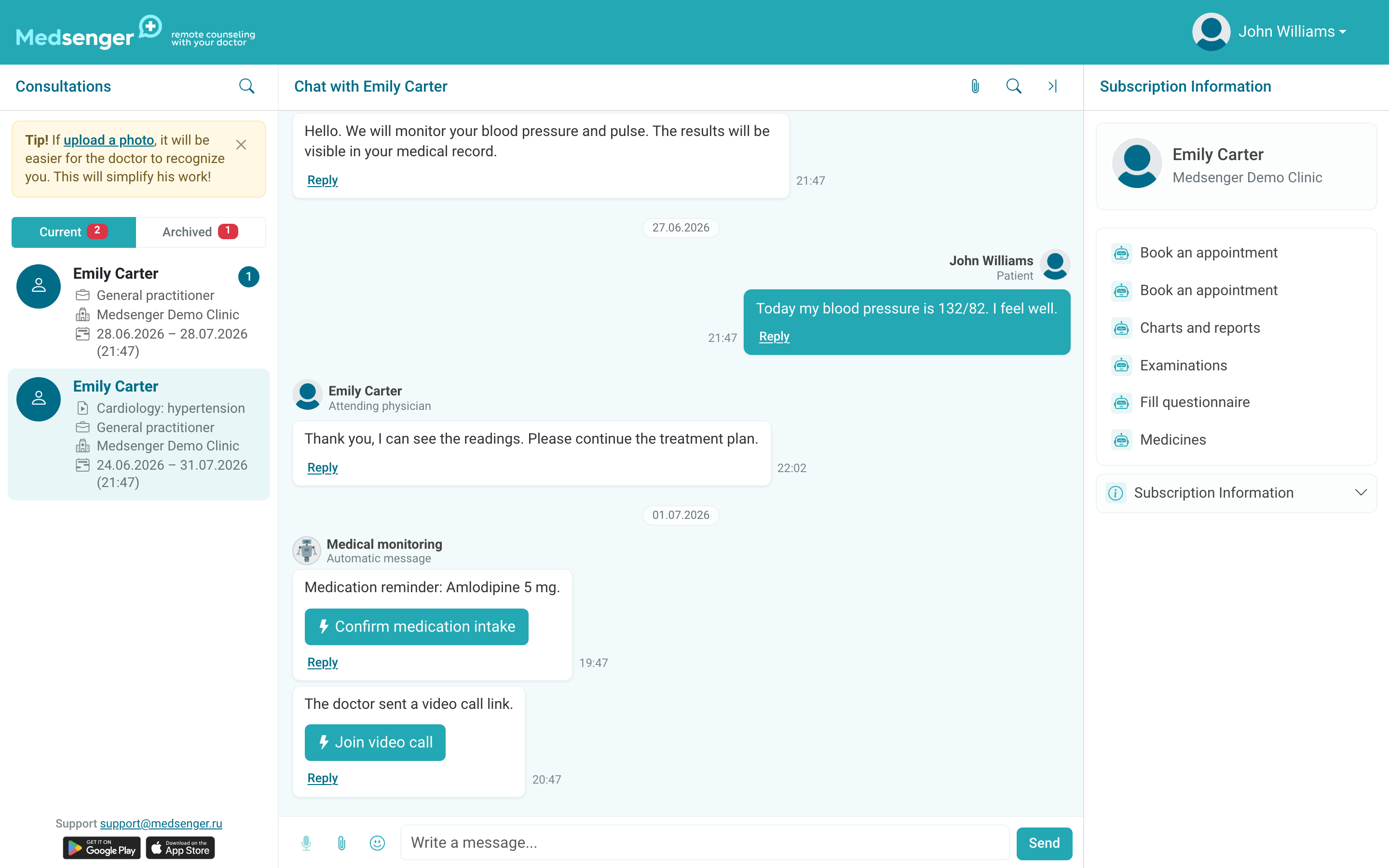
A questionnaire appears as an interactive message with a button. The doctor card on the left may also show an Unfinished tasks counter: it shows how many actions are waiting for your response.
How do I fill in a questionnaire?
- Open the needed subscription.
- Click Fill in questionnaire in the message or in the right panel.
- Answer the questions.
- Click Send or Save in the form.
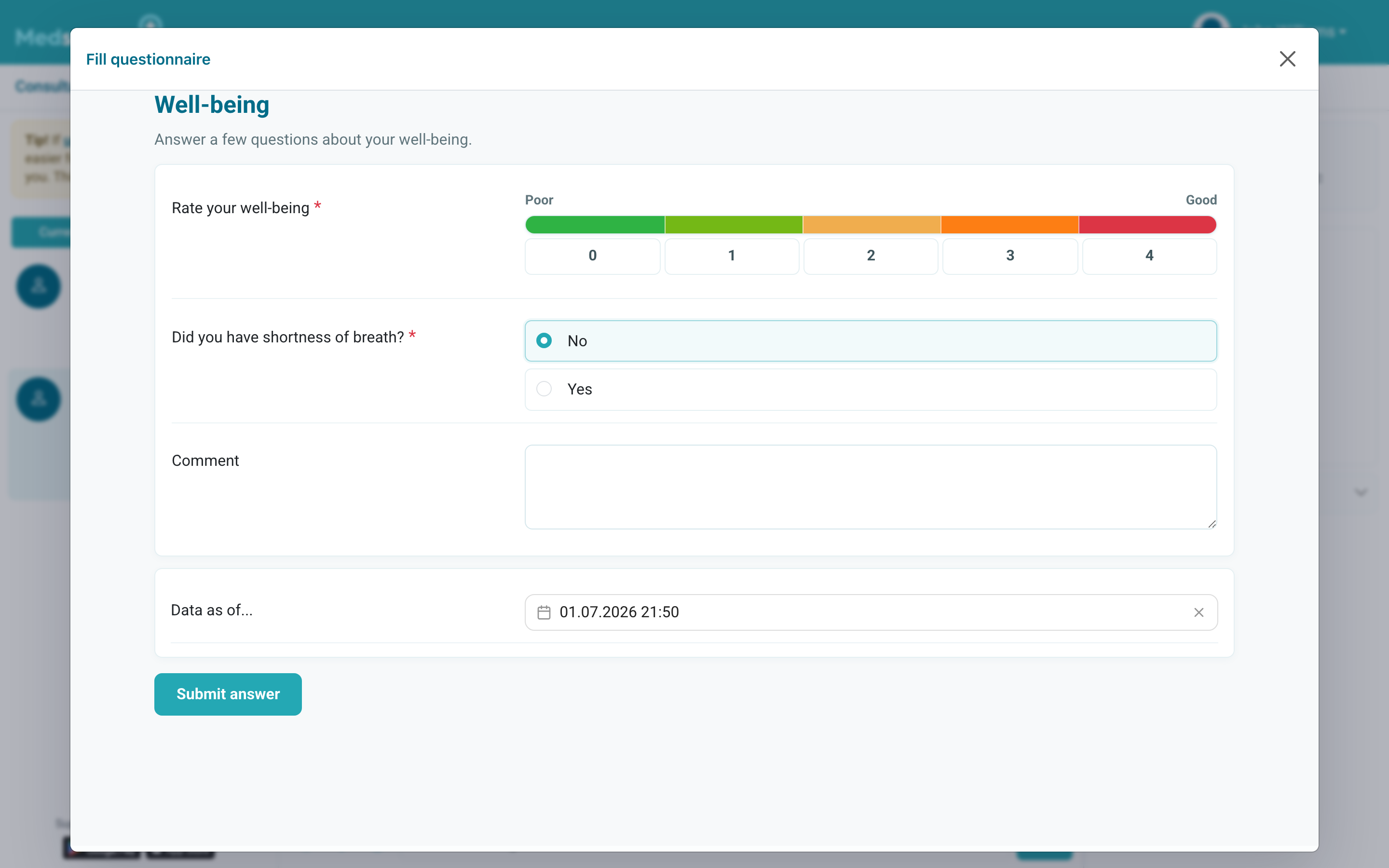
Fill in the questionnaire according to your actual condition at the time of answering. If the question asks for a number, enter only the measured value, without comments in the number field. Send comments as a separate message to the doctor.
If you made a mistake and have already submitted the form, write to the doctor in the chat and clarify the correct data.
How do I send a measurement?
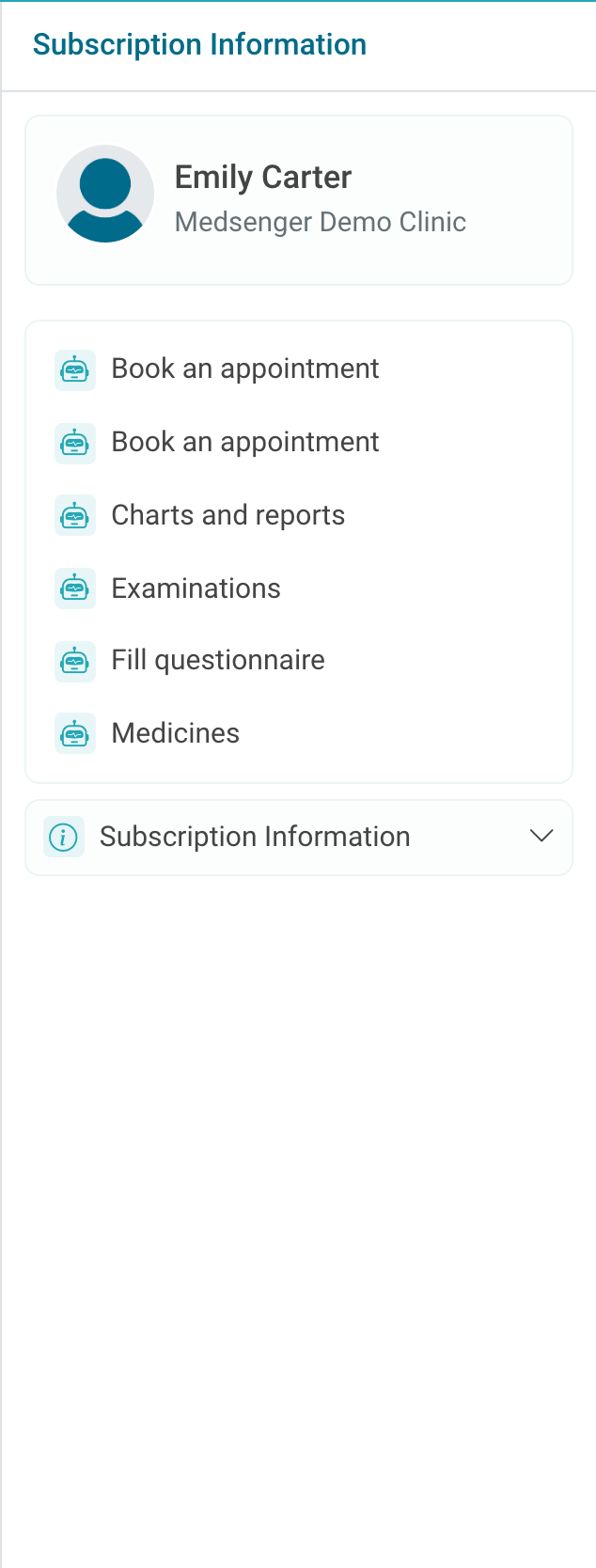
If measurements are connected to the subscription, the right panel may show buttons such as Record blood pressure. Click the button, enter the values, and submit the form.
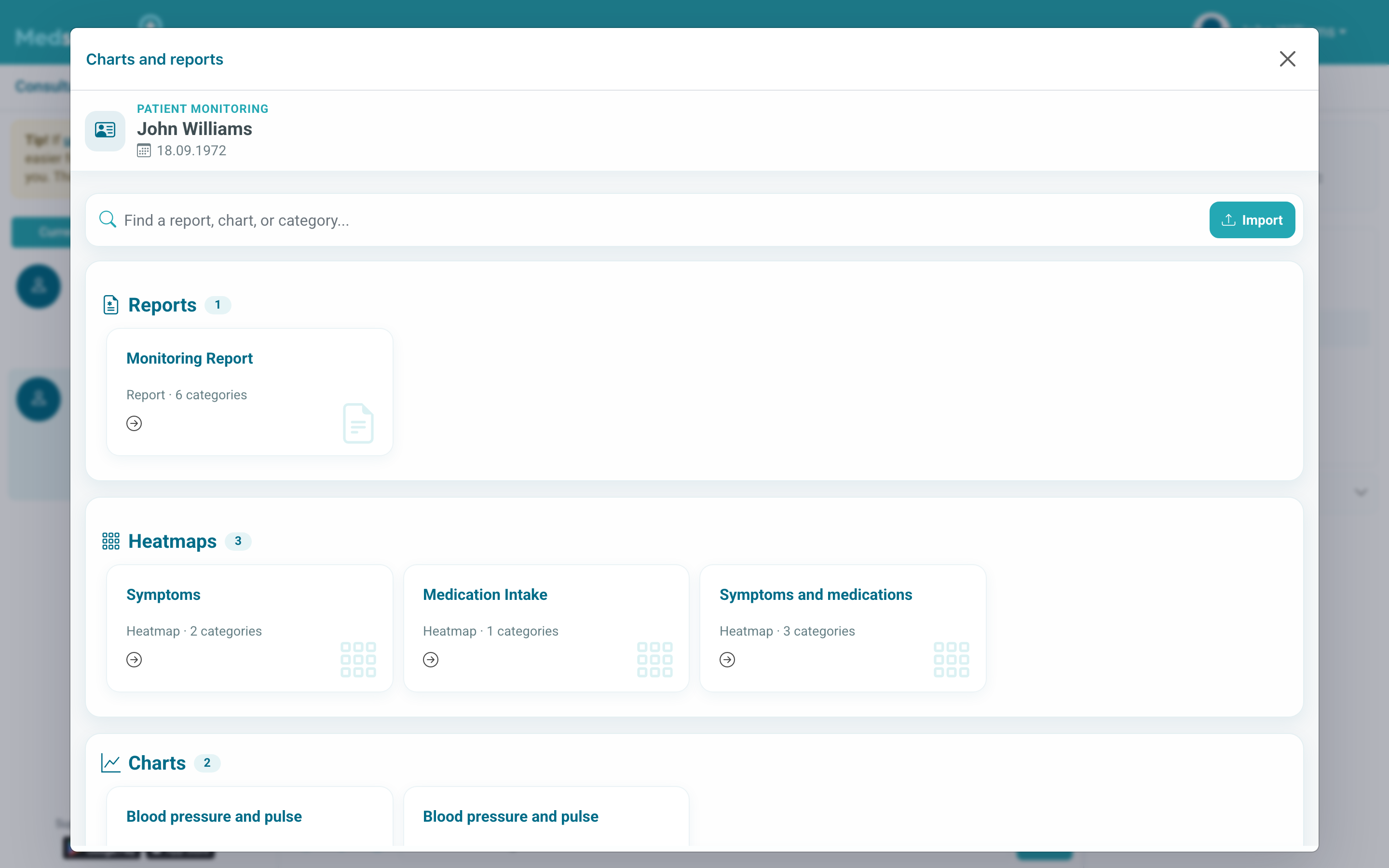
Data may also be sent automatically through a connected device or synchronization with phone health systems if this is supported in your consultation.
How are devices connected?
The doctor or clinic connects medical devices to the subscription. This is needed so data goes to the correct doctor and the correct medical record.
The patient can enable only mobile synchronization independently: Apple Health on iOS or Google Health Connect on Android. If the doctor gave you a blood pressure monitor, glucometer, or pulse oximeter, follow the clinic instructions.
How do I view and mark medications?
The main scenario is to mark intake directly from the reminder in the chat. If the message has a Confirm intake button, click it after actually taking the medication.
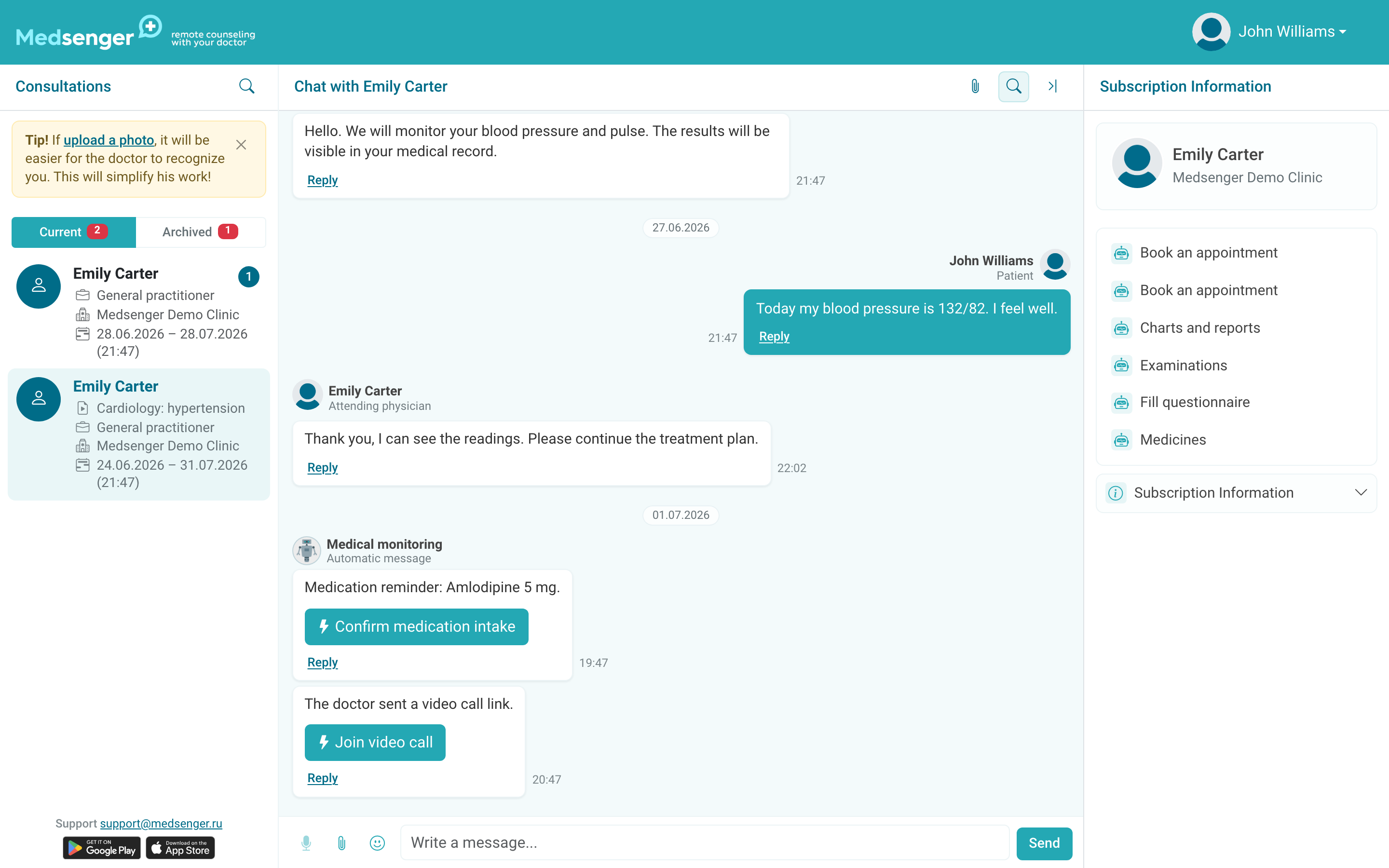
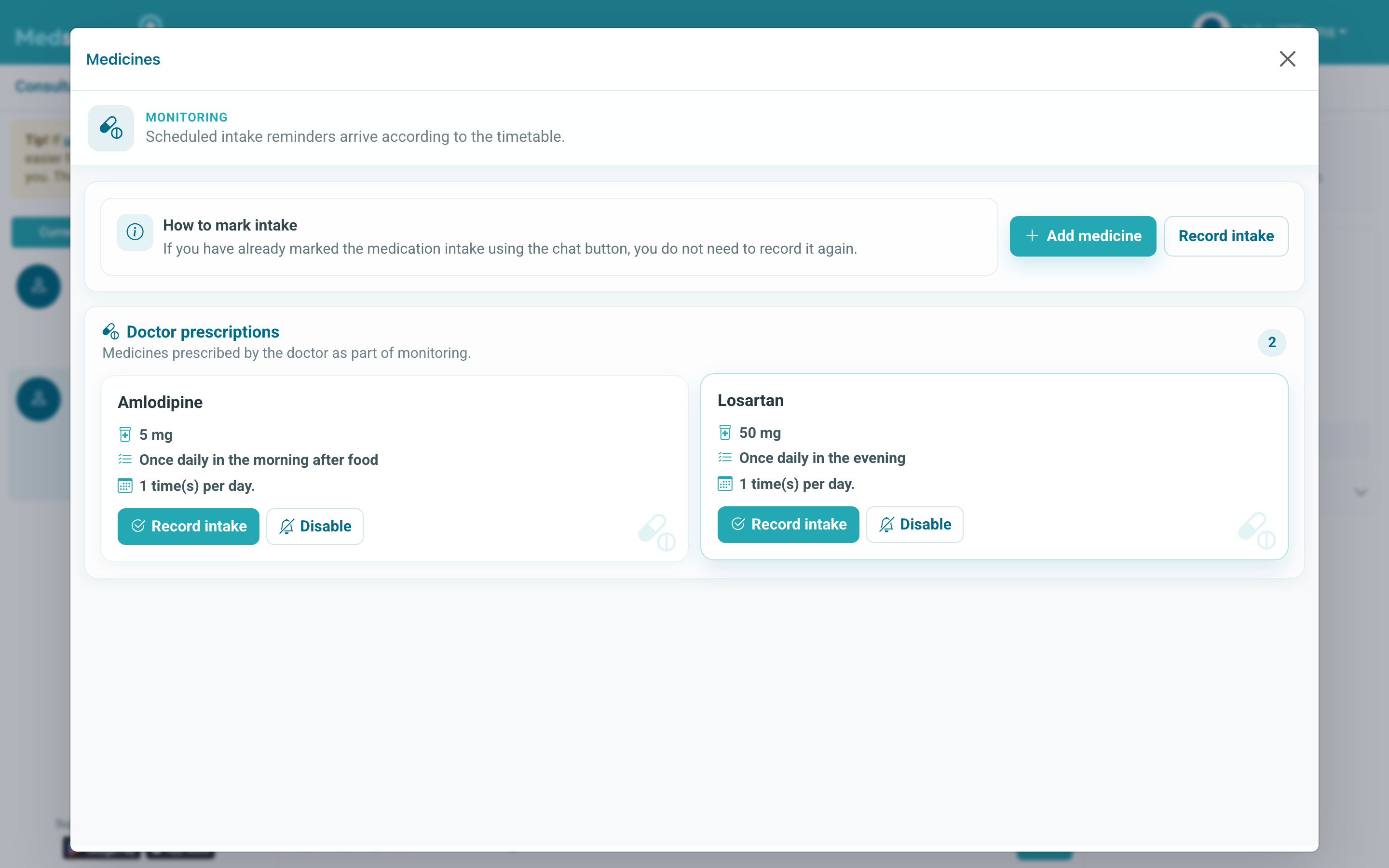
If the doctor prescribed medications through Medsenger, the right panel also shows the Medications button. Open it to see the drug name, dosage, schedule, and completion marks. If you did not mark intake through the chat, you may be able to mark it manually in the medication list if this method is available in your consultation.
In some clinics, video confirmation may be used to confirm intake. In this case follow the instruction in the message or form: usually you need to allow camera access, record a short video, and send it to the doctor.
If there is no confirmation button or medication list, medications are not assigned in Medsenger or this scenario is not connected.
Mark actual intake. If you are unsure what to do after missing a dose, write to the doctor.
Where can I see examinations?
If the doctor assigned examinations through Medsenger, the right panel shows the Examinations button. The list shows names, deadlines, and completion status.
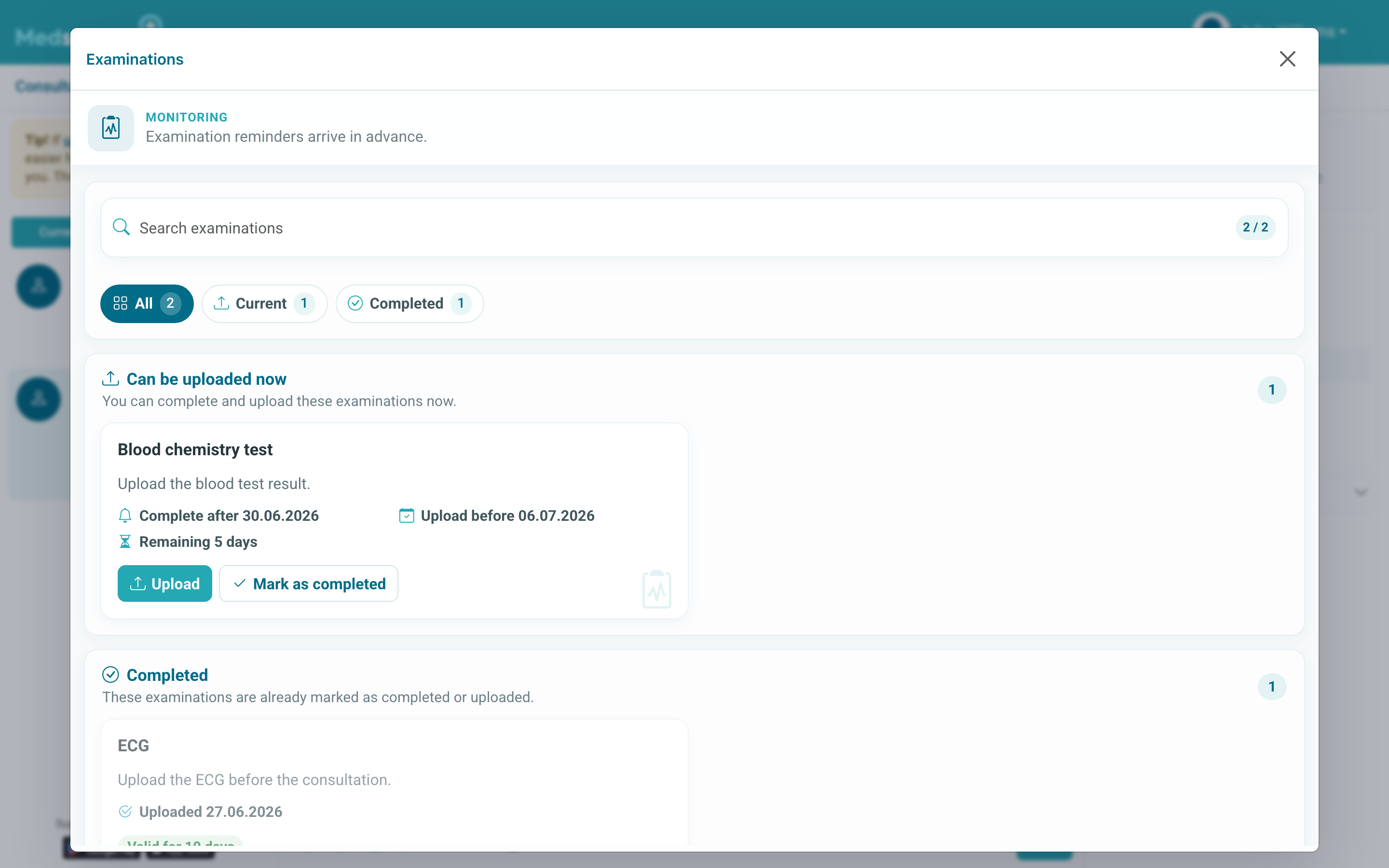
After an examination, the doctor may ask you to send the result in the chat. How to attach a file or photo is described in how to communicate with the doctor.