The video call does not work
If the link does not open
A video call usually opens from a link in the chat. Click Join in the call message. If the link opened in the app but the call does not start, try opening it in a browser.
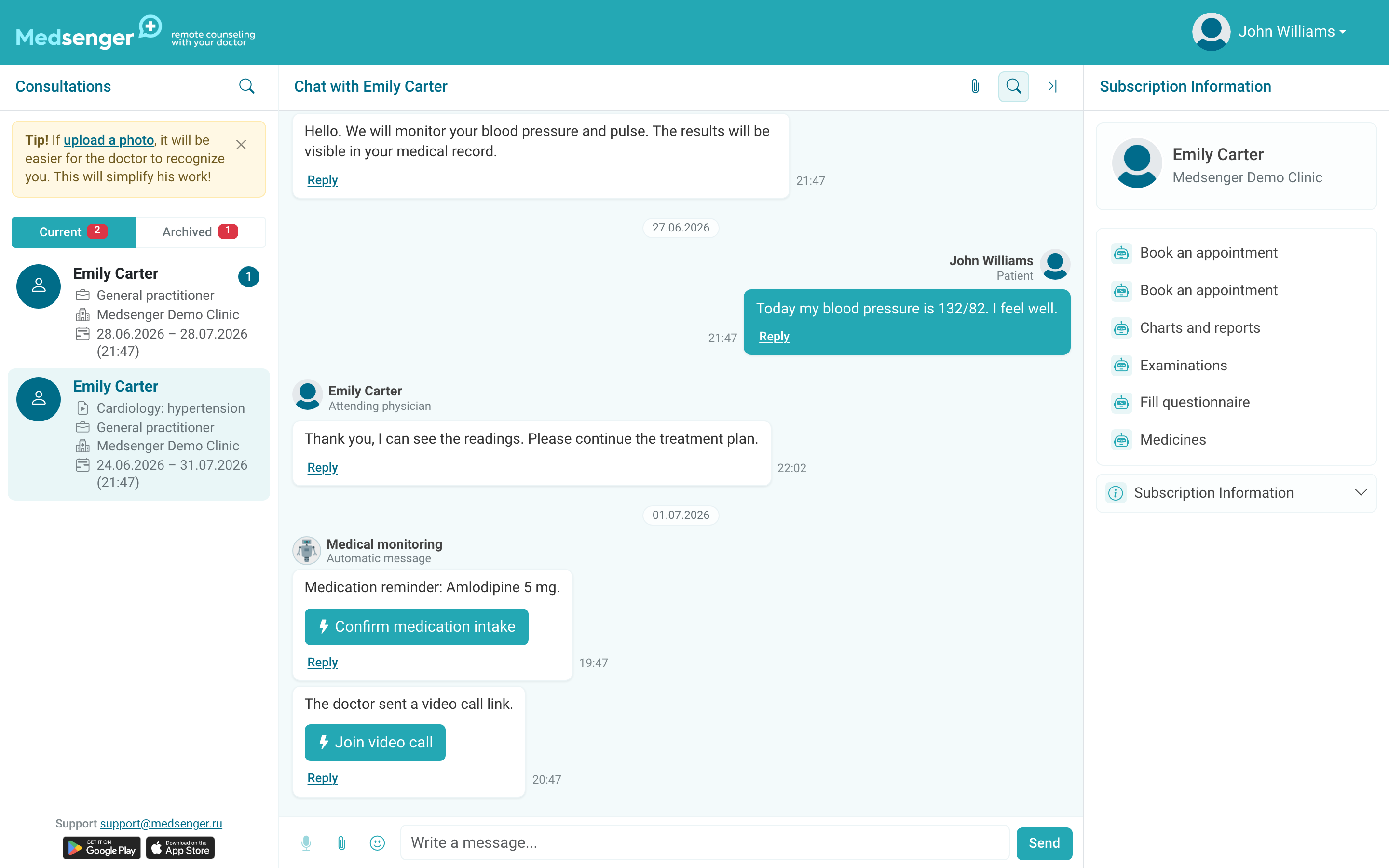
If instead of a link you have the Video call schedule button, open it and check scheduled calls. How to find a video call is described in how to communicate with the doctor.
If you need to choose call time
The Video call schedule button is in the right panel of the consultation, next to other subscription actions.
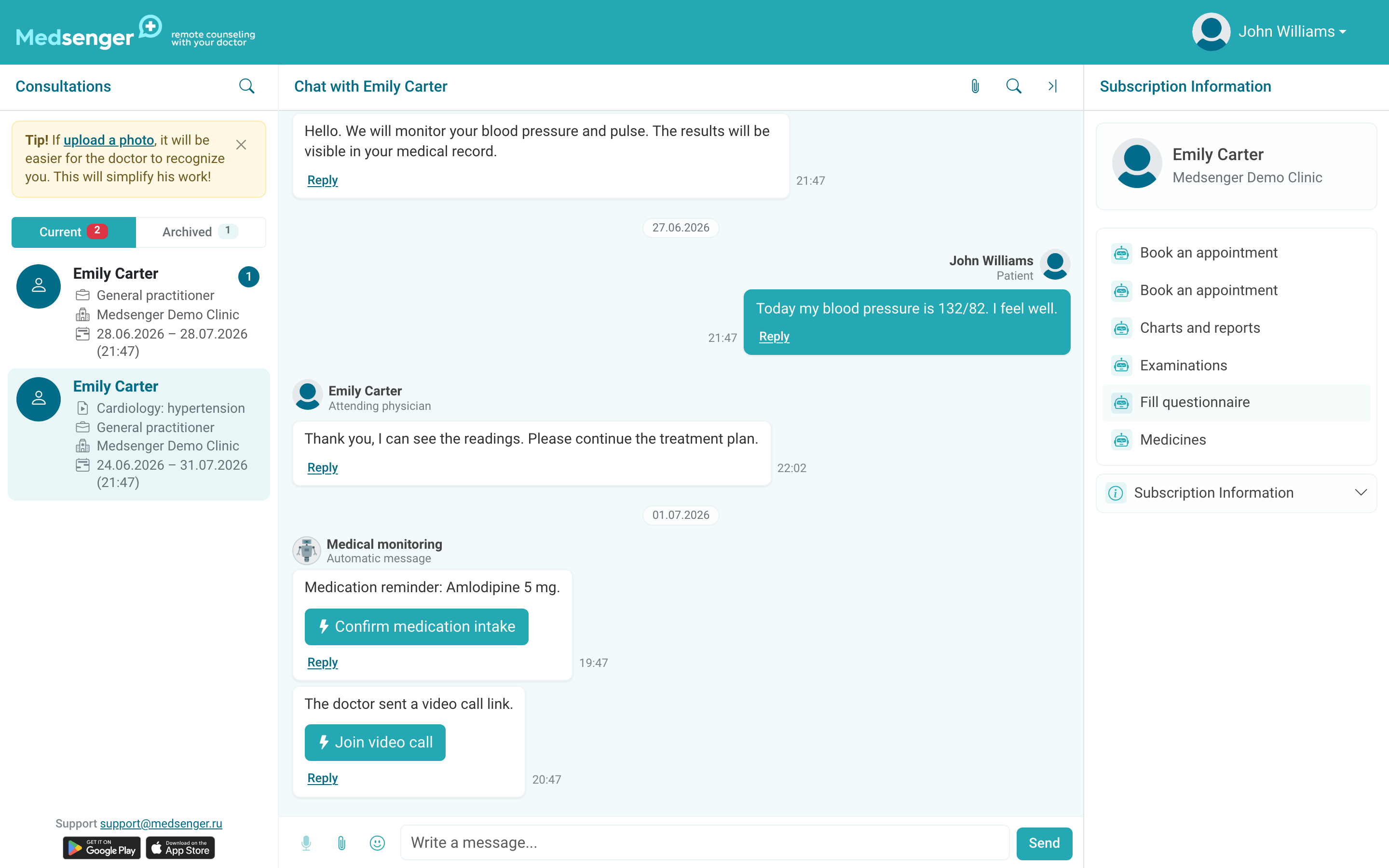
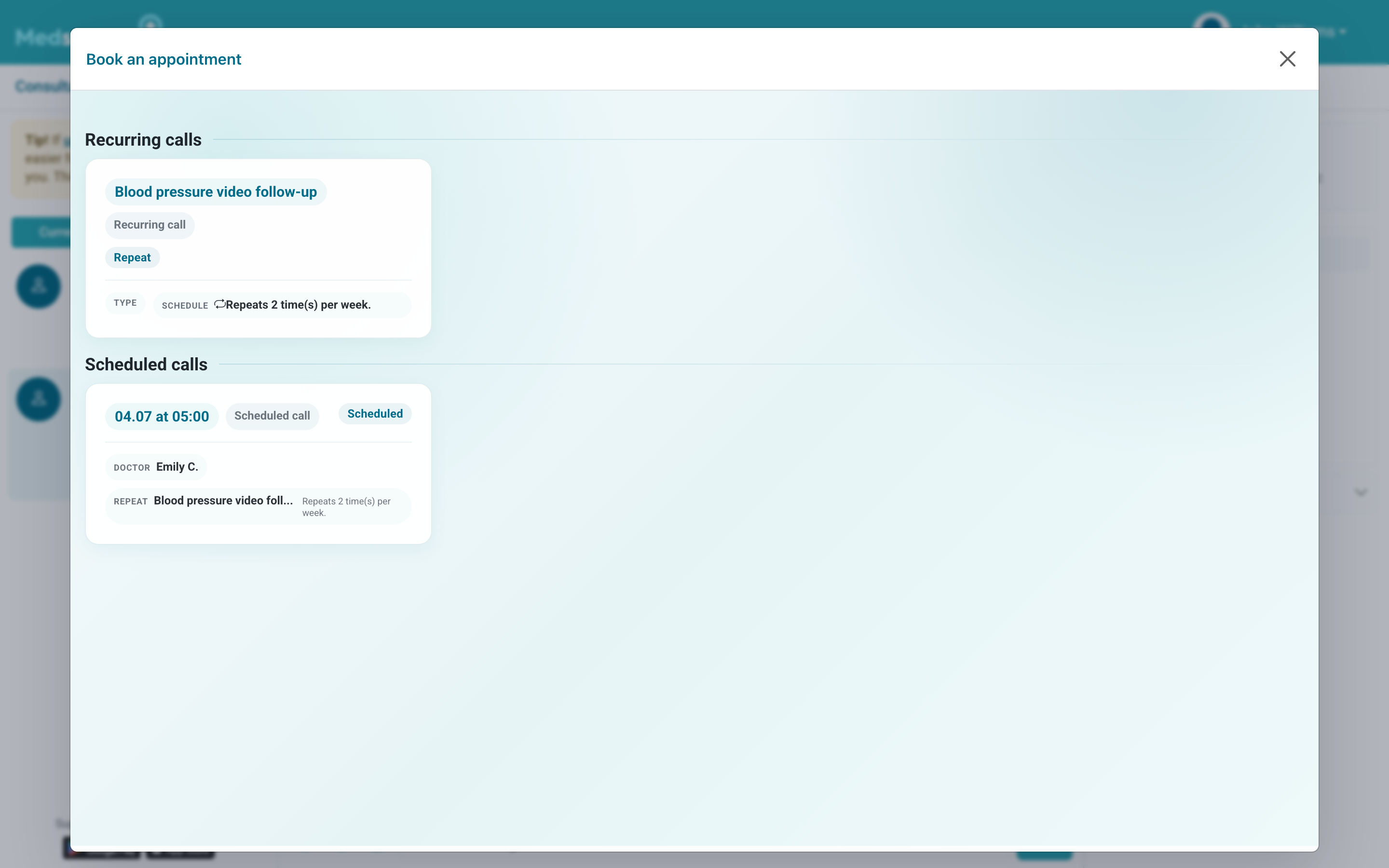
After clicking it, the schedule window opens. If the clinic allows patients to choose time, select a suitable free slot and confirm the booking. Already scheduled calls are shown in the same window.
If camera or microphone does not work
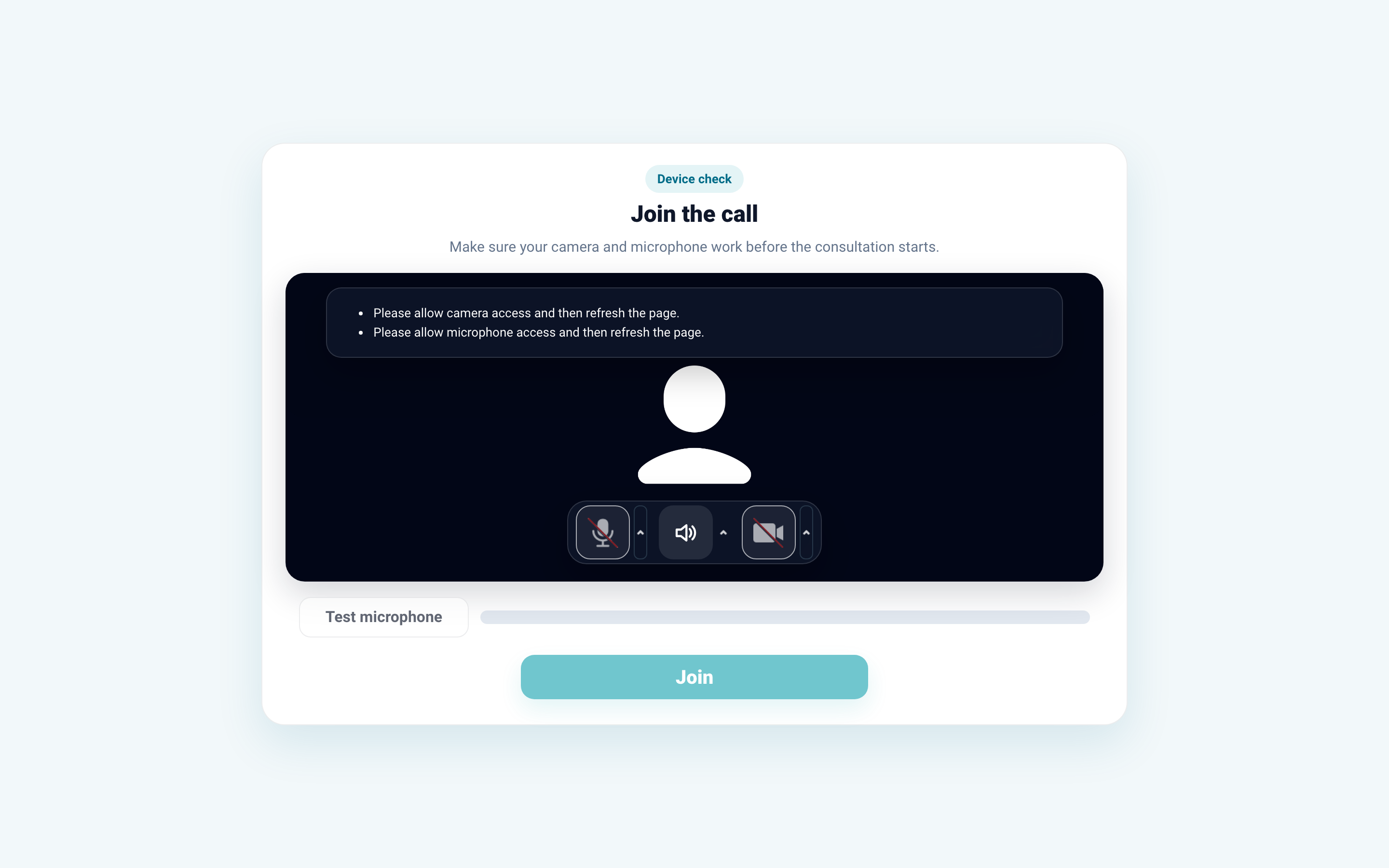
Before joining, the video service shows a device check screen. Make sure the camera is on, the microphone is selected, and the Join button is available.
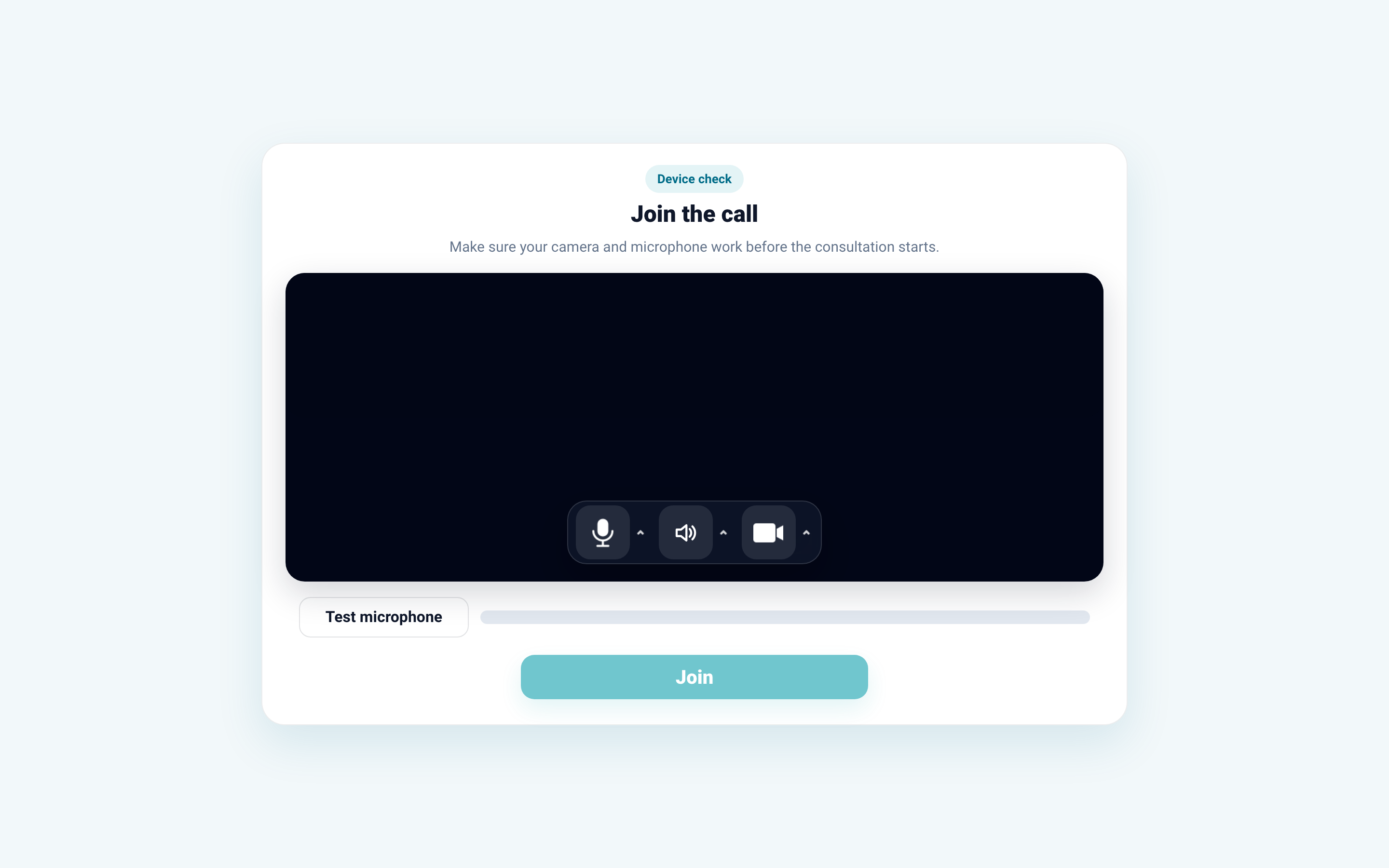
Allow the browser to access camera and microphone. You cannot join the call without a microphone, and without a camera you can join only if the video service shows such an option.
If the video service asks for permissions
If an access error appears, allow camera and microphone in browser or app settings, then refresh the call page.
If access is already allowed but the error remains, close other apps using the camera, check the internet connection, and try another browser or the mobile app. If nothing helps, write to the clinic and say that you cannot join the video call.