Notifications do not arrive
Even if a notification did not arrive, new messages and tasks remain available in the Medsenger chat. Do not use notifications as the only way to follow the consultation.
Email notifications do not arrive
Check Spam, the email address in your profile, and the Email notifications item in the profile menu. Email notifications can be disabled manually, and then emails about new messages will not arrive.
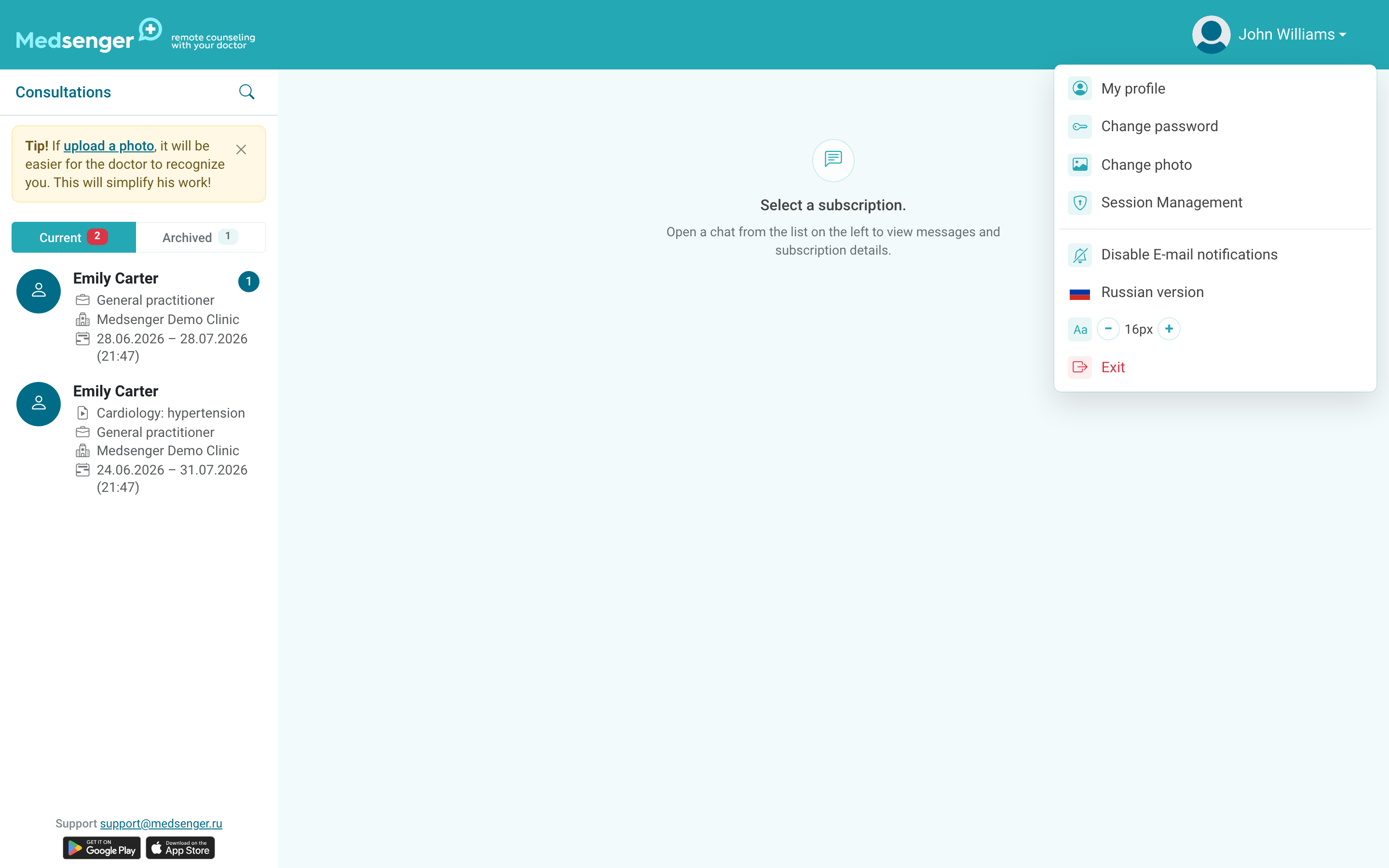
If the menu contains Enable email notifications, click it. If the email is incorrect or you no longer have access to it, change the email in the profile and confirm the new address with a code. The profile location is described in how to activate account and log in.
App notifications do not arrive
Check that you are logged in to the mobile app with the same account where the consultation is open, and that Medsenger notifications are allowed in phone settings.
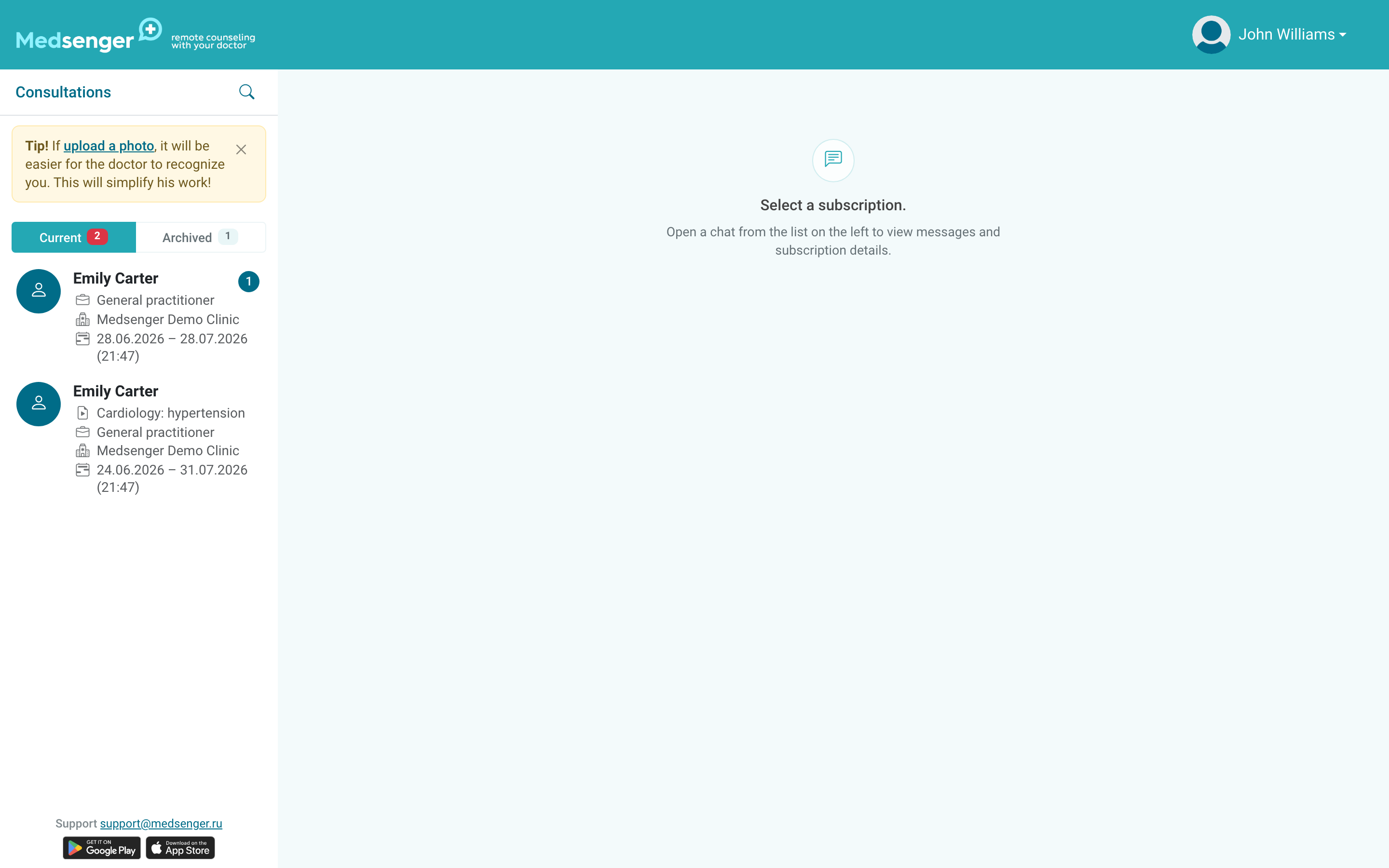
App links:
If phone notifications are allowed but still do not arrive, log out of the app and log in again. If this does not help, reinstall the app and allow notifications on first launch.