How do I create a scenario?
Open Monitoring scenarios. The list contains ready-made Medsenger scenarios and scenarios owned by your clinic.
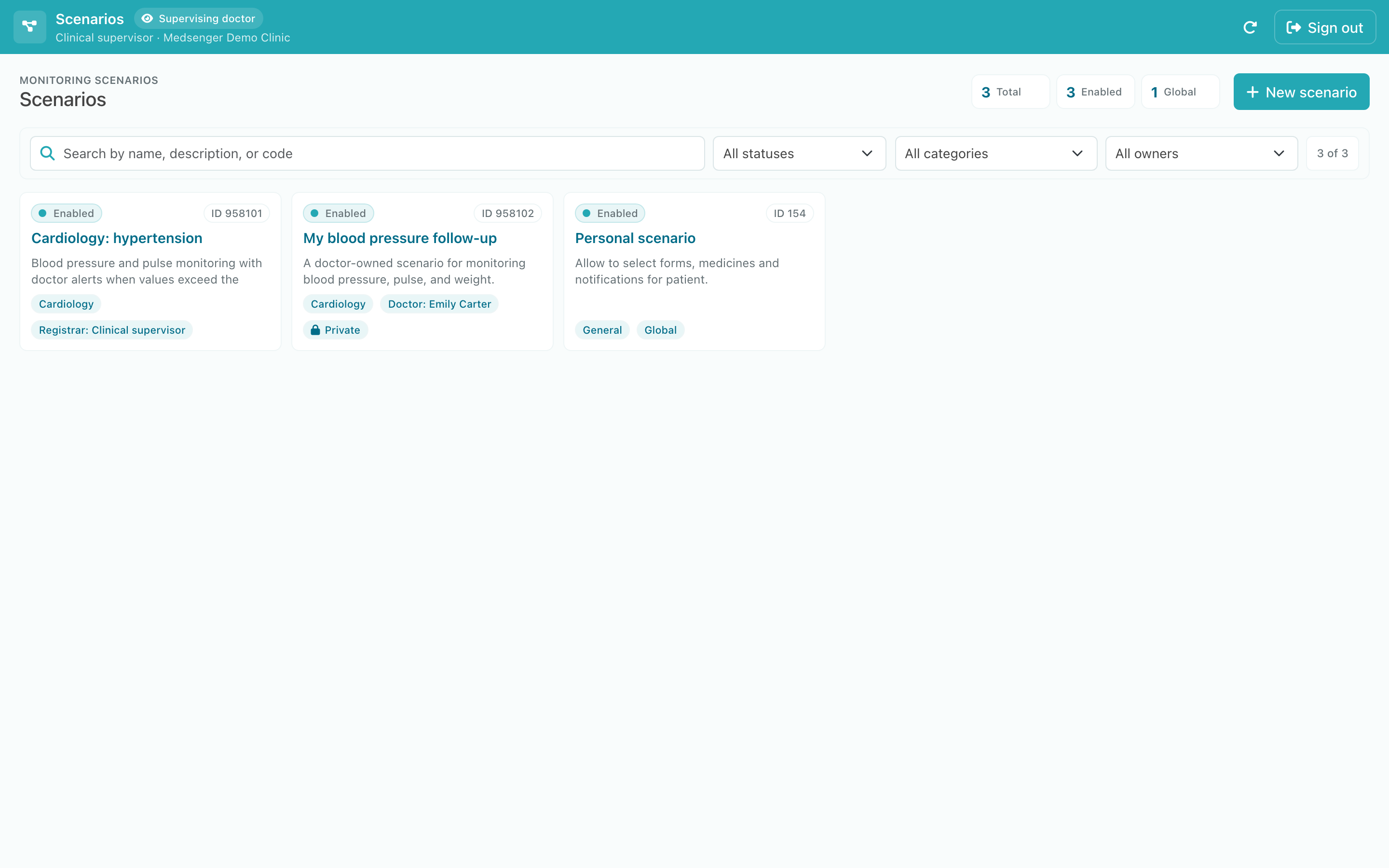
Create a new scenario
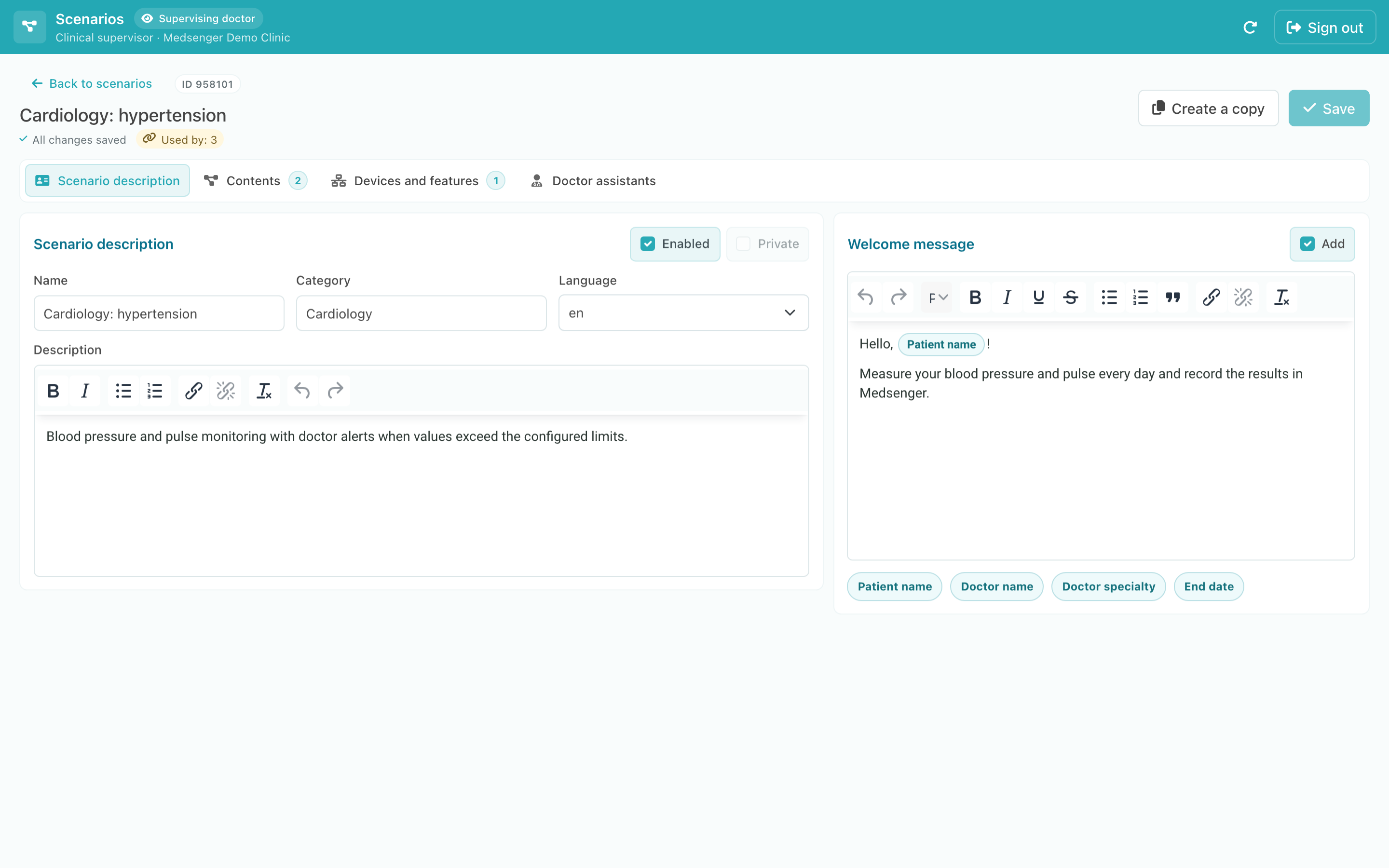
Click New scenario and complete:
- Name — used when selecting the scenario for a consultation;
- Category — groups similar programs;
- Language — the language of patient tasks and messages;
- Description — a short purpose of the program;
- Welcome message — the first explanation the patient receives.
The welcome message can include the patient name, doctor name and specialty, or consultation end date.
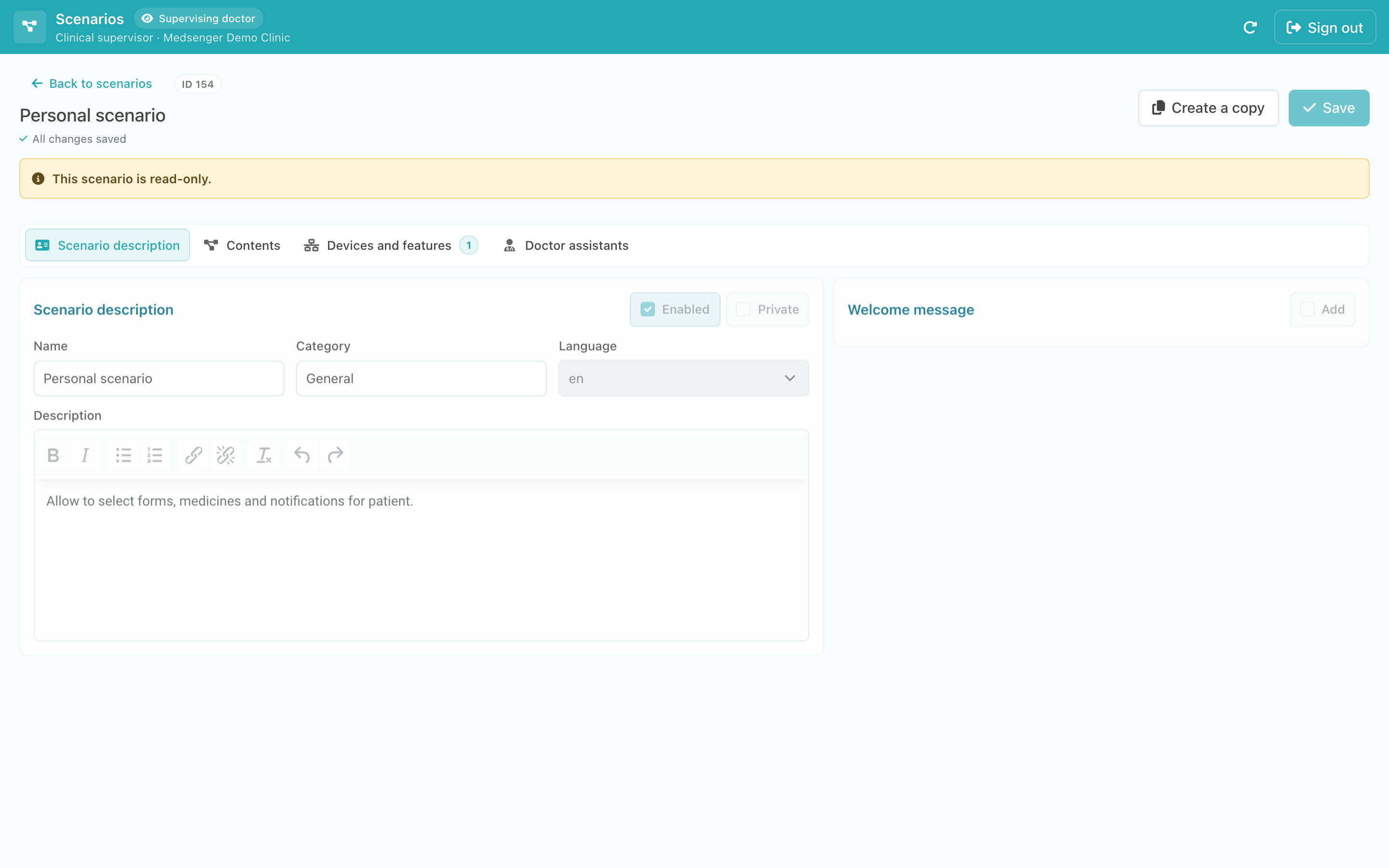
Use a ready-made scenario
You can view a global scenario but cannot edit it.
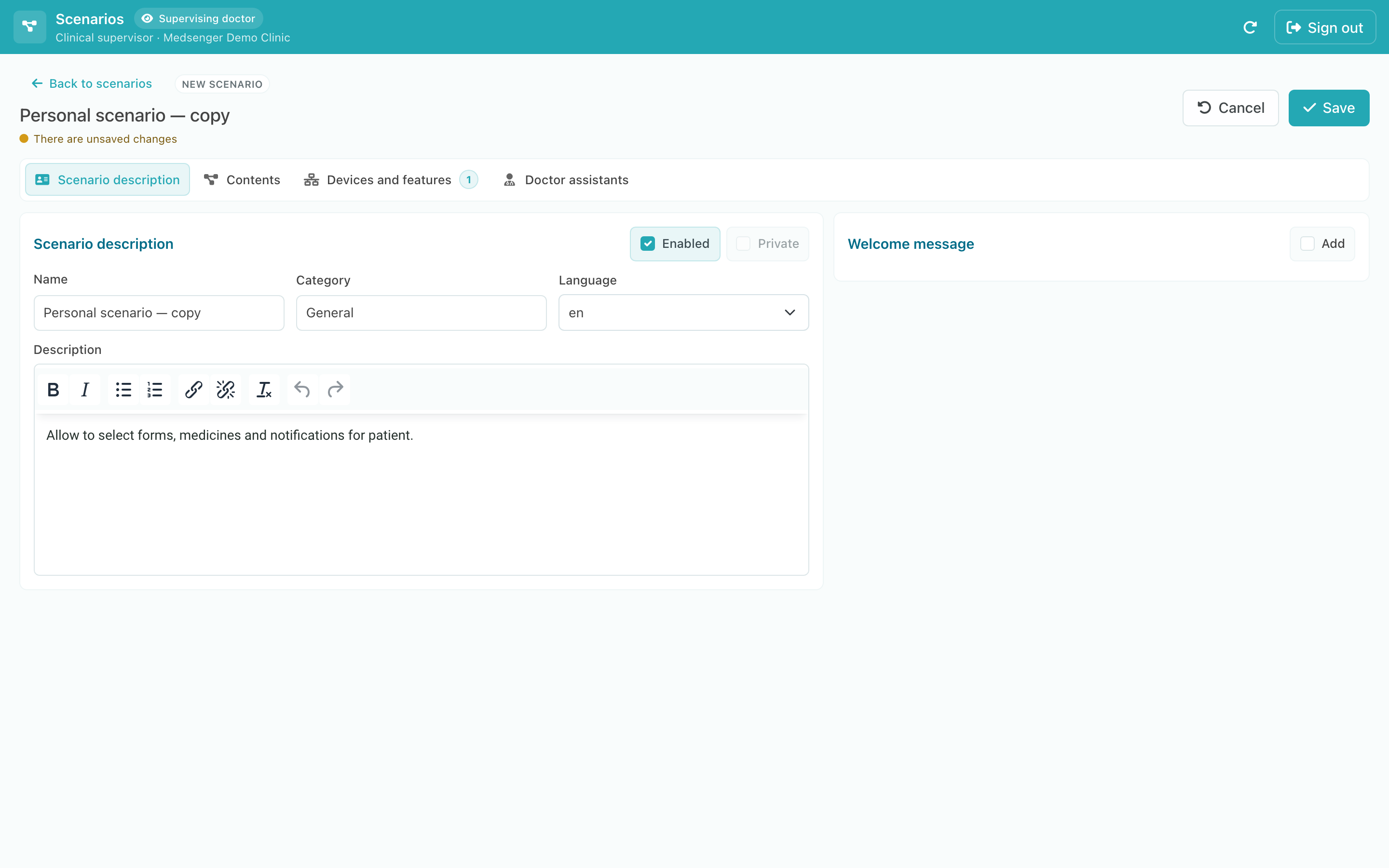
Click Create a copy. A new scenario opens with the same contents. Change its name and settings to match the clinic workflow.
After completing the description, open Contents. Save the scenario after checking all tabs.