How do I add tasks and schedules?
Open a scenario and select Contents. The left side lists the available task types. The right side shows selected items and their settings.
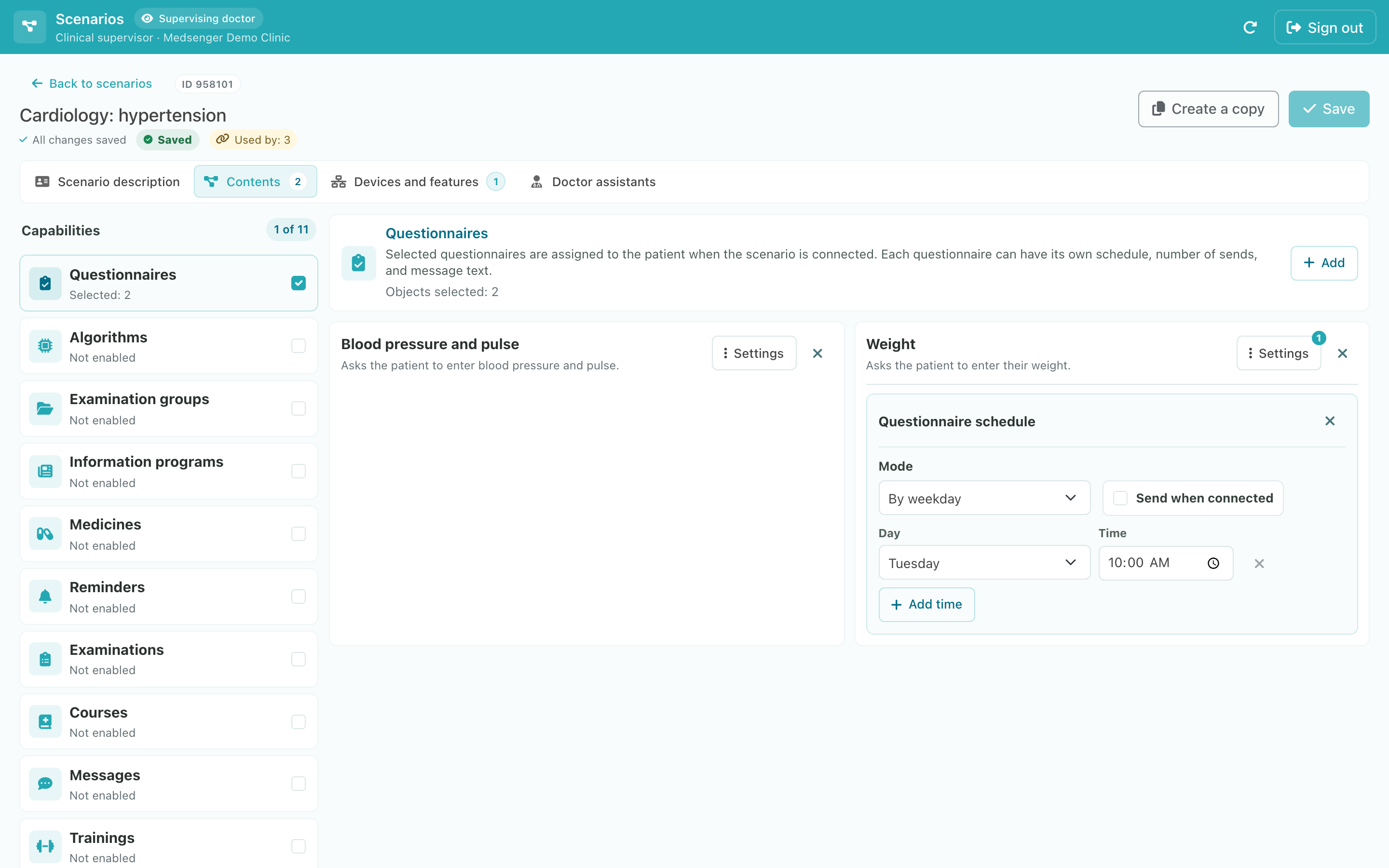
Add a task
- Select a type such as Questionnaires, Medicines, or Examinations.
- Click Add.
- Find the required item and click Connect.
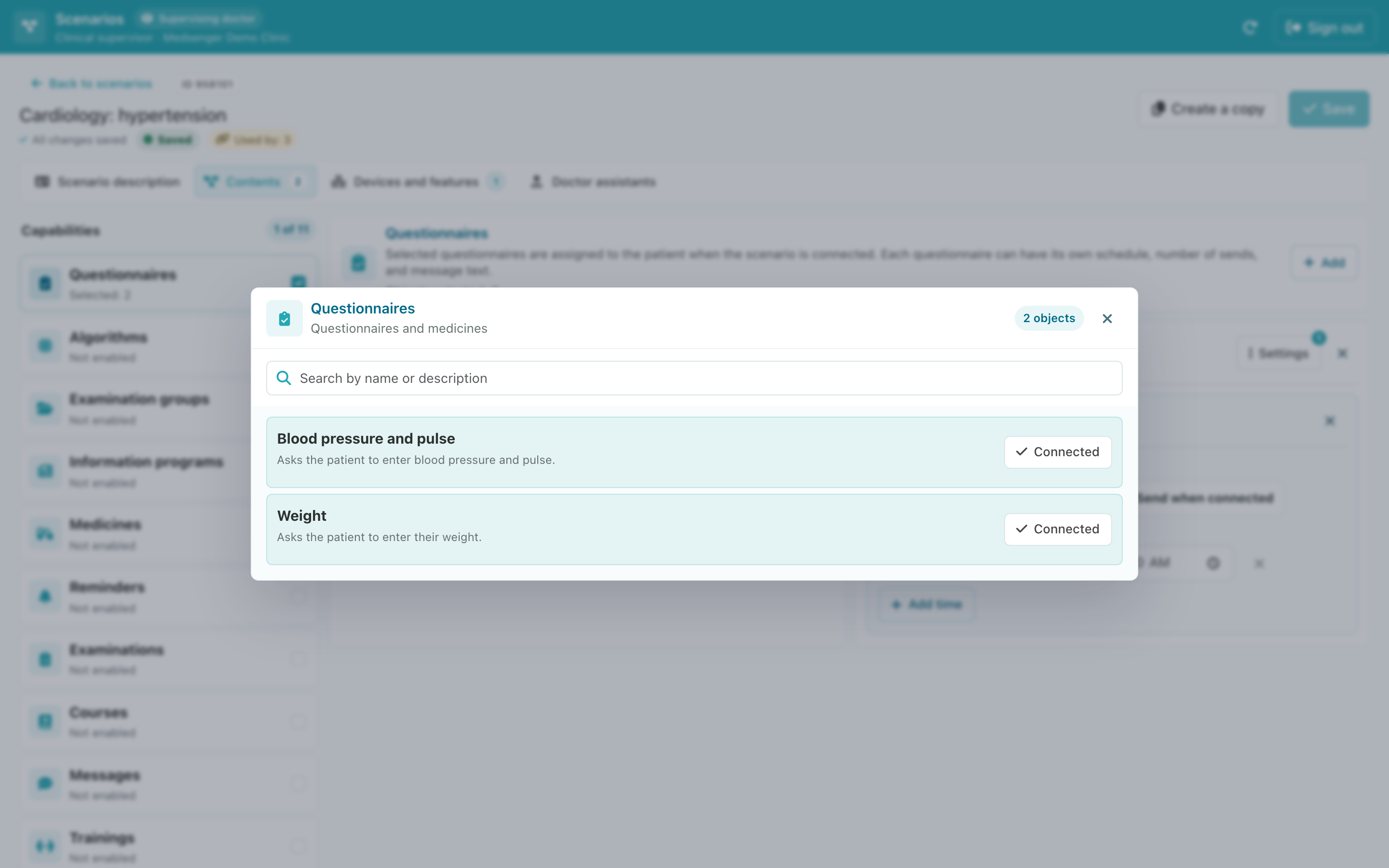
The catalog receives prepared items from the connected Medsenger modules. Edit questionnaire questions under Monitoring templates. In the scenario editor, you only connect the questionnaire and set its schedule.
Set a schedule
Click Settings next to the selected task. Depending on the task type, you can choose weekdays, times, specific dates, or manual start. Send when connected sends the first task as soon as the scenario is connected.
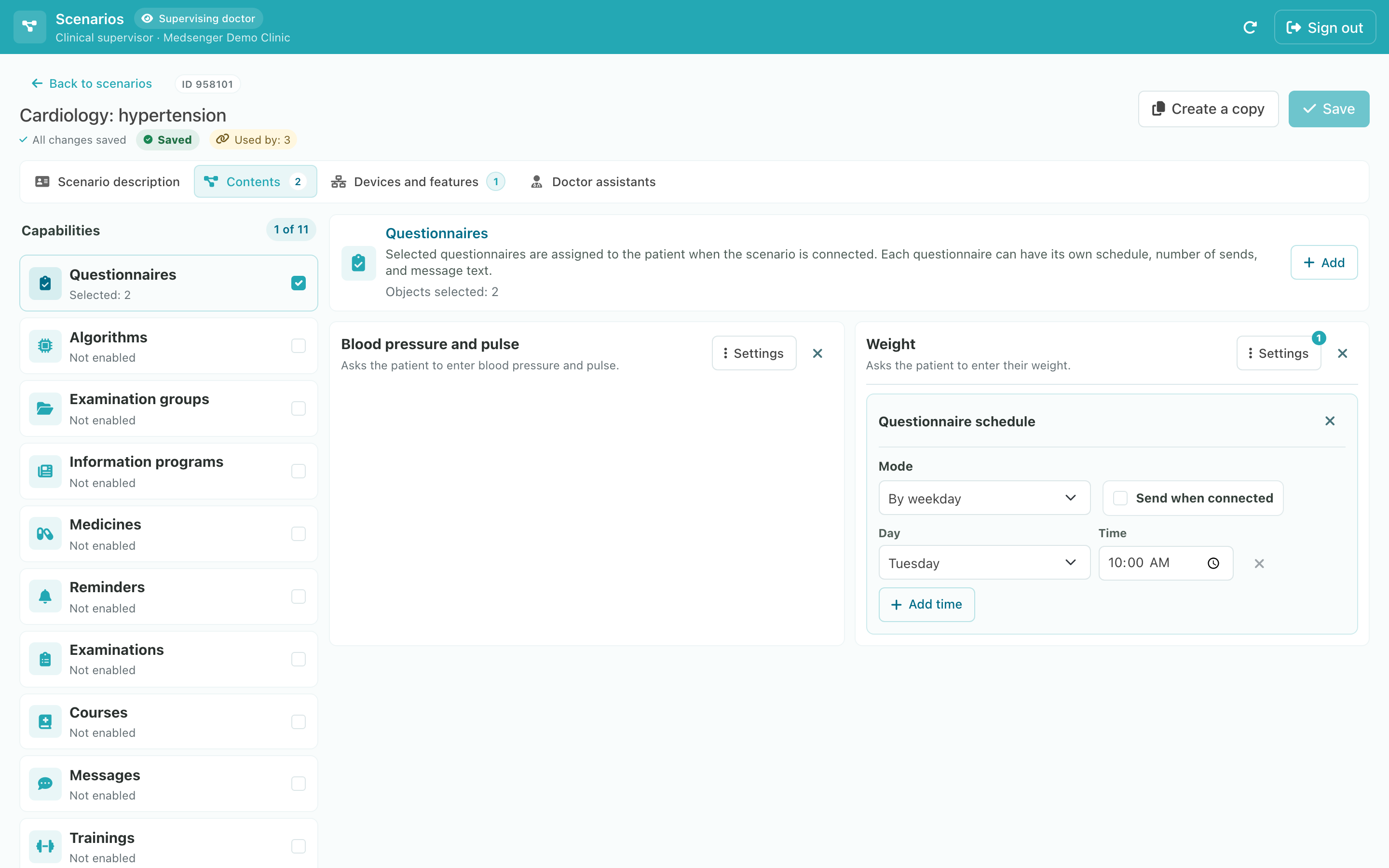
This schedule applies only to the selected task. Choose manual mode if it should not be sent automatically.
To remove an item from the scenario, click the cross next to it. When the contents are ready, check devices and doctor assistants.